
January 29th Release Notes
Release NotesBugs Fixed on POS:
Orders:1. In the previous version, when "Gtip No Limit" was enabled in NewBackOffice > SetUp > Tips, if user ticket’s subtotal is less than $10 then add a Gtip amount$10, the Gtip will still restricted by the subtotal amount. However, when the Gtip was entered as a decimal value, it was not subject to this limitation. Now we fixed it, the Gtip will not limit once the setting is enabled. [Ticket #137145]
2. In the previous version, if a table had 4 guests and a limited item (restricted to one per person) was added to the cart, changing the table and reducing the guest count via the functional box above the cart before finalizing the ticket would not update the item limit accordingly. As a result, the system still allowed 4 items to be placed under a ticket for only 2 guests.In the new version, the POS system now enforces this restriction. If the guest number is updated, the system will notify the user, prompting them to either confirm the cart or adjust the guest count accordingly to comply with the item limitation rules.[Ticket #138102]
3. In the previous version, if the user enabled Tip First, Paid First, and Auto Tip with the CDS, an issue occurred when an employee started a ticket that triggered the Auto Tip function. The system automatically added a tip, but if the server removed the tip using the Tip First function, the tip was not removed from the functional box above the cart.
Subsequently, when using the Paid First function to complete the payment, the system only processed a partial payment, and the payment page remained open. This issue could lead to duplicate charges or cases where the customer's card was charged, but the POS system failed to generate the corresponding ticket.
This issue has been resolved in the latest version. However, there are still some edge cases to consider, such as removing the tip in an unconventional manner, like setting the tip to 0 using the Tip First function. [Video]
4. In the previous version, When the store sets both breakfast and lunch times, after the breakfast time ends, selecting a lunch item with a subitem still prompts for a code, even though lunch time is still active. We fix it now.[Ticket # 139879]Payment:
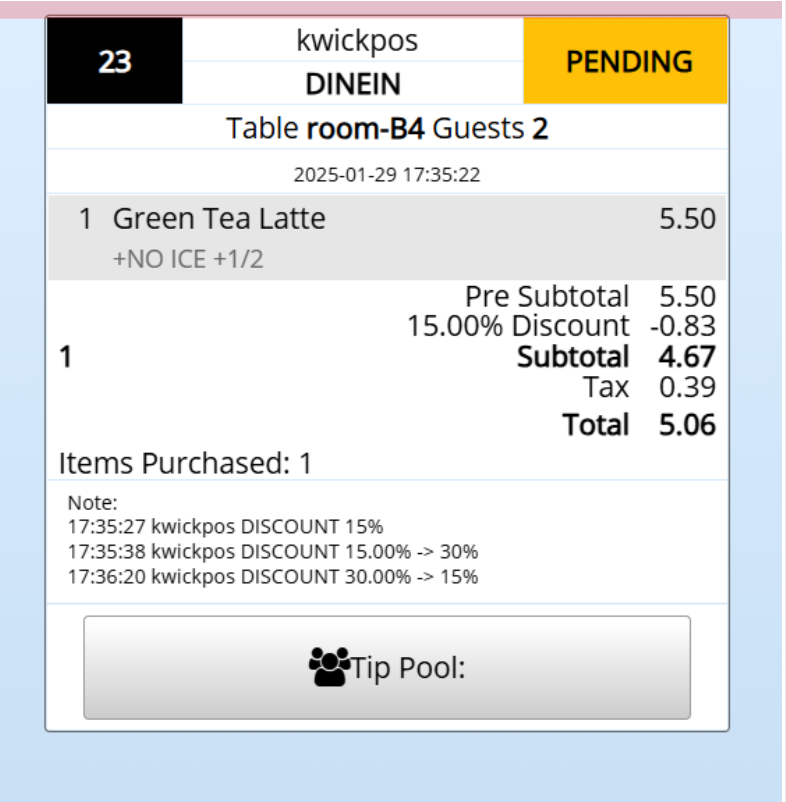
- In the previous version, if a discount was applied to a ticket, there could be a $0.01 discrepancy in the subtotal. This issue has now been fixed.[Ticket # 138496]
In the previous version, if the merchant enabled the “on time” feature on the menu and enabled the “hide expired menu” setting as Yes, which means only the Boss and manager can see the hidden menu, other users cannot see it in the front table. If set up, items show on the menu from 10AM-midnight and midnight to 2AM on Thursday ( format as 23:00-00:00;00:00-01:00). It will not show in the menu (POS and ONLINE) because the “;”(semicolon) is not working. Now it is working but if you would like to apply it on Thursday, you still need to enable Friday. [Ticket #141750]
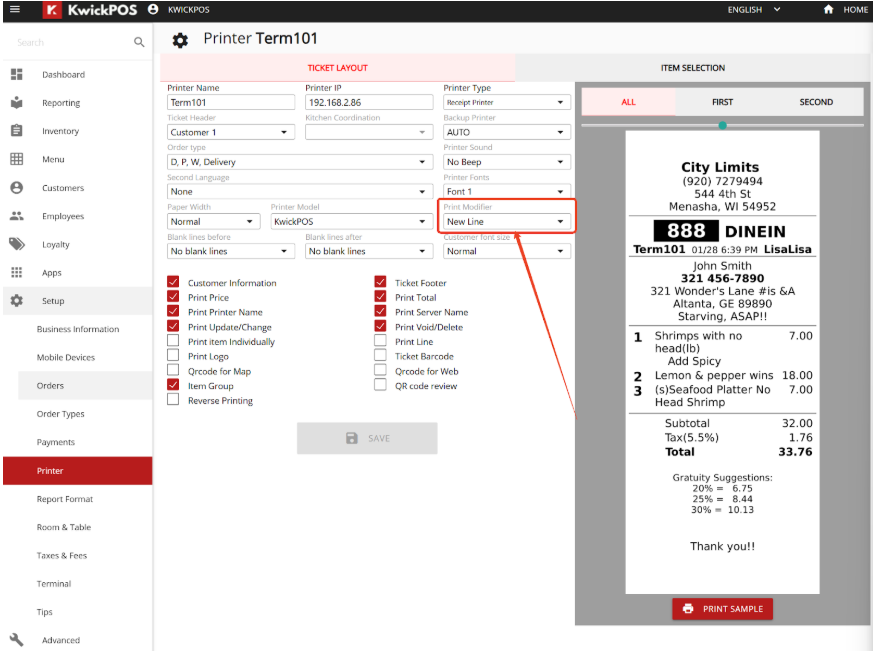
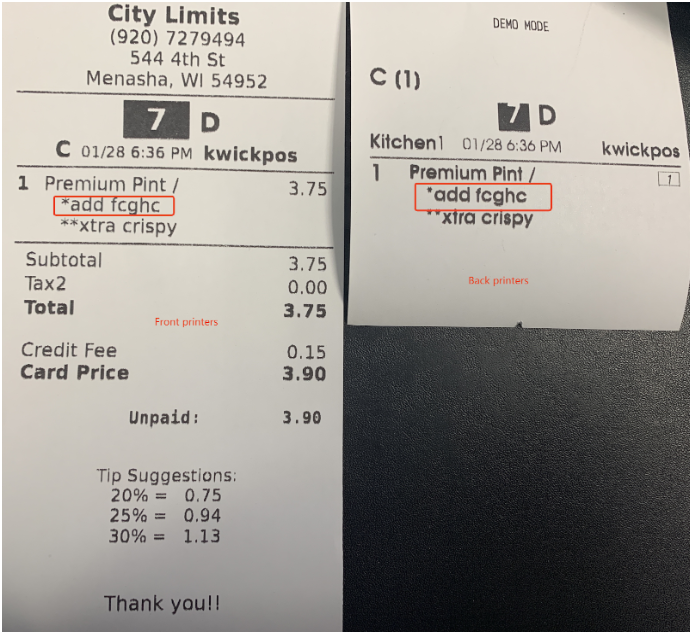
- In the previous version, Only in the Native mode printers can the special requests be printed in new line. Now we apply it on the New mode of the printer. In the new mode printer, special requests are printed in a new line if “Print Modifier” is set to “New line”. But the customized special request did not apply.
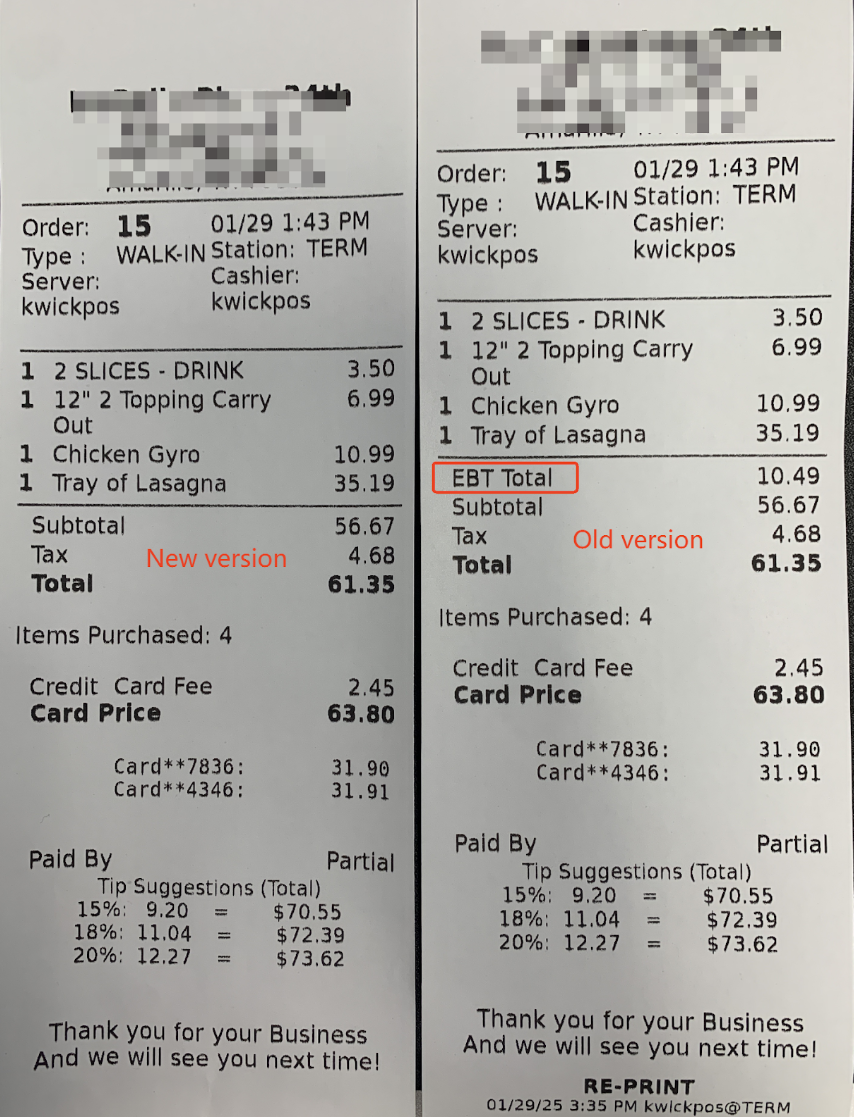
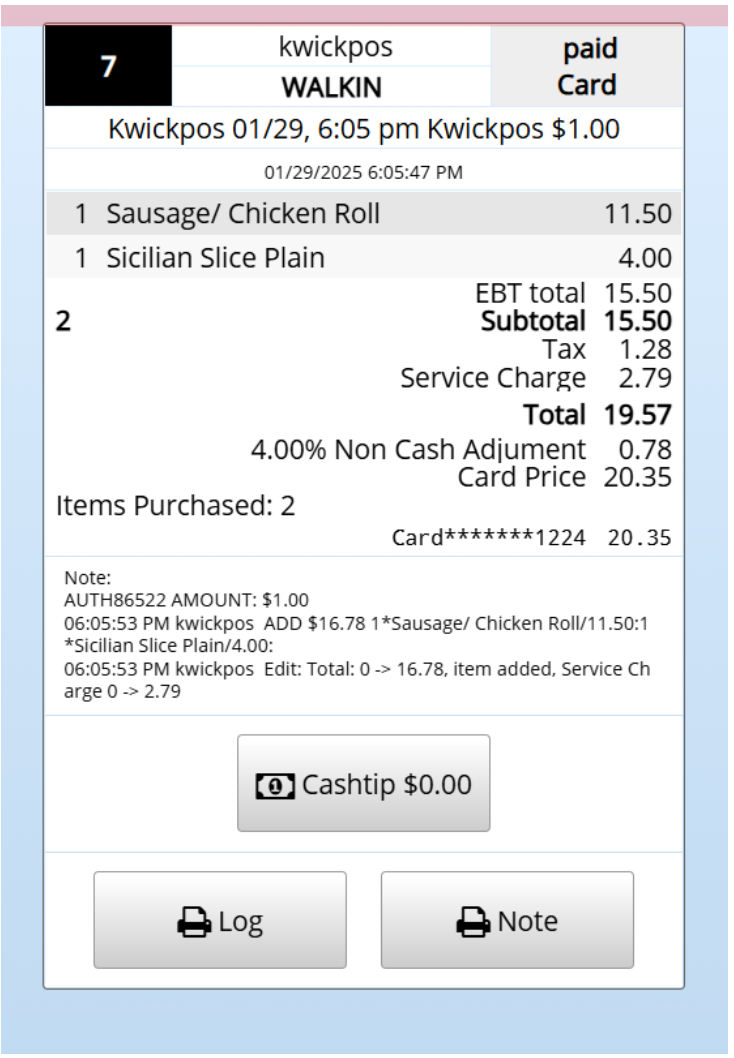
3. In the previous version, for delivery orders, if the phone number is manually entered in full while using touch screen mode, the system automatically fills Address 1 with the zip code, resulting in the zip code being printed three times. We fixed it now. [Ticket # 138662]
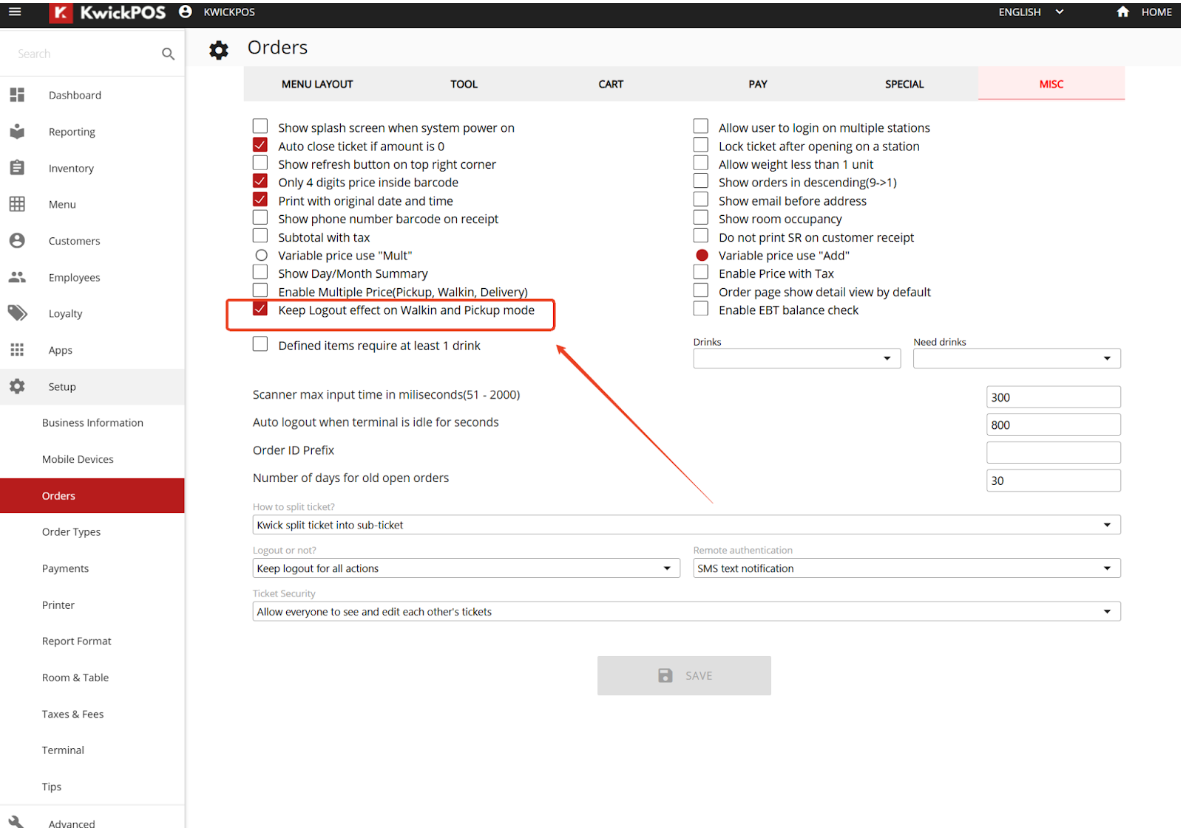
4. If "Keep Logout" is set to "Yes" or "All," it will apply to Dine-In orders. However, we have introduced an additional setting: "Keep Logout Effect on Walk-in and Pickup Mode" in New BackOffice > SetUp > Orders > Misc. Enabling this option extends the "Keep Logout" functionality to Walk-in and Pickup orders as well. [Ticket #142333]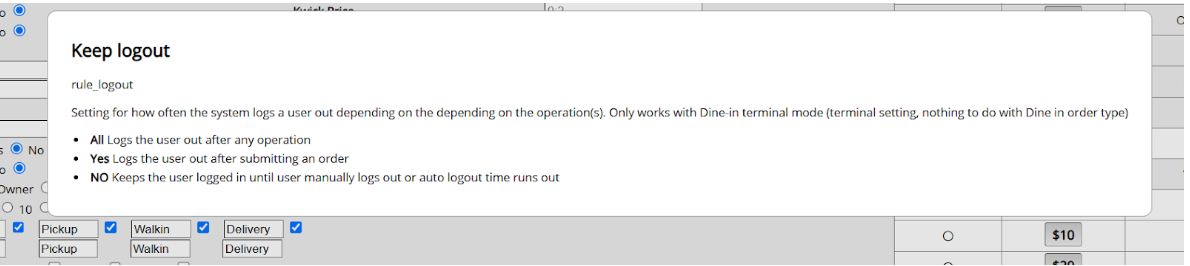
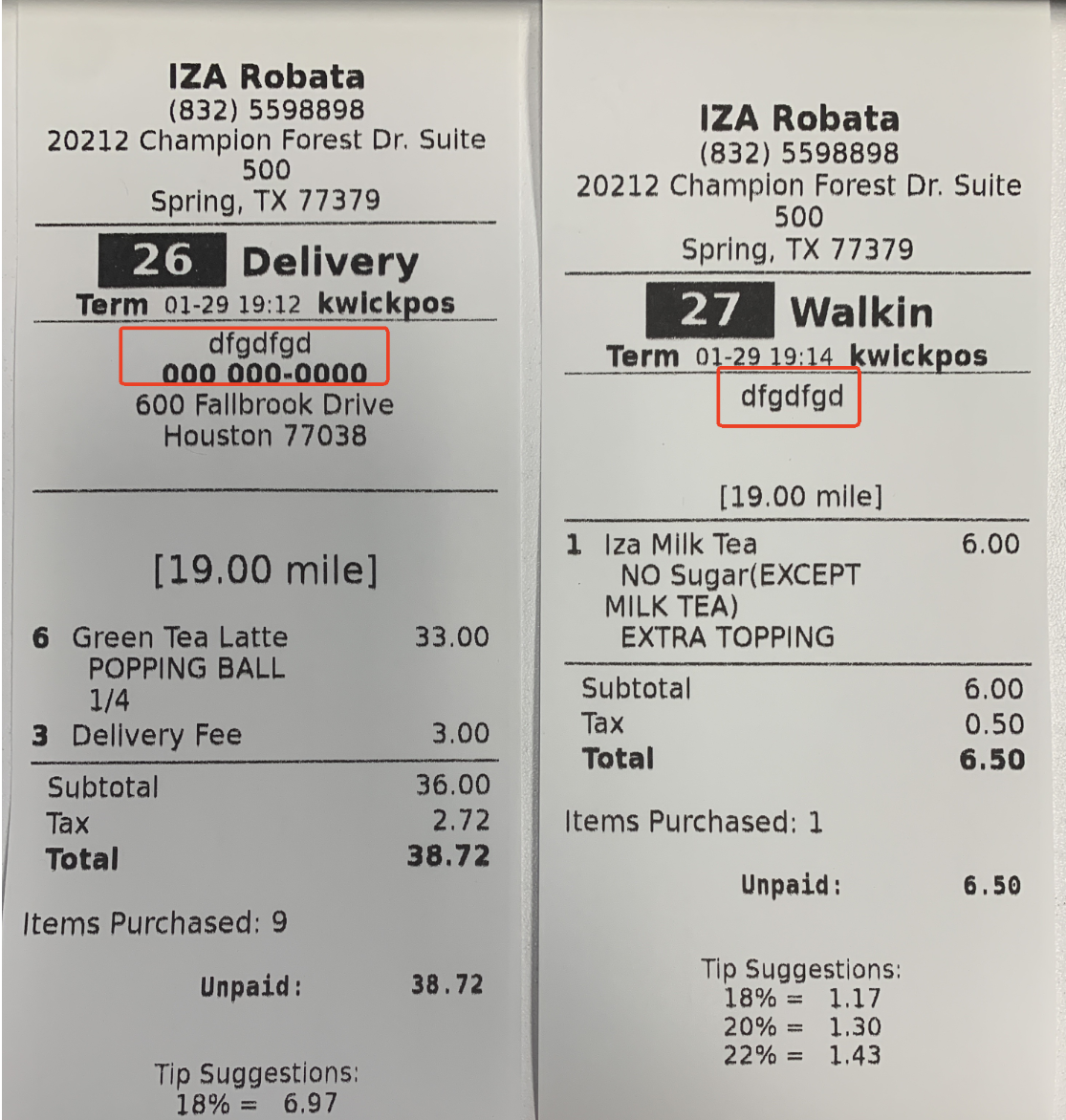
5. In the previous version, if the user just entered the customer name on a WalkIn order his phone number will be saved as “000000000” in the functional box above the cart. We removed the phone number in the new version. Also in the previous version, if you manually enter the phone number as ‘000000000” on a Delivery order, it will save in the database. It will cause the issue that when user print out a walkin order without phone number, it will get the user information from phone number “0000000000”, now we will only retreive the data from myorder table if phone number is ‘0000000000’, this will avoid this printing issue [Ticket 140459 and Ticket #137386]
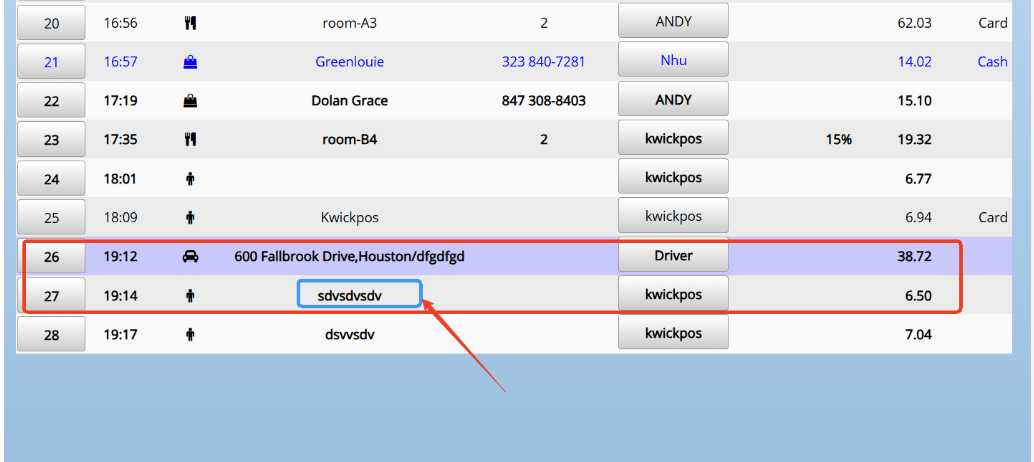
6. We added the table # on the cc receipts in the new Bata version. [Ticket#140160]
7. In the previous version, if the customized name is too long, it will mess up the print on the cc receipt. Now we have corrected the format to allow the name no longer than 9 letters. [Ticket # 132590]
- In the previous version, if the screen is being smaller than the regular, the “Online” and “Others” category will be hidden and not shown on the Orders page. Now we fixed it. [Ticket #140521]
- We made the ‘Detail' page as default. Once you click orders, you need to enable the setting “Order page show detail view by default” on the New Back Office > SetUp > Orders > Misc. [Ticket # 139719]
- In the previous version, if the KDS only selected “Walk In” orders showed up, there are “PickUp” orders shown on the screen. The system messed up those two order types. Now we fixed it. [Ticket # 139020]
- In this Magtek (iOS 15.8.3) version, the tip from the previous transaction was incorrectly carried over as the default for the next transaction due to the system not clearing it. This issue has now been fixed. [Ticket # 139013]
- In the previous version, if the payment was closed by the Chain Gift, the transaction cannot adjust tips in the Credit page. Now we fixed it.
- In the previous version, the Chain Gift Card Payment cannot be voided from the “pay first” page and the credit page, now we fixed it.
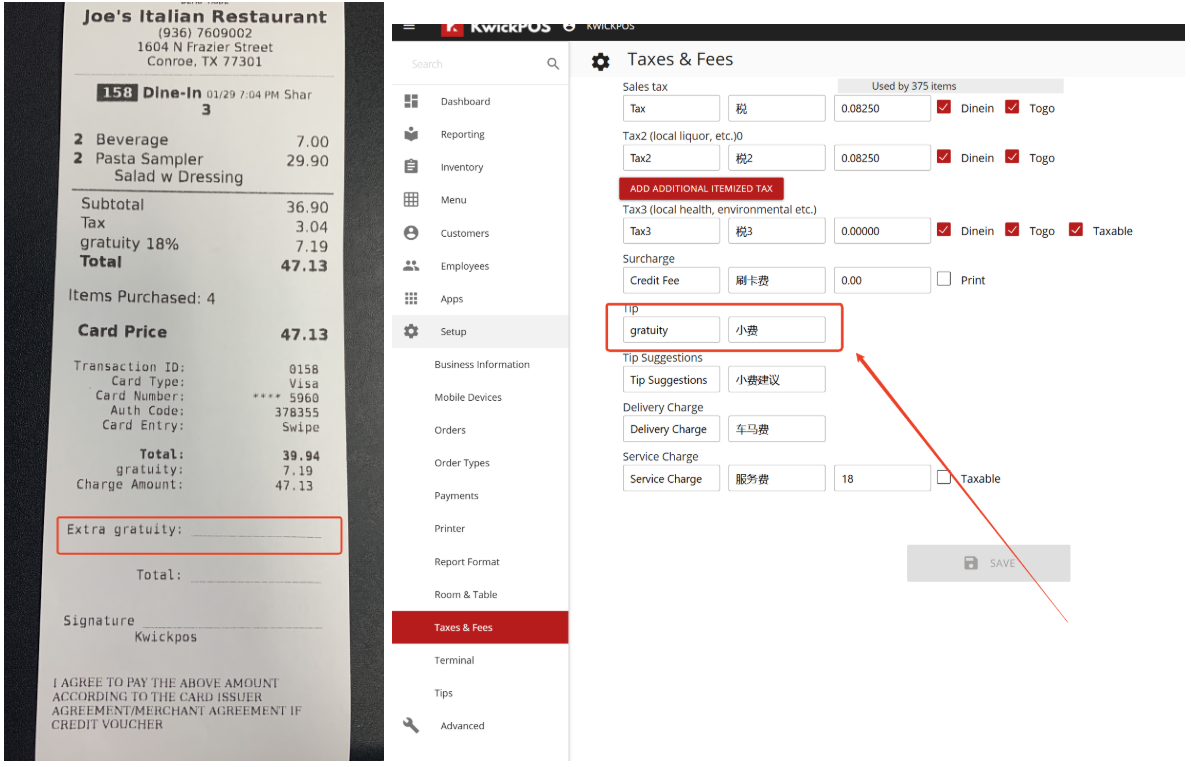
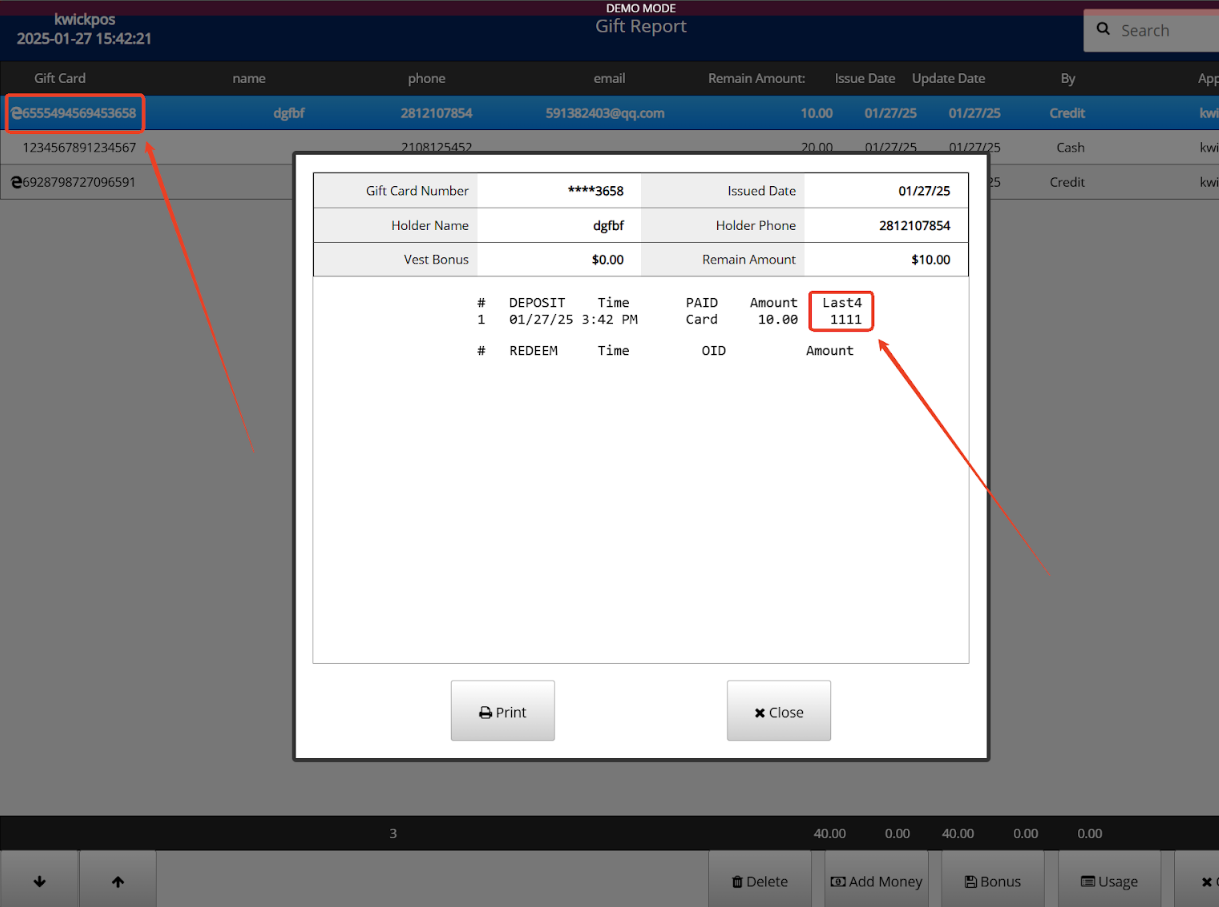
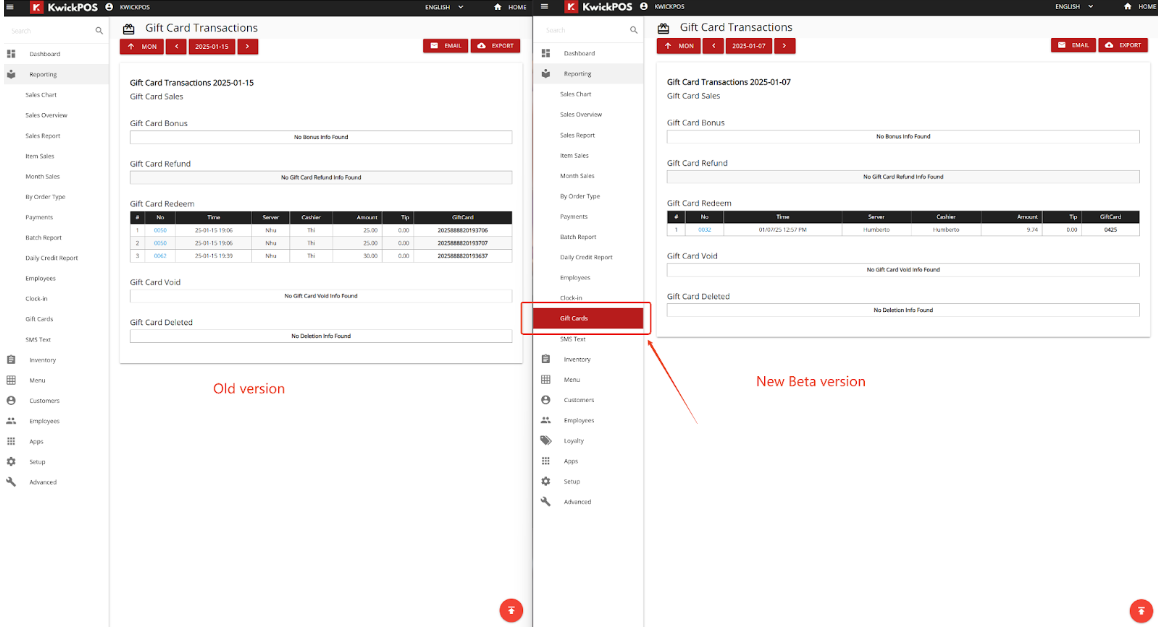
- We have optimized the E-gift card report format, which now displays the last four digits of the customer’s credit card information, allowing users to confirm online sales transactions on the gift card usage page, with an “e” sign to mark it as an E-gift card. Additionally, in the new back office> Reporting >gift cards, the gift card report has been updated to include "sender" and "receiver" customer information, providing clearer insight into payment history from the online website.[Picture]
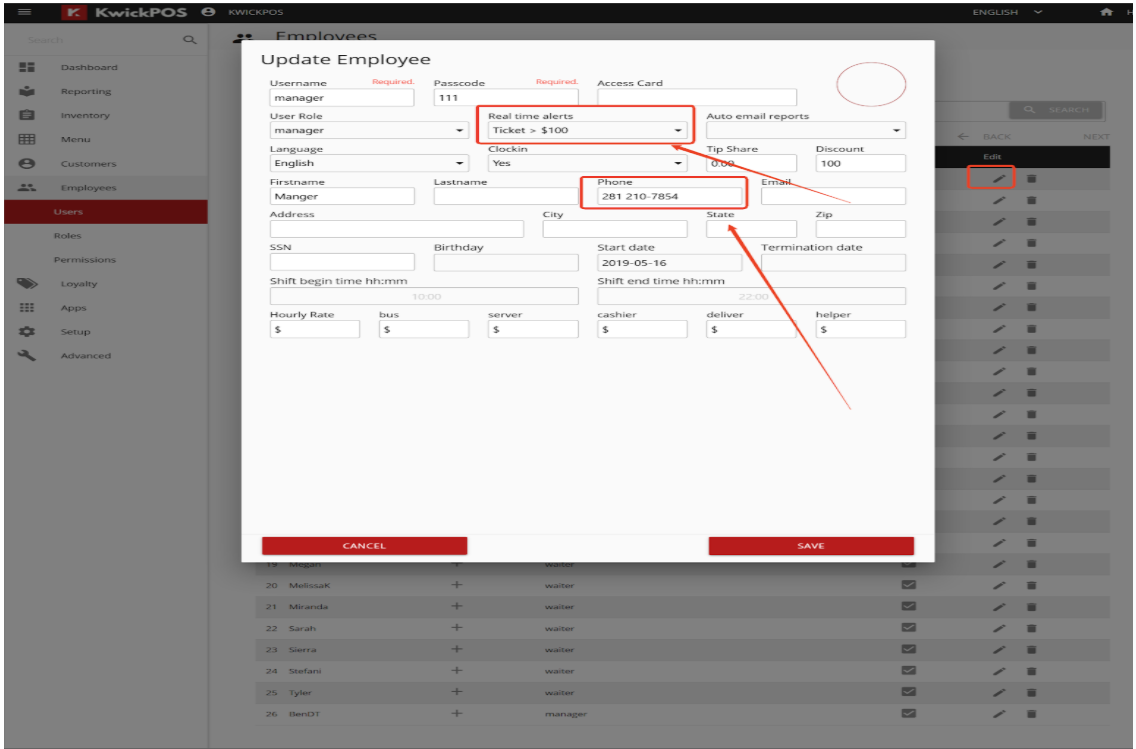
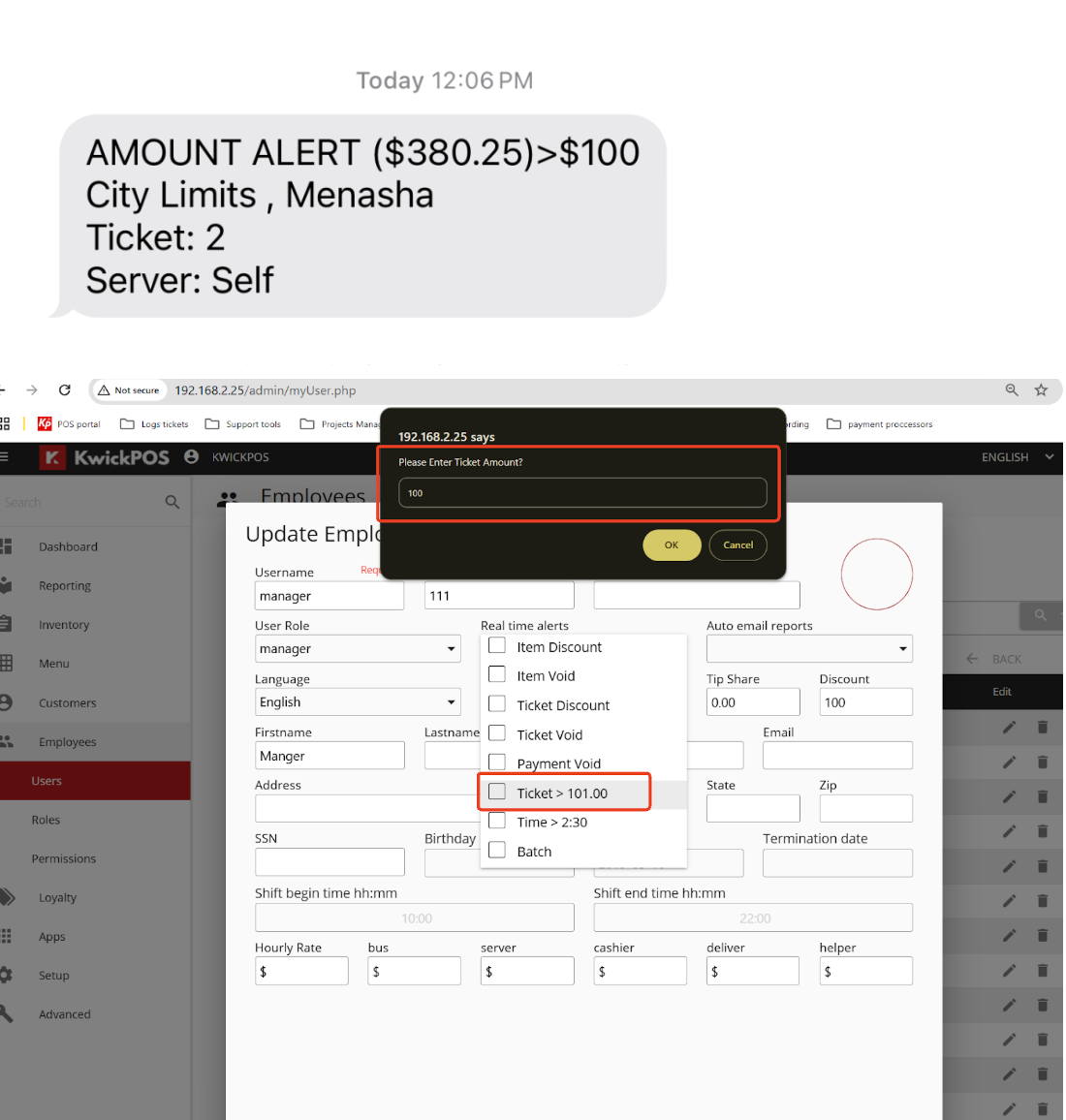
For “Real Time Alerts” -> “Amount >$100” under New Back Office > Employees > Users > Edit:
- If a server was upgraded to the previous version from 2023 version or older, the real time alerts were sent out as long as the amount was > $1, rather than when amount was > $100. Now fixed.
- In the previous version, if the amount was changed from $100 to $50, after saving, the amount still shows $100, instead of $50. Now fixed.(Refer to picture).
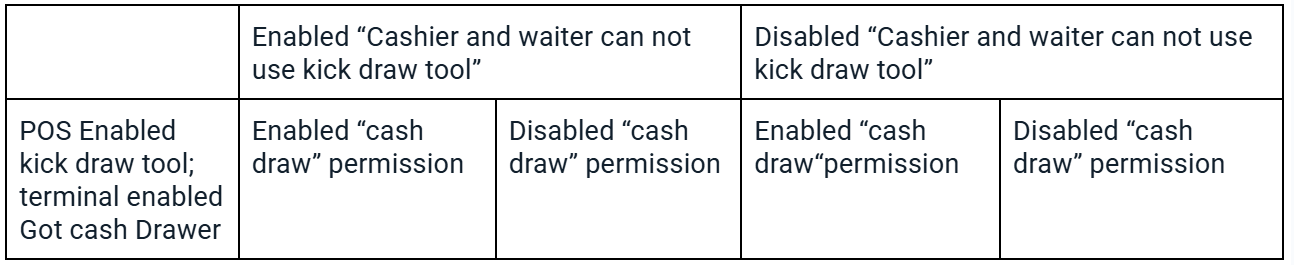
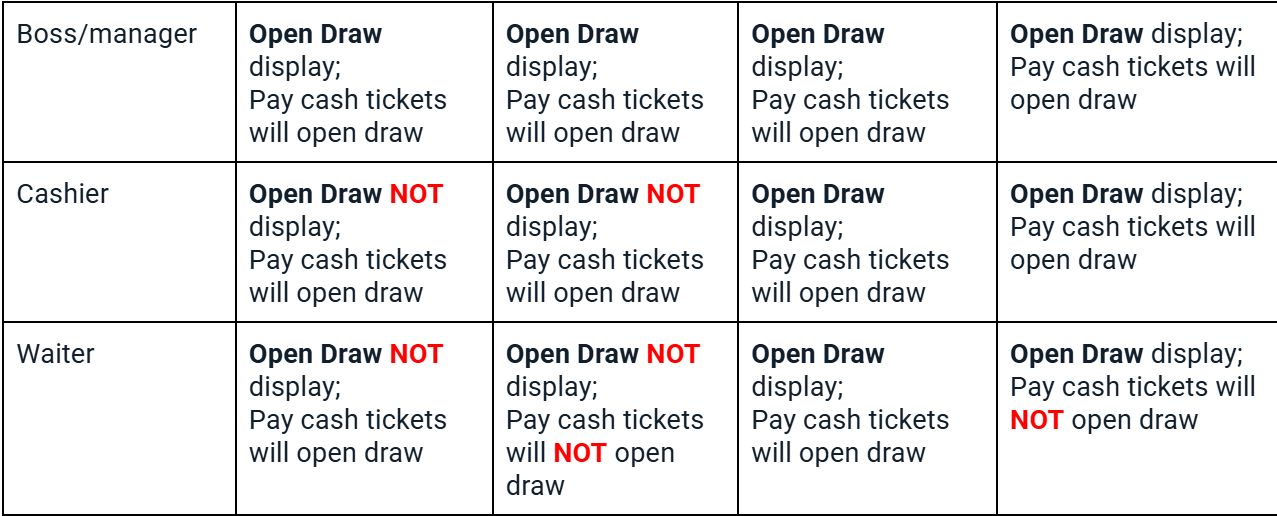
2. In the previous version, once enabled “kick draw tool”, everyone can open a cash draw by clicking the Open draw button on the Tools page. Some merchants only want cashier and employee to open the draw when pay cash, so we add a switch button to prevent the these two user group use cash draw tool, once enabled cash draw permission in Employees > permission and “Cashier and waiter can not use kick draw tool” in New back office > SetUp > orders> Tool, the “Open Draw” button will be removed under Cashier and waiters permission, they can open the cash draw only once they paid the cash tickets. [Ticket # 136706]
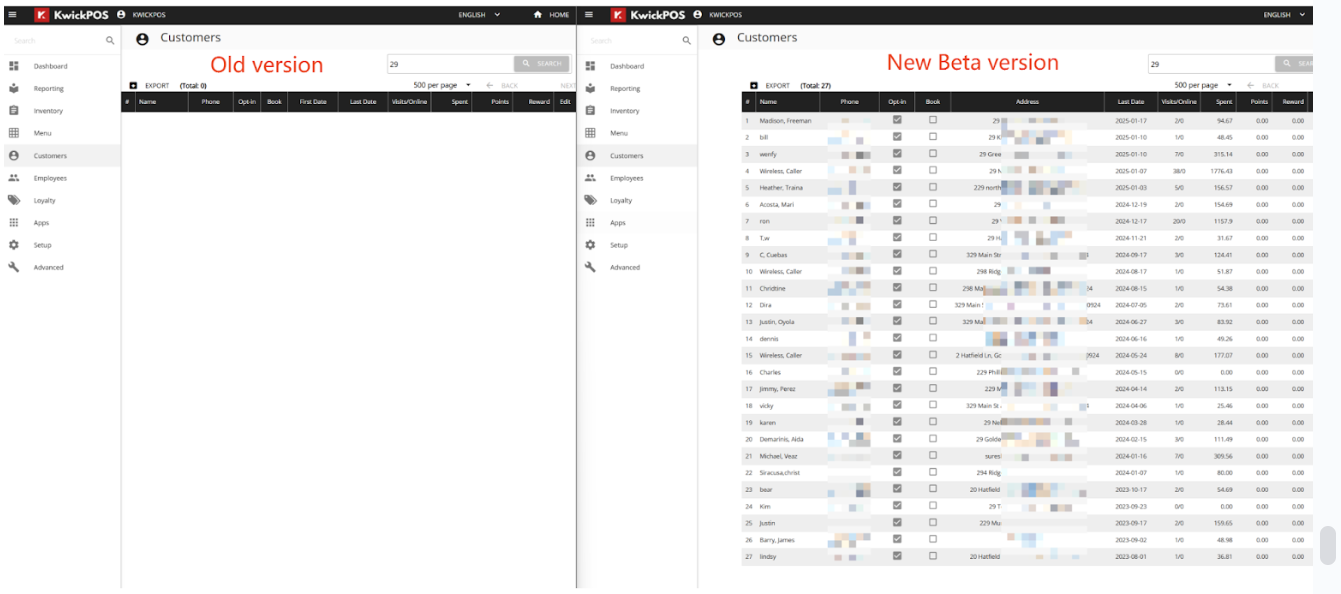
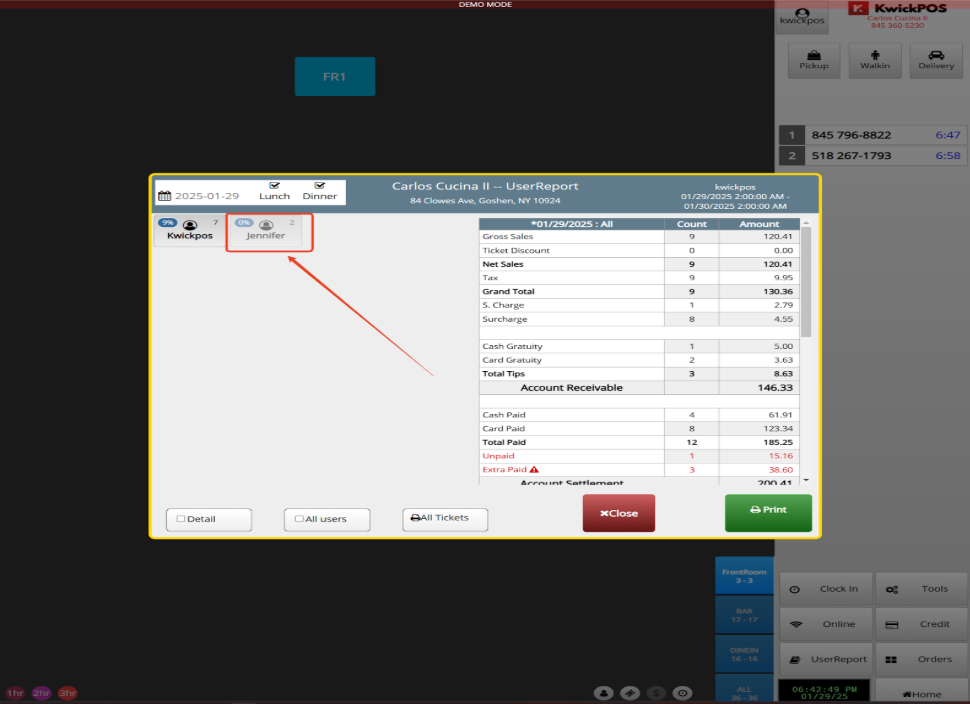
5. In the previous version, the “Gift Card” was not highlighted in Red, Now we highlighted in the new Beta version. [Ticket # 143005]
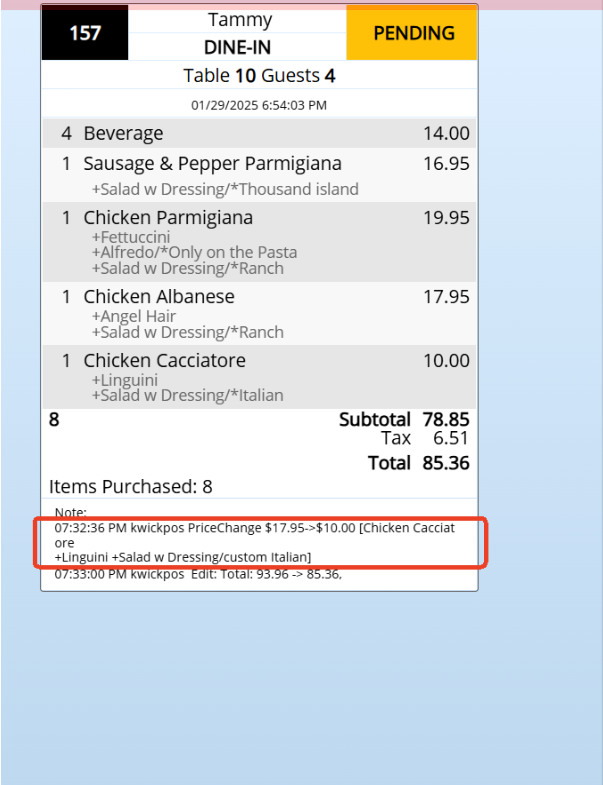
8. In the previous version, auto batch (ajaxsettle) repeated the same batch program even after the batch went through. As a result, “batch failed” text messages were sent out even when batching was successful. Now we fixed it. [ticket # 140624]
9. In the previous version, if I logged in as a cashier to check transactions on the credit page, the profile icon would show "Cashier" twice. We have fixed this issue. [Ticket # 140215]
10. In the previous version, if a manager had no permission to check the history report, in some cases, he was still able to check the history user report. We fixed it now. [Ticket# 142236]
New Marketing Tools
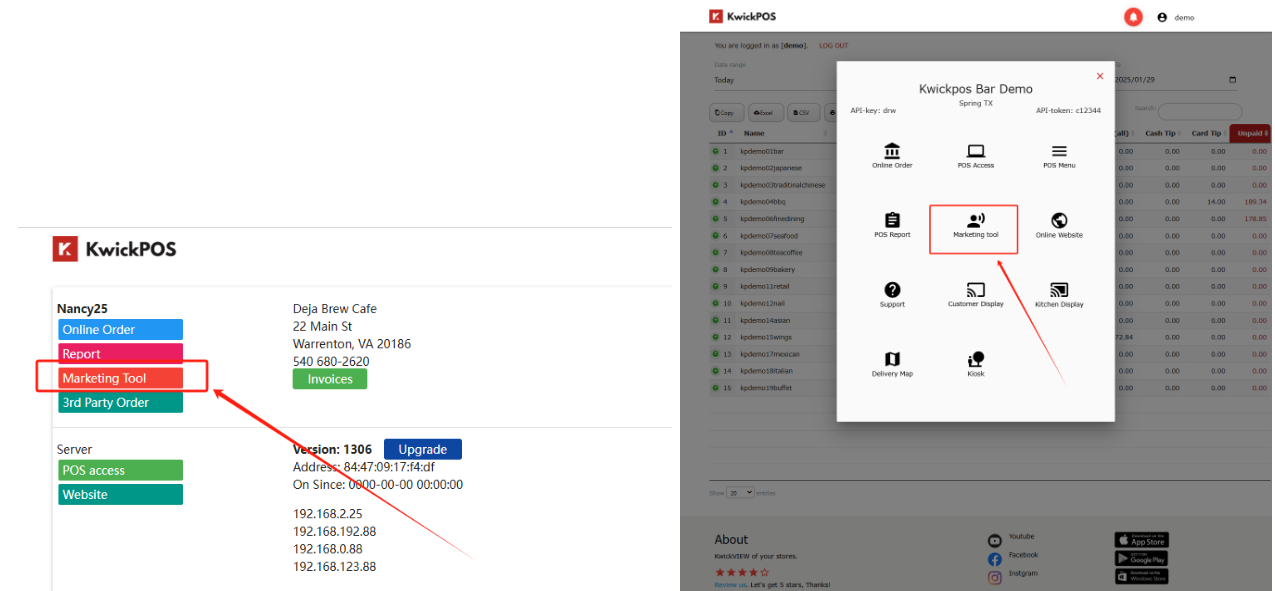
We are excited to launch a new marketing tool to help merchants manage the release of promotional SMS messages.You can access the new interface by logging into Kwickpos.com > POS access > Marketing Tool.
Alternatively, you can enter through the Kwick View APP > Marketing Tool.
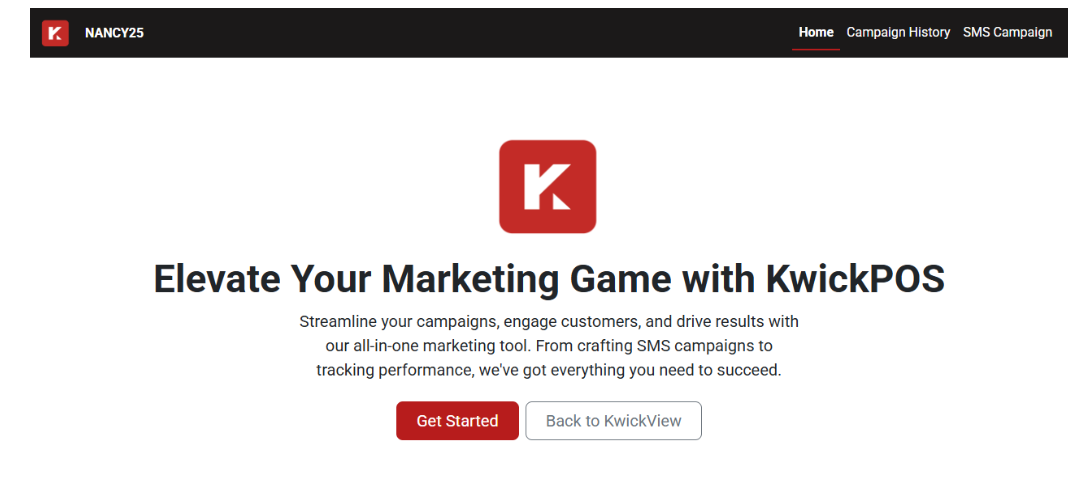
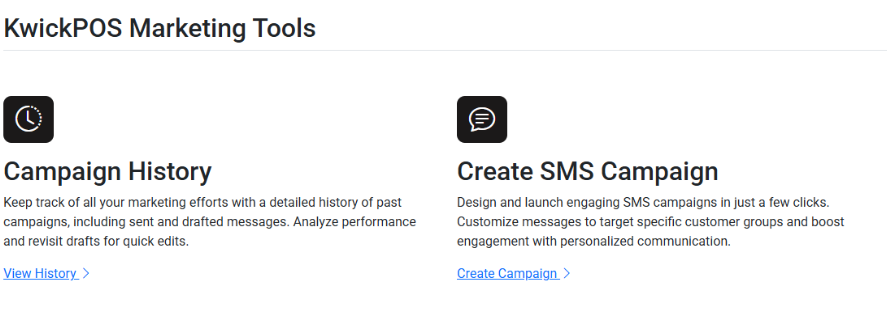
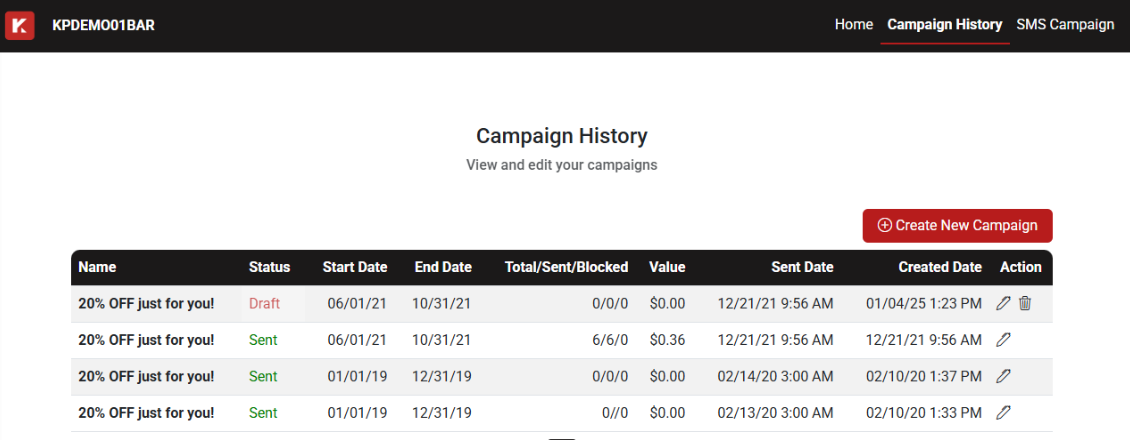
- Support viewing the content, status, time, Total/Sent/Blocked, and value of the branch of promotional SMS messages.
- Allow you delete or edit the Draft massages.
- Allow transfer to the SMS Campaign page.
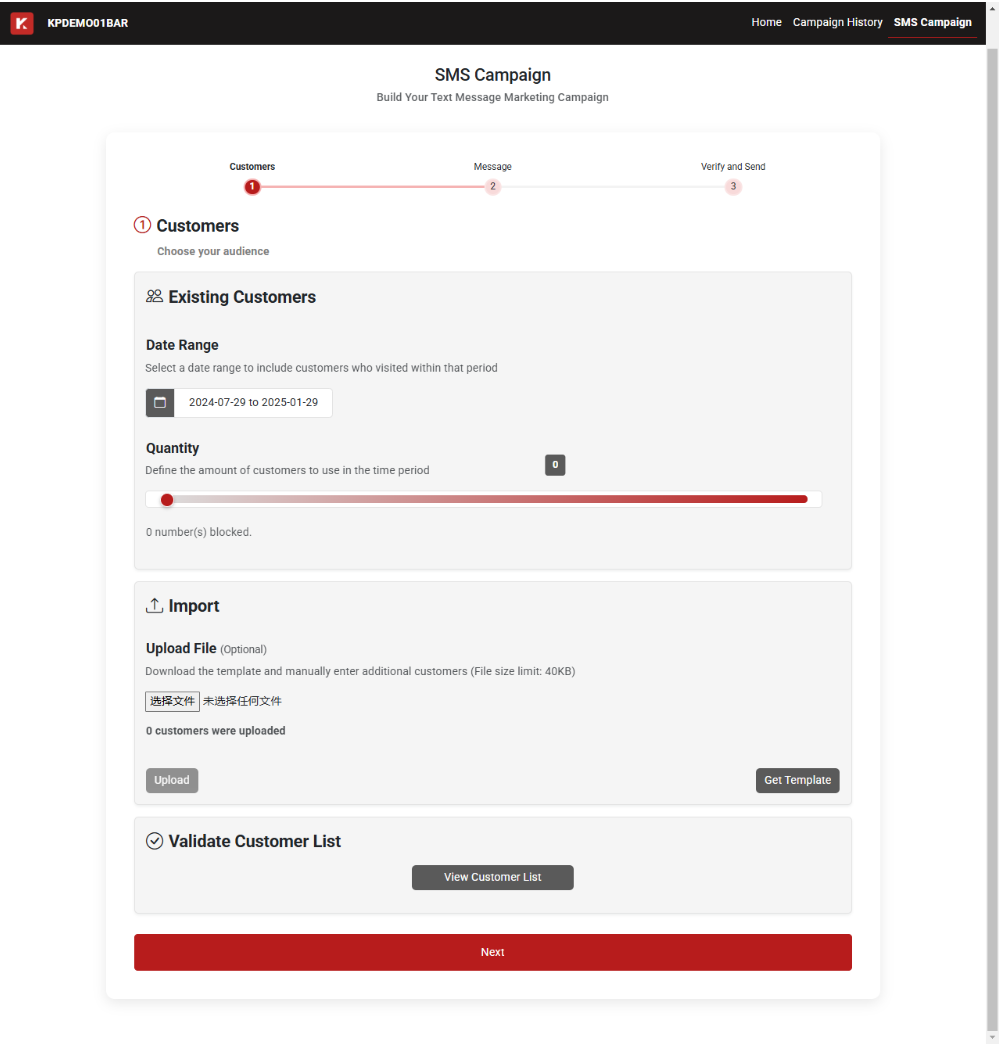
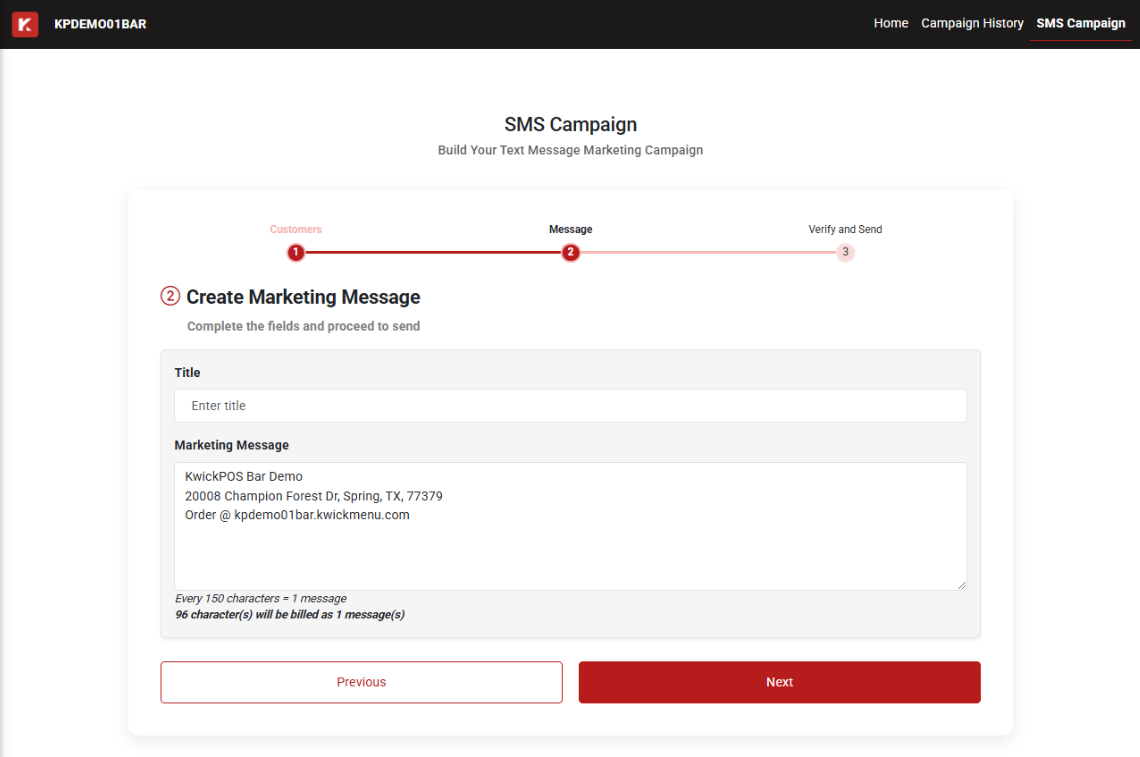
2. Create SMS Campaign:
Provide a time filter to allow for a wide range selection of promotional SMS sending targets.
Provide a feature to upload an additional guest list to bypass the limitation of sending messages to the same guest only once within 30 days.
Provide a preview of the guest list to confirm the accuracy of the sending targets.
- Provide an interface to edit the message.
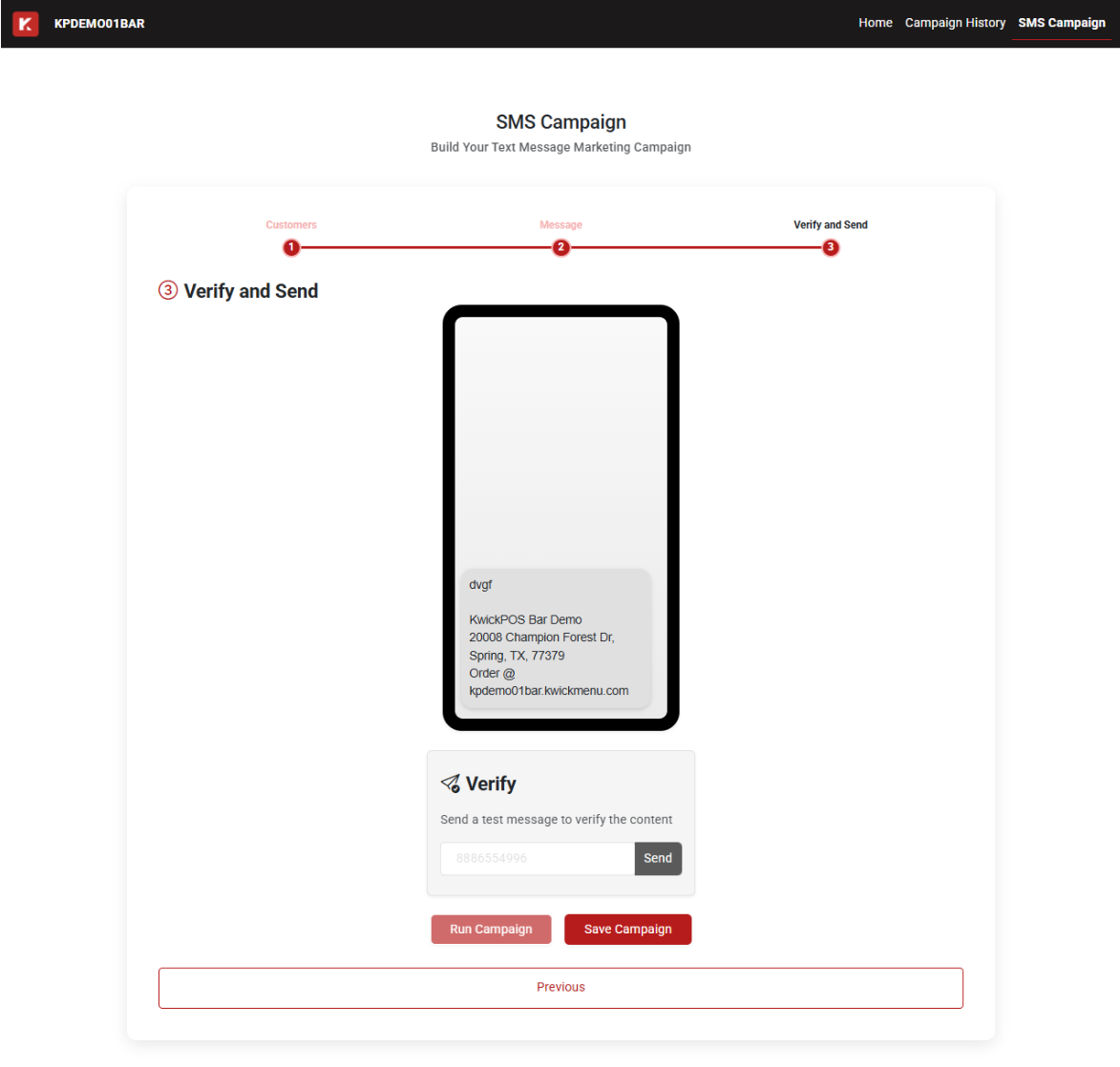
- Provide the Verify and Send interface to help preview the client's SMS format.
Our 24/7 support team can walk you through it.
Call (888) 355-6996