
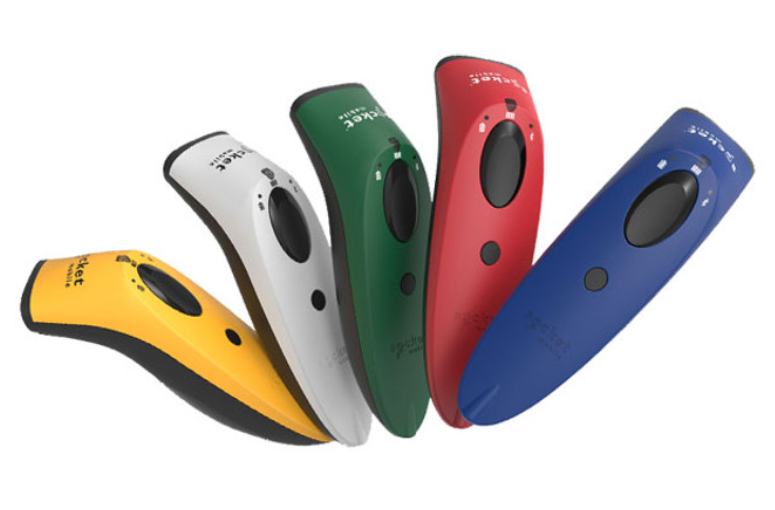
Socket Mobile S700
Guides & How-TosSocket S700 scanner uses Bluetooth connection with Tablets (iOS /Android) devices, it is better to use it on Retail mode in KwickPOS system.
Step 1. Scan to enable Keyboard mode
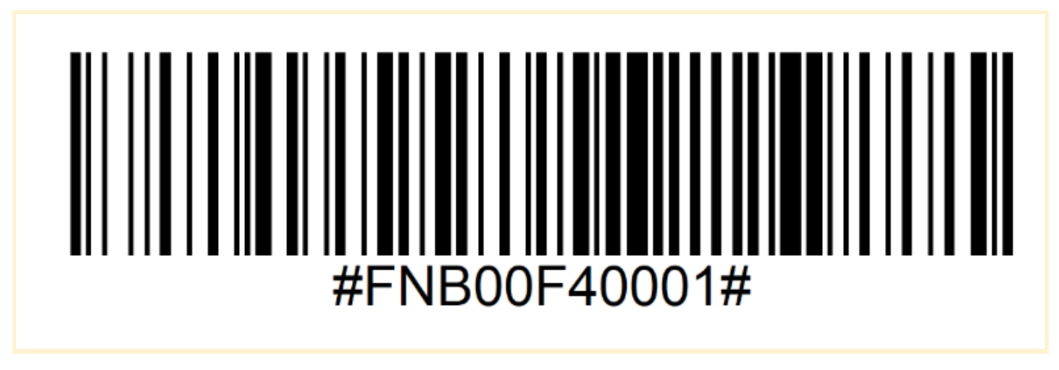
Step 2: Scan to remove end newline

Step 3: Connect to iPad through bluetooth(name like: socket s700[xxxxxx])
Step 4: If needed, scan following to reset pairing, then scan to reset, then retry step 1, 2, 3
1. Paring reset(will poweroff)

2. Reset (will power off)

For reference: change mode through app
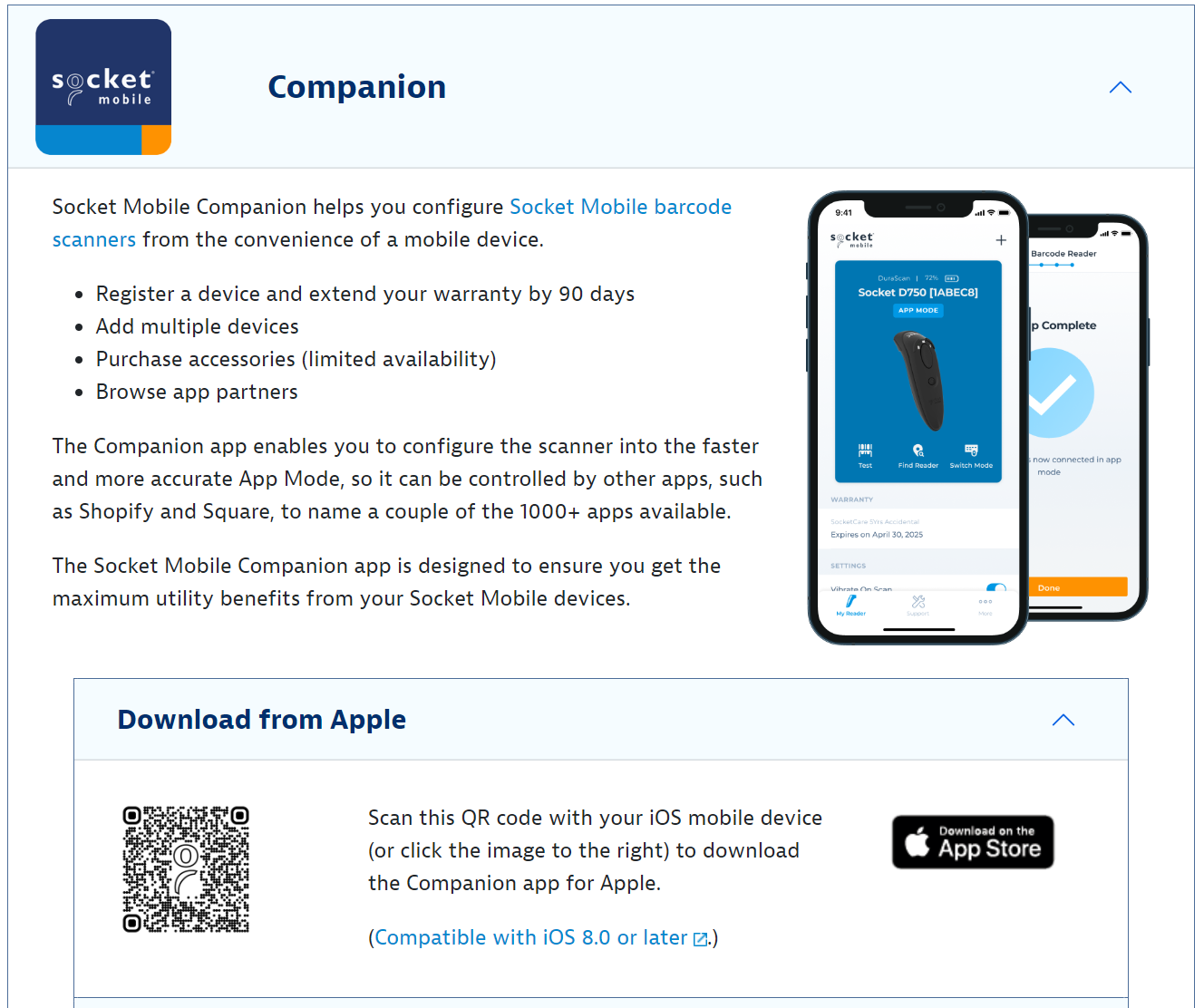
1. Download Socket Mobile Companion app on iPad, connect scanner
2. In app, press Switch Mode, follow instructions in the app to change to basic keyboard mode.
Online manual:
https://socketimagescdn.azureedge.net/cdn/docs/default-source/downloads/user-guides/s700-s720-s730-s740-user-guide.pdf
Our 24/7 support team can walk you through it.
Call (888) 355-6996