
Release Notes 10/14/2026
Release NotesPOS:
Orders:
- Previously, if a user split a pending ticket, and immediately reopened the same ticket and clicked Update afterward, it could move items back to the original ticket and resend the items to the kitchen. This has been fixed in the new version.
Print:
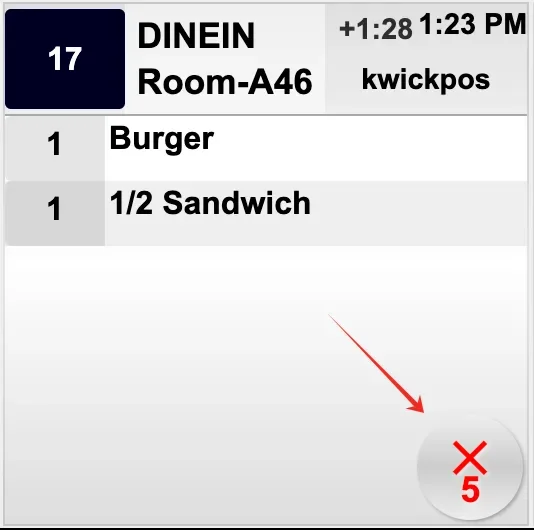
- In the new version, KDS can print to all the kitchen printers when users click the X button on an order. This feature can be configured under Setup > Orders > KDS Setting > Print to Kitchen When X Is Clicked on KDS
- In the old version, the Reverse Printing option under Setup > Printer > Ticket Layout > Reverse Printing had format issues. This has been fixed in the new version.
Report:
- In the new version, we add total weight sold to item sales report for weighted items (lb, kg, oz). This can be configured at Setup > Orders > Misc > Show Weight Sold for weighted items on Item Sales report. [Ticket #356690]
KDS & PDS:
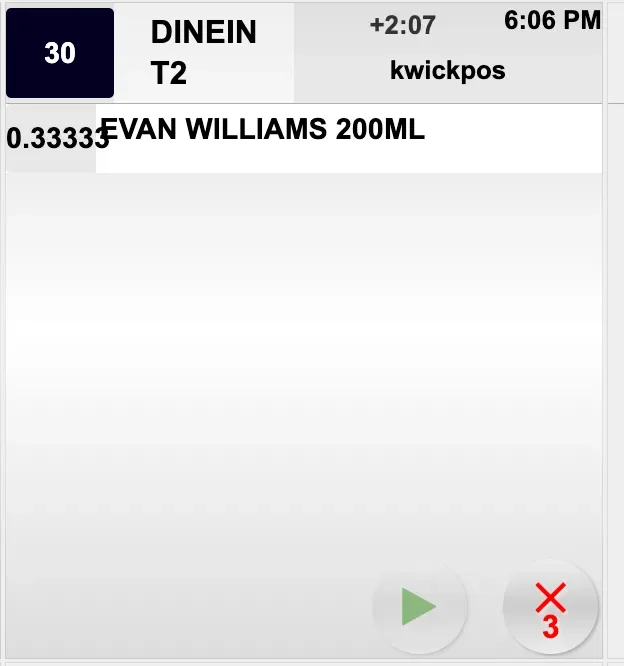
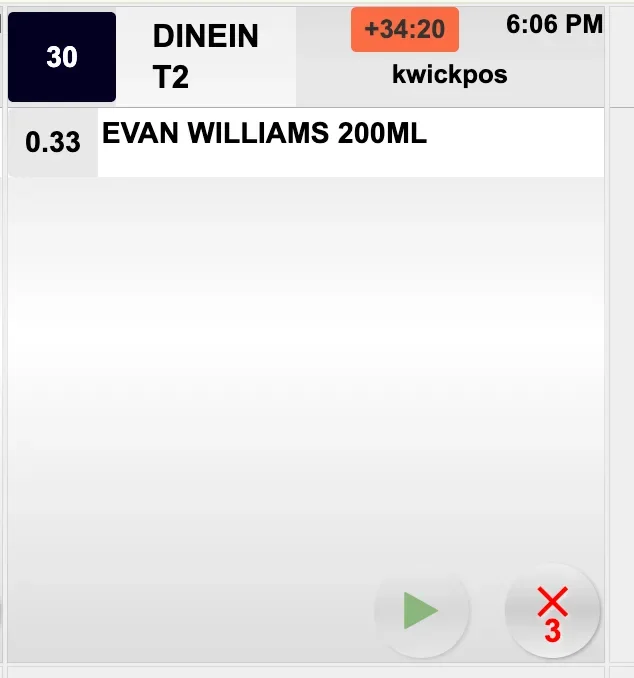
- Previously, the Kitchen Display System (KDS) displayed fractional quantities with too many decimal places (e.g., 0.33333), causing the quantity to overlap with the item name. In the new version, fractional quantities are rounded to two decimal places (e.g., 0.33), ensuring a clear and readable display.
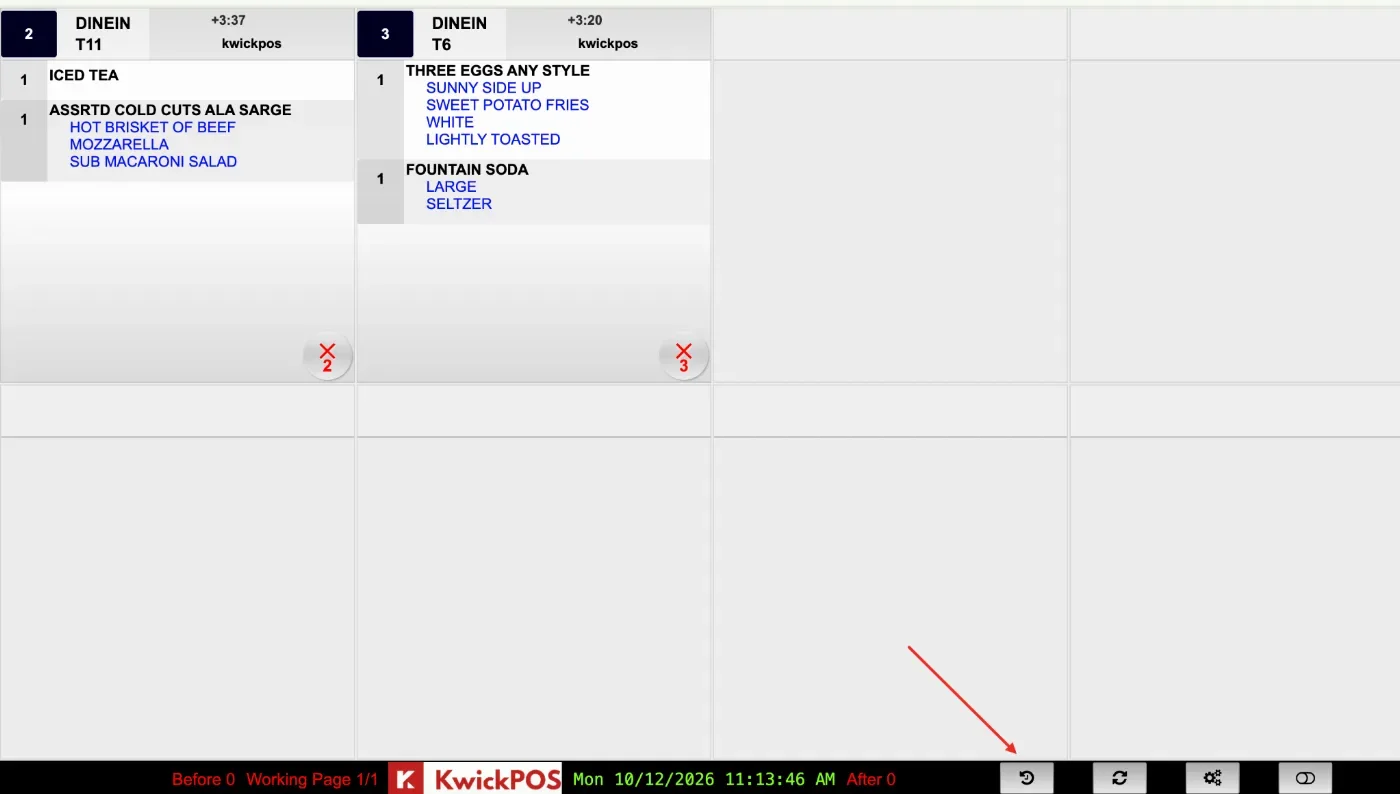
- In the new version, a dedicated KDS History button has been added to better distinguish between working and history pages. Configure at: Setup > Orders > KDS Setting > KDS History button.
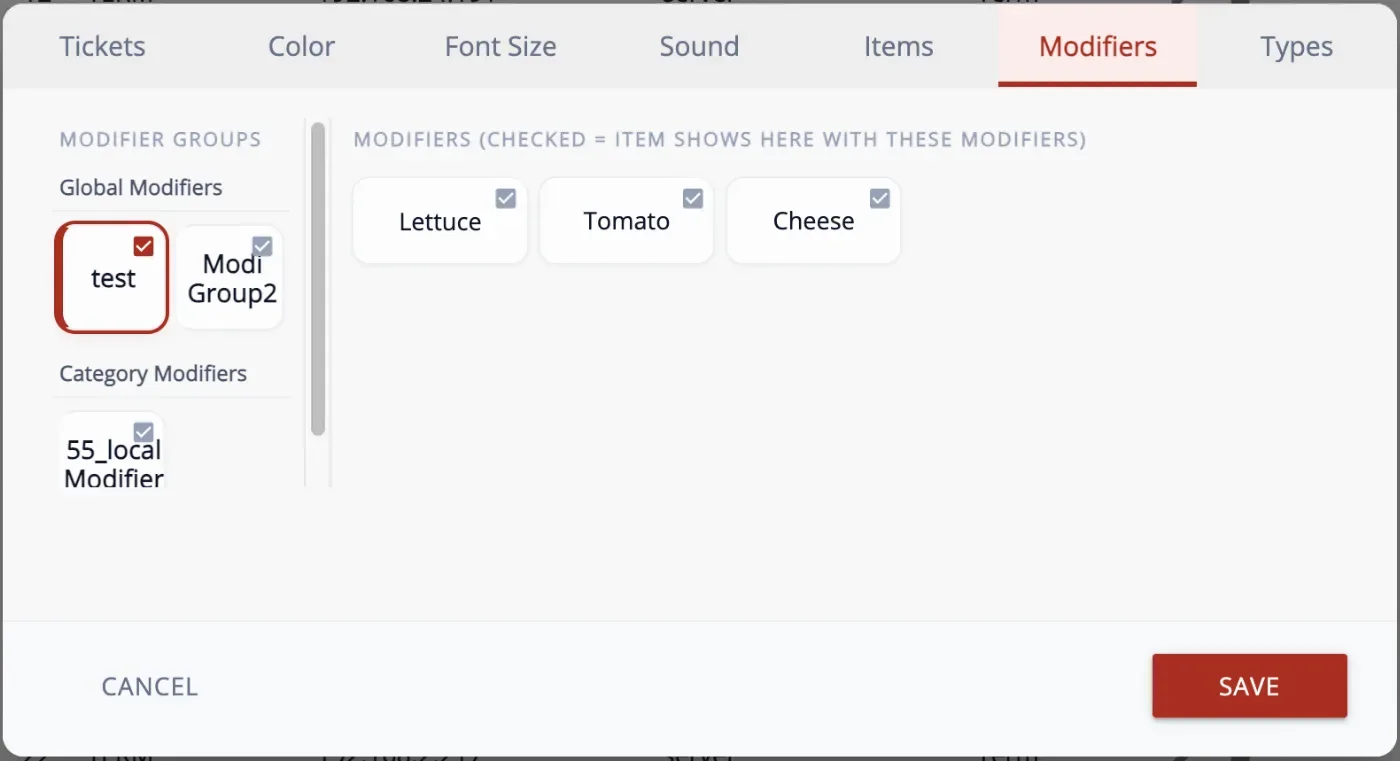
- In the new version, a new KDS modifier selection setting has been added, allowing users to choose which modifiers should appear on KDS, similar to item selection. This feature can be enabled under Setup > Orders > KDS > KDS Modifier Selection. After enabling it, users can configure selected modifiers selection under Setup > Terminal Setting > KDS Terminal > Modifiers.
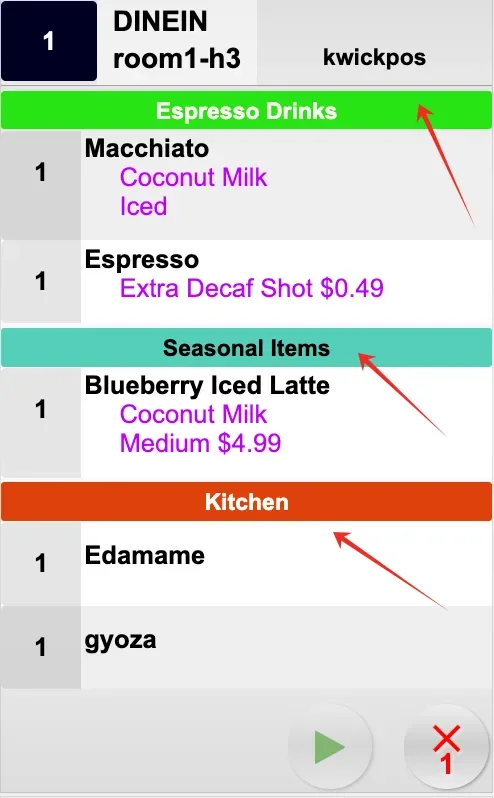
- In the new version, the Kitchen Display System (KDS) and the Packer Display System (PDS) can display category names and sort tickets by category for easier order organization. This feature can be configured under Setup > Orders > KDS Setting > Sort KDS Tickets by Category and Show Category Name. [Ticket #360253]
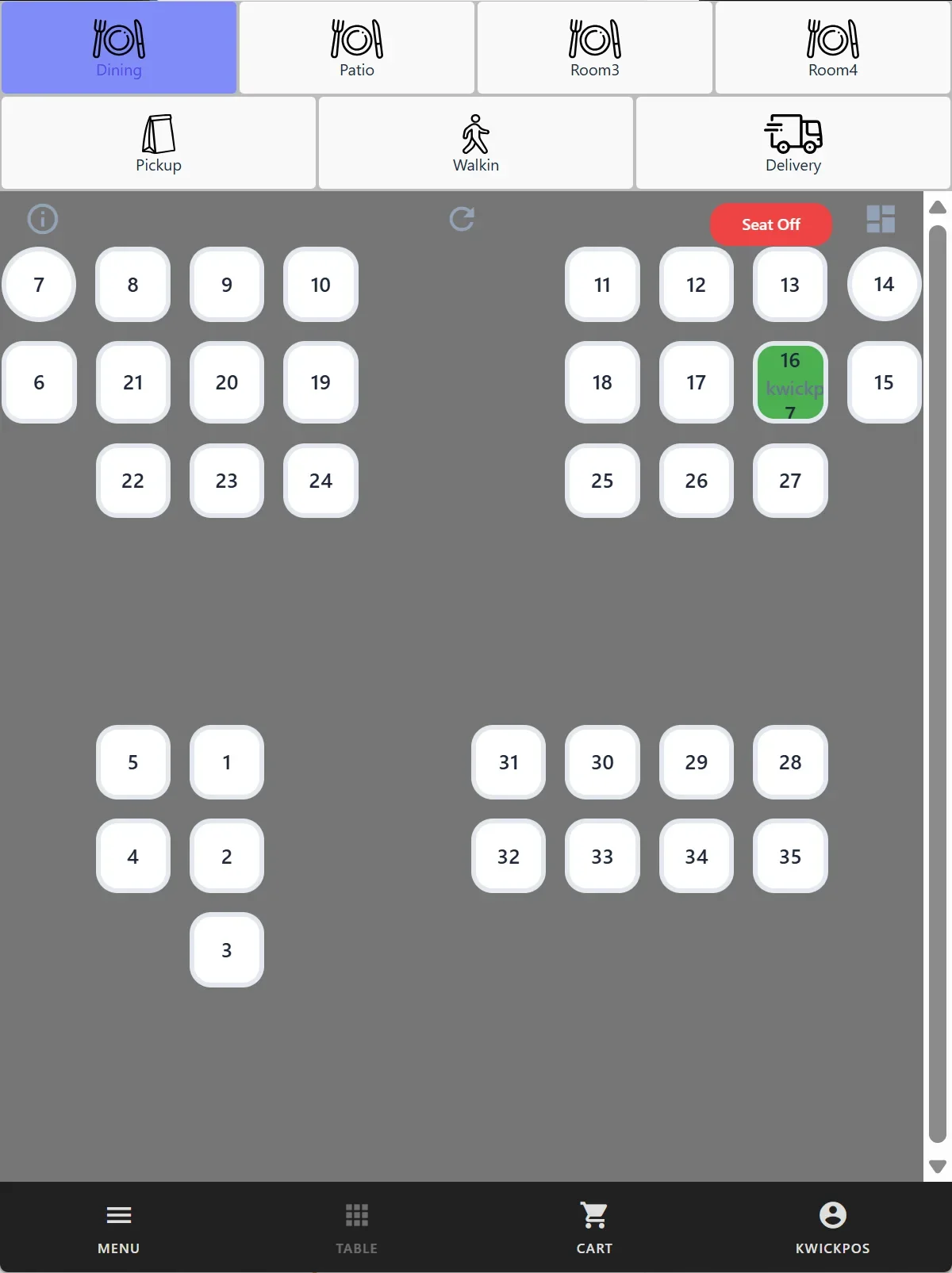
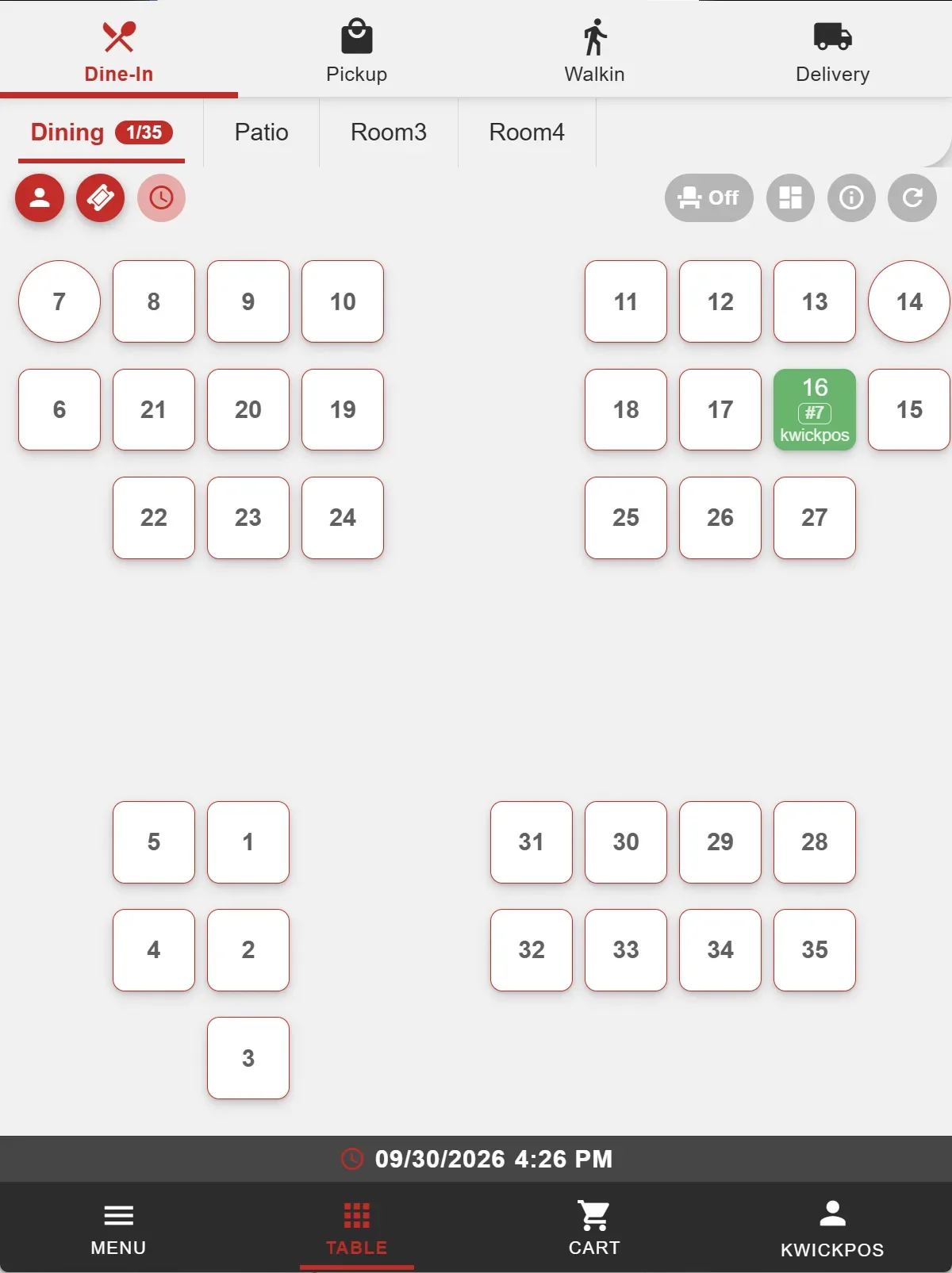
New Handheld Mode:
- In the prior version, when the screen is narrow or in portrait view, the POS will automatically switch to the old Hand Held mode. In the new version, when the screen is narrow, the POS will default to the New Handheld mode.
- In the new version, the New Handheld mode now supports displaying items by category order in the cart. This setting is configured at Setup > Orders > Cart > automatically sort items by category in the cart.
- In the new version, New Handheld mode supports customer tip selection before card payment. Enable it under Setup > Mobile Devices > Tip Settings > Enable customer tip selection before card payment. Tips are recorded as GTIP and follow Setup > Tips > Based on Subtotal/Total.
- In the new version, the New Handheld mode now supports the server change function. This can be configured in Set Up > Orders > Pay > Change Server.
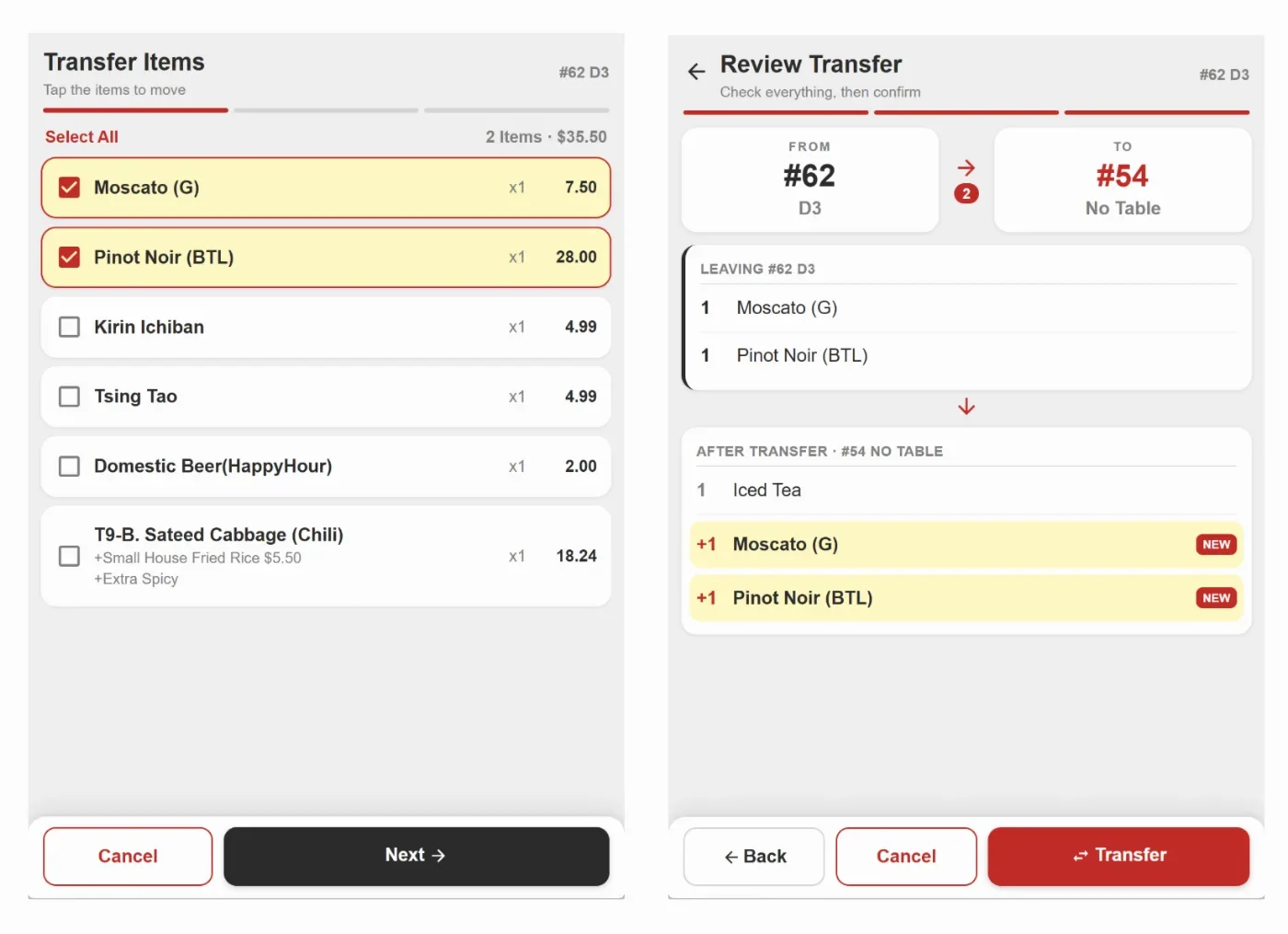
- In the new version, the New Handheld mode now supports the item transfer function.
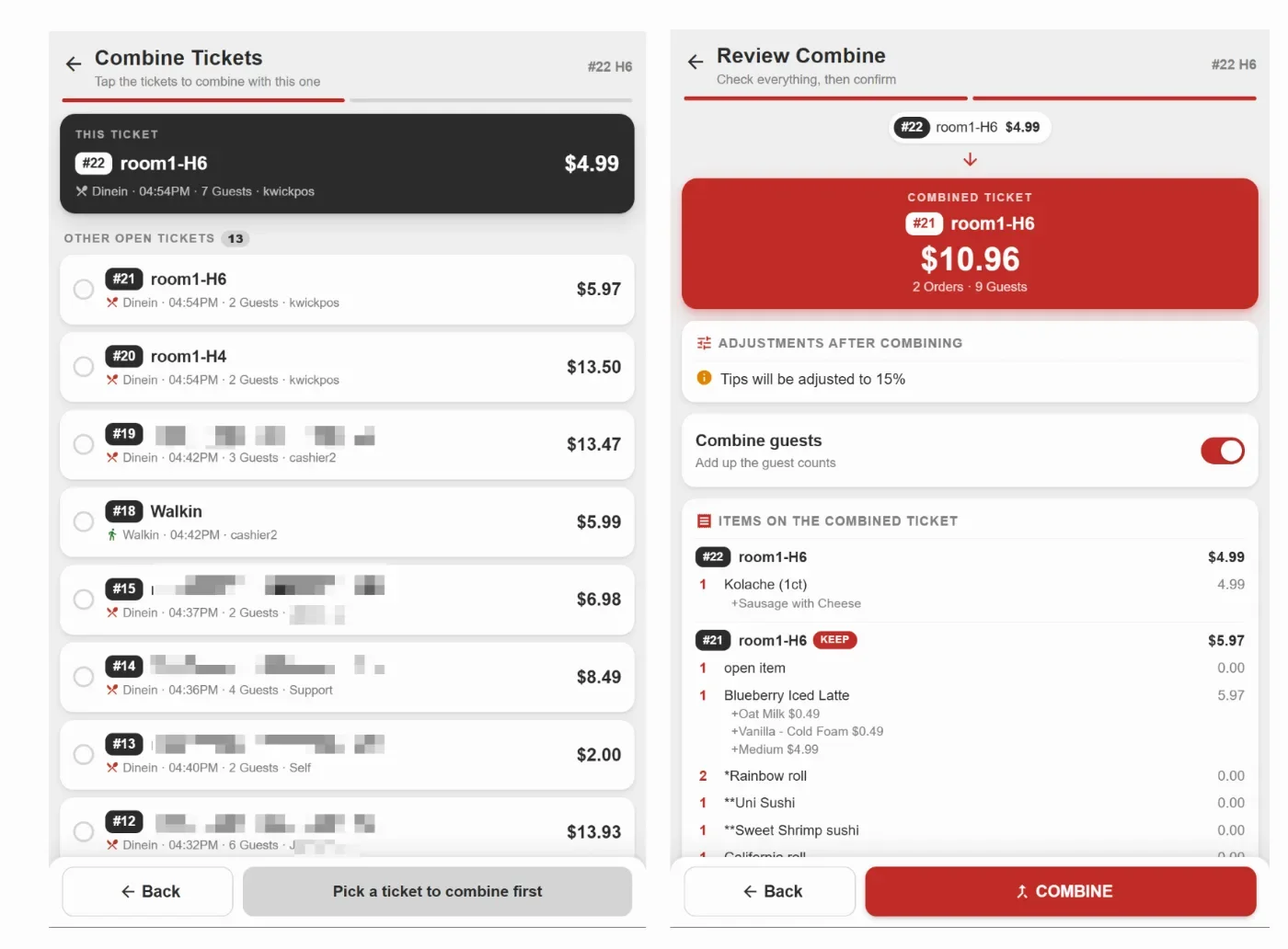
- In the new version, the New Handheld mode now supports the combine function.
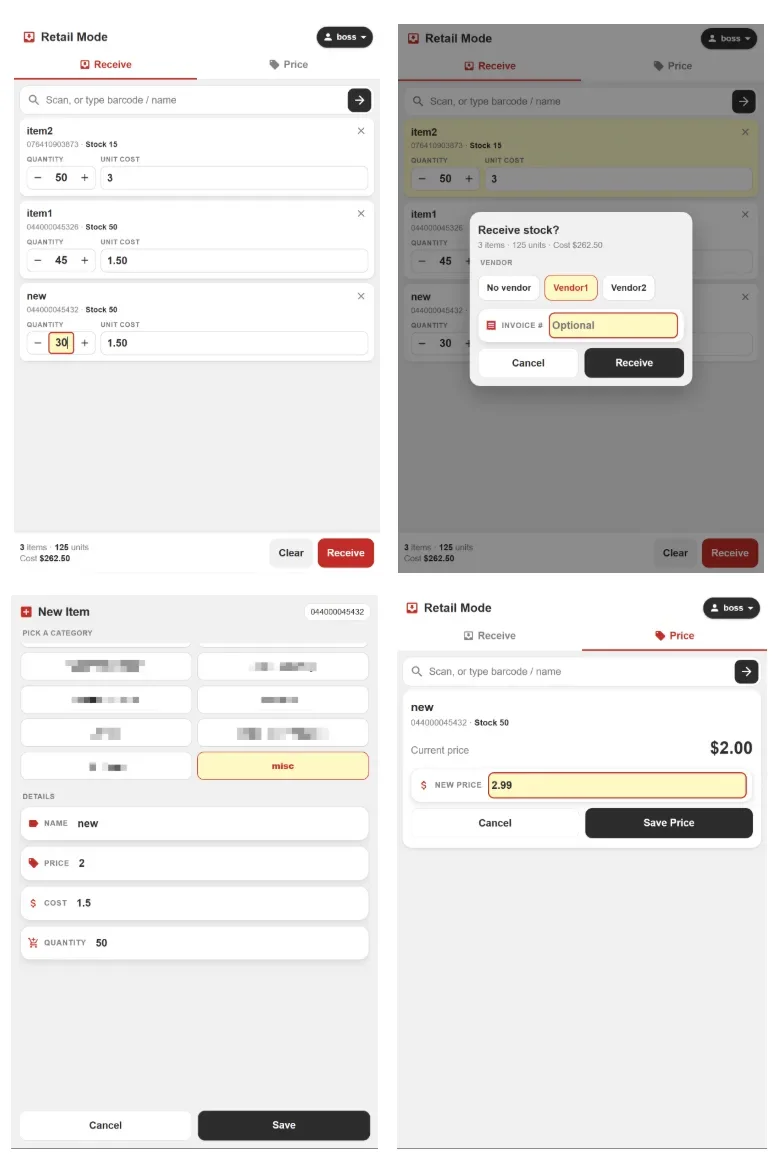
- In the new version, we add a retail mode for New Handheld mode. This can be configured under Setup > Mobile Devices -> Retail mode (HH2): receiving, new item, price change. In the receiving page, users can receive items by scanning or searching, and optionally add the vendors and the invoice number. If users scan a new barcode not in the inventory, they can add the new item. In the price page, users can scan an item and adjust its selling price. To use the scanner on handheld devices, configure at Setup > Mobile Devices > Mobile barcode/QRcode scanner. [Ticket #363652]
Other:
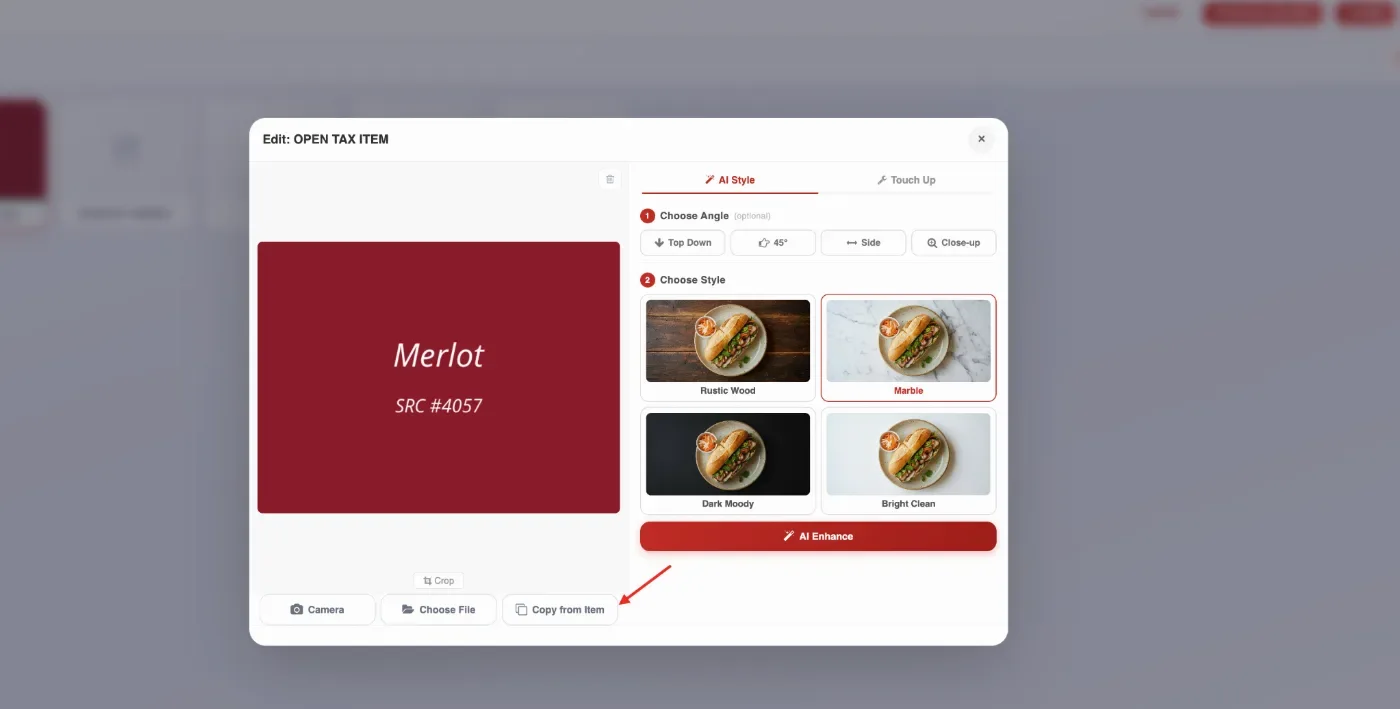
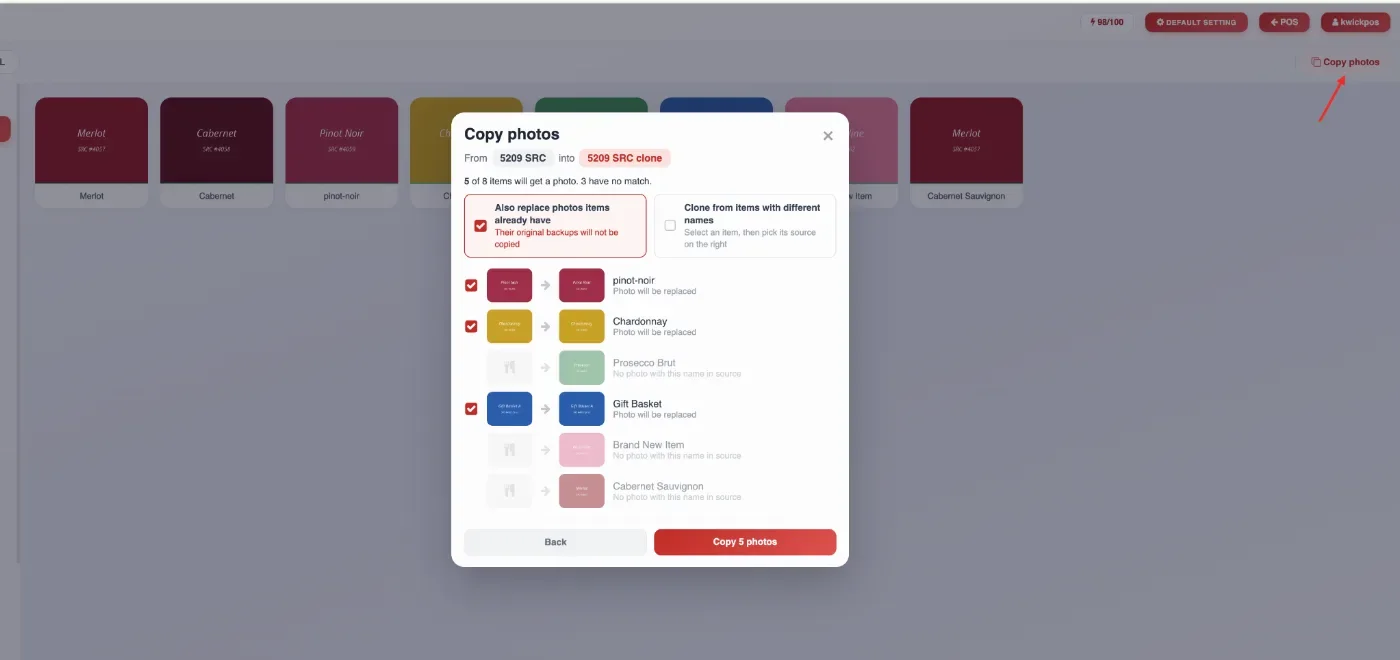
- In the new version, we added two options to copy item pictures from existing menu items on our Kwick Photo page. Users can now copy a picture from another item when editing an individual item, or copy pictures in bulk from another category. When copying pictures from a category, users can choose whether to replace existing pictures and can also manually select a different source item when the item names do not match.
- In the new version, you can now upload a custom logo specifically for CDS. If a CDS logo isn't uploaded, the system will automatically display your Website Logo, or fall back to your Ticket Logo if no website logo exists. If no logos are uploaded, no logo will be displayed. Upload from Setup > Uploads > CDS > CDS logo. [Ticket #339283]
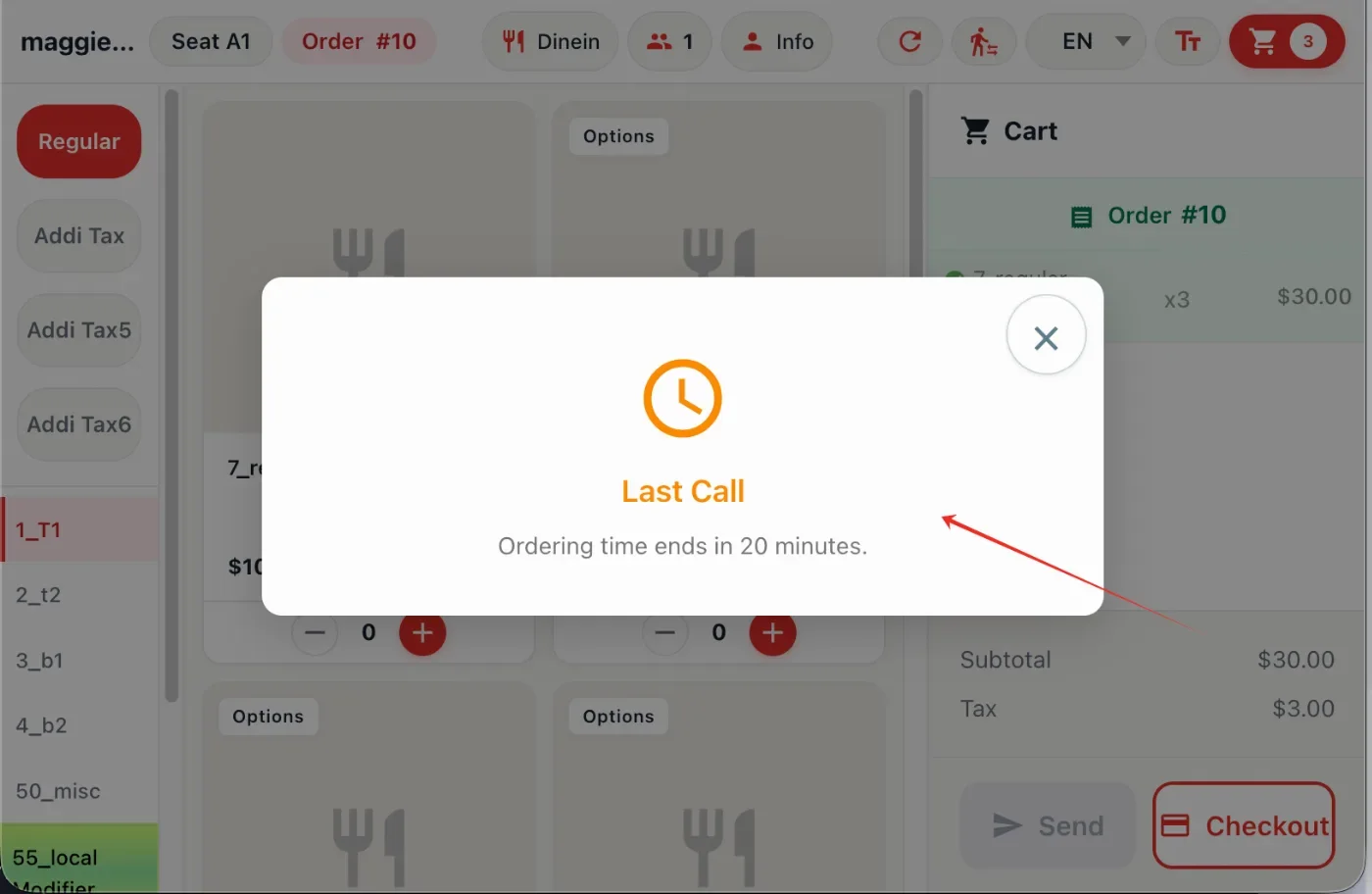
- In the new version, Tablet iPad supports a customizable Last Call pop-up notification. The notification can appear before the order time limit expires to let customers know their ordering time is almost over. This feature can be configured under Apps > Tablet iPad > Last Call and requires Apps > Tablet iPad > Order Time to be set.
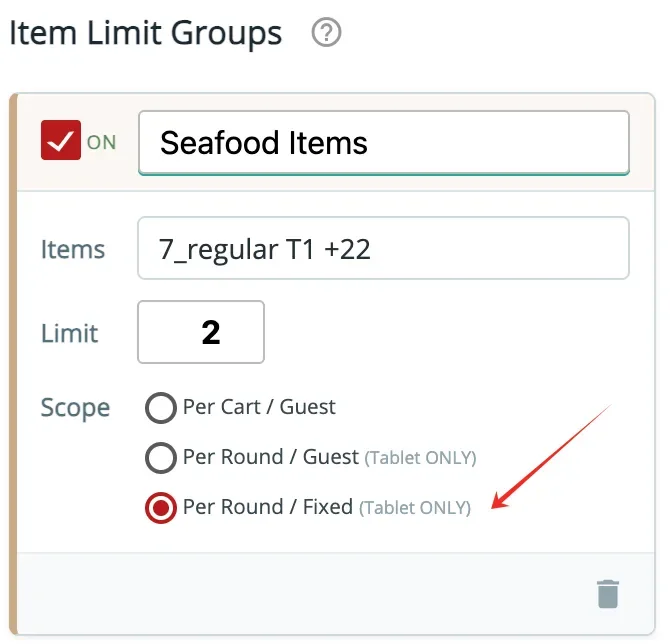
- In the new version, AYCE Item Limit Groups include a new option to not limit by guest number. This can be configured under Apps > AYCE > Item Limit Groups > Per Round / Fixed. This allows item limits to be applied by each round instead of being multiplied by the number of guests, and applies to the New Tablet mode ordering page only.
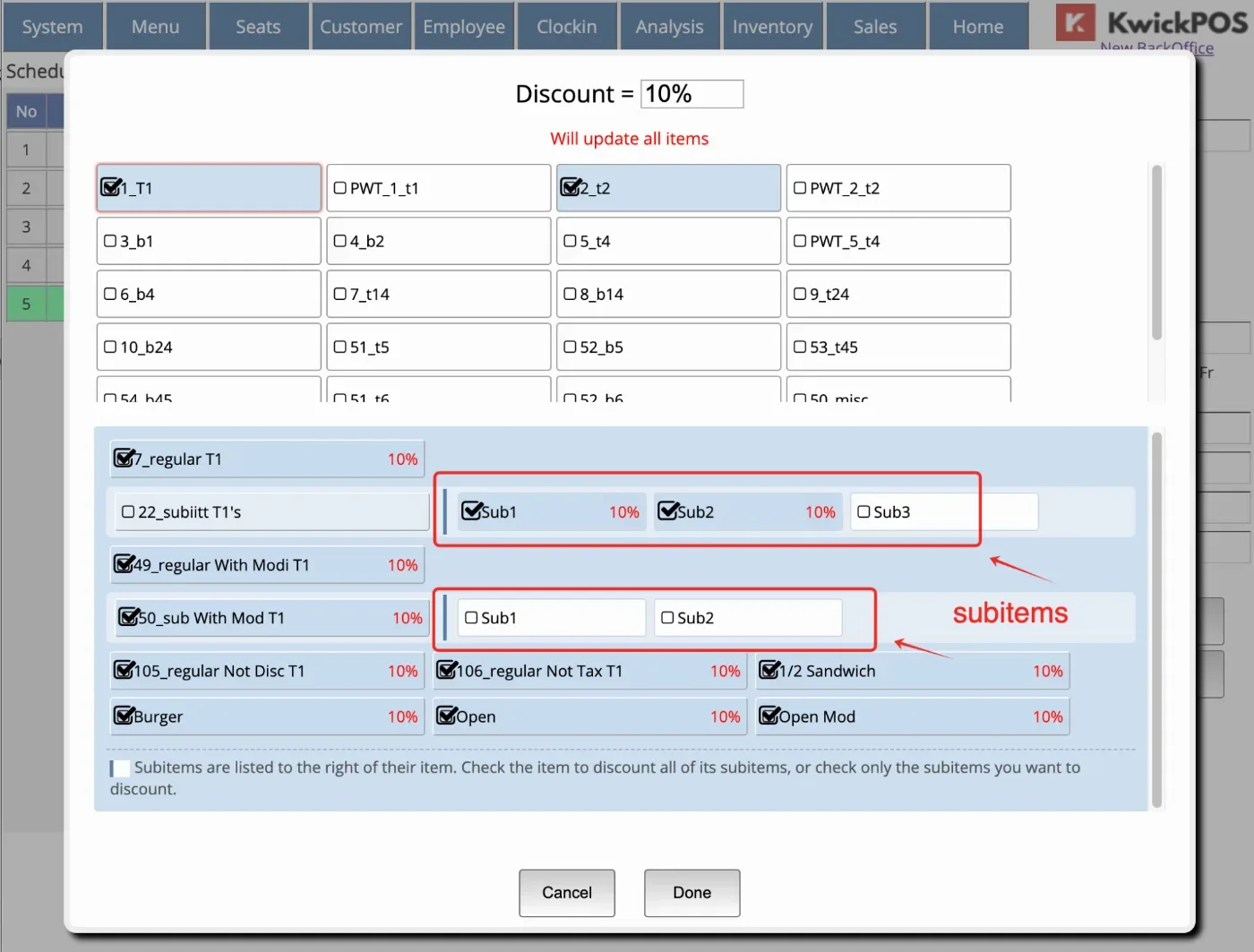
- In the new version, Happy Hour item selection now supports sub-items. Users can select specific sub-items for Happy Hour discounts, or select the main item to apply the discount to all of its sub-items.
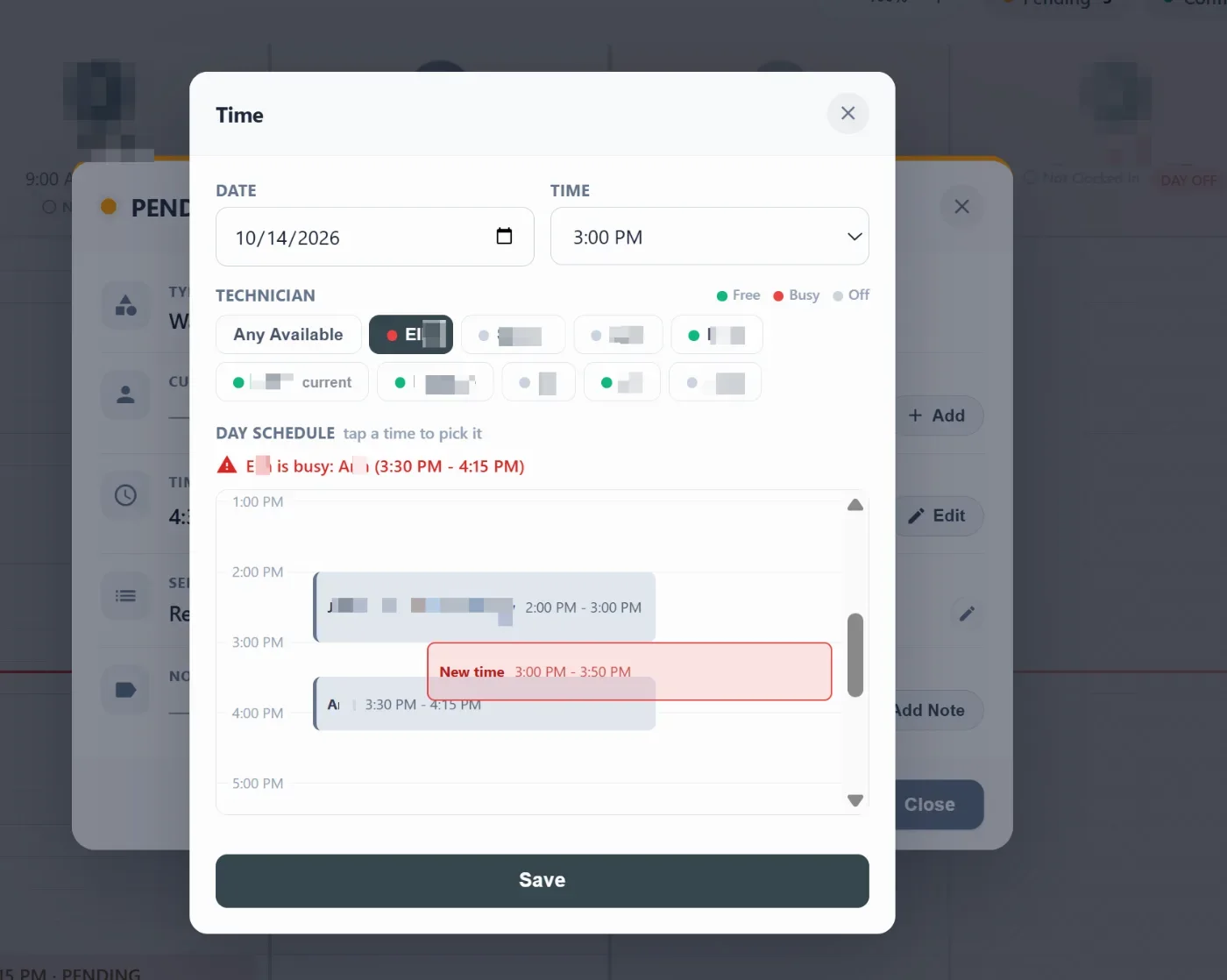
- In the new version, in Salon reservation mode, when users edit the time of an existing appointment, the window will show the availability of technicians to help users with rescheduling. [Ticket #362916]
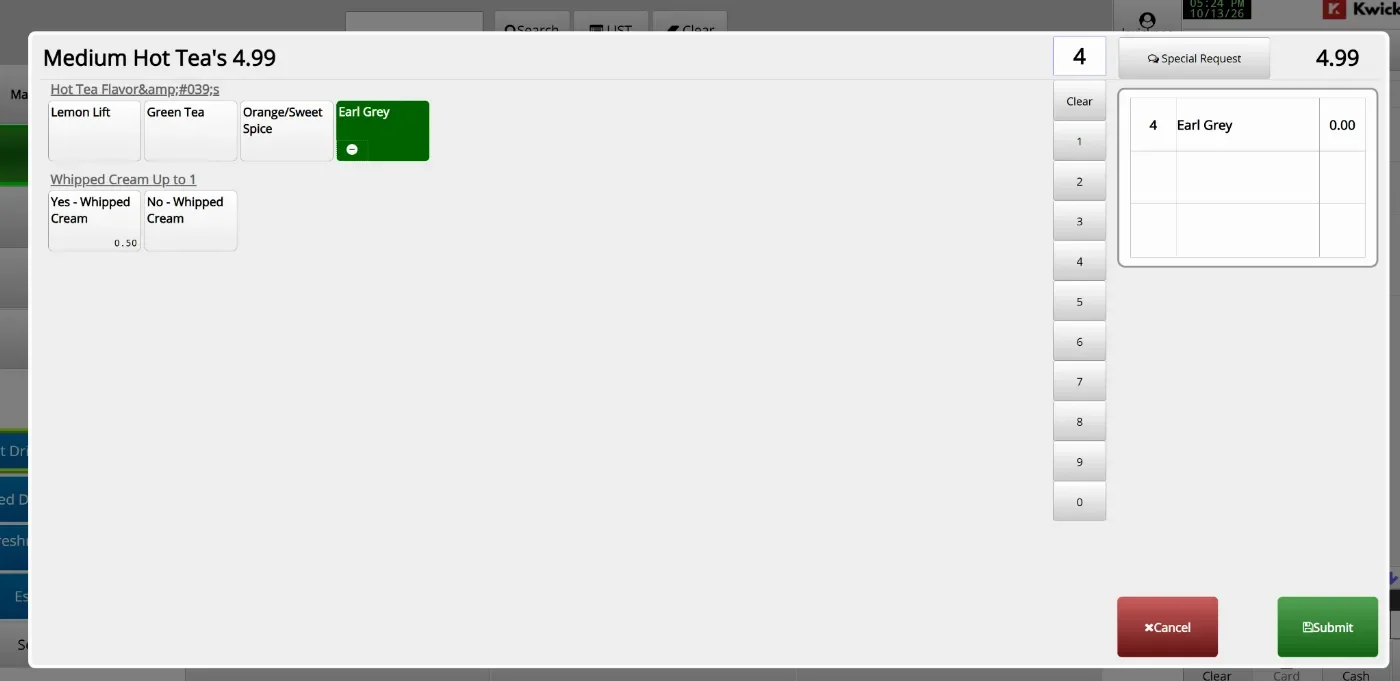
- In the new version, we add a quantity column for global modifiers to allow quick quantity change. This can be configured Setup -> Orders -> Cart -> Number pad in global modifier popup (type a quantity, then tap a modifier).
Online:
KwickMenu.com:
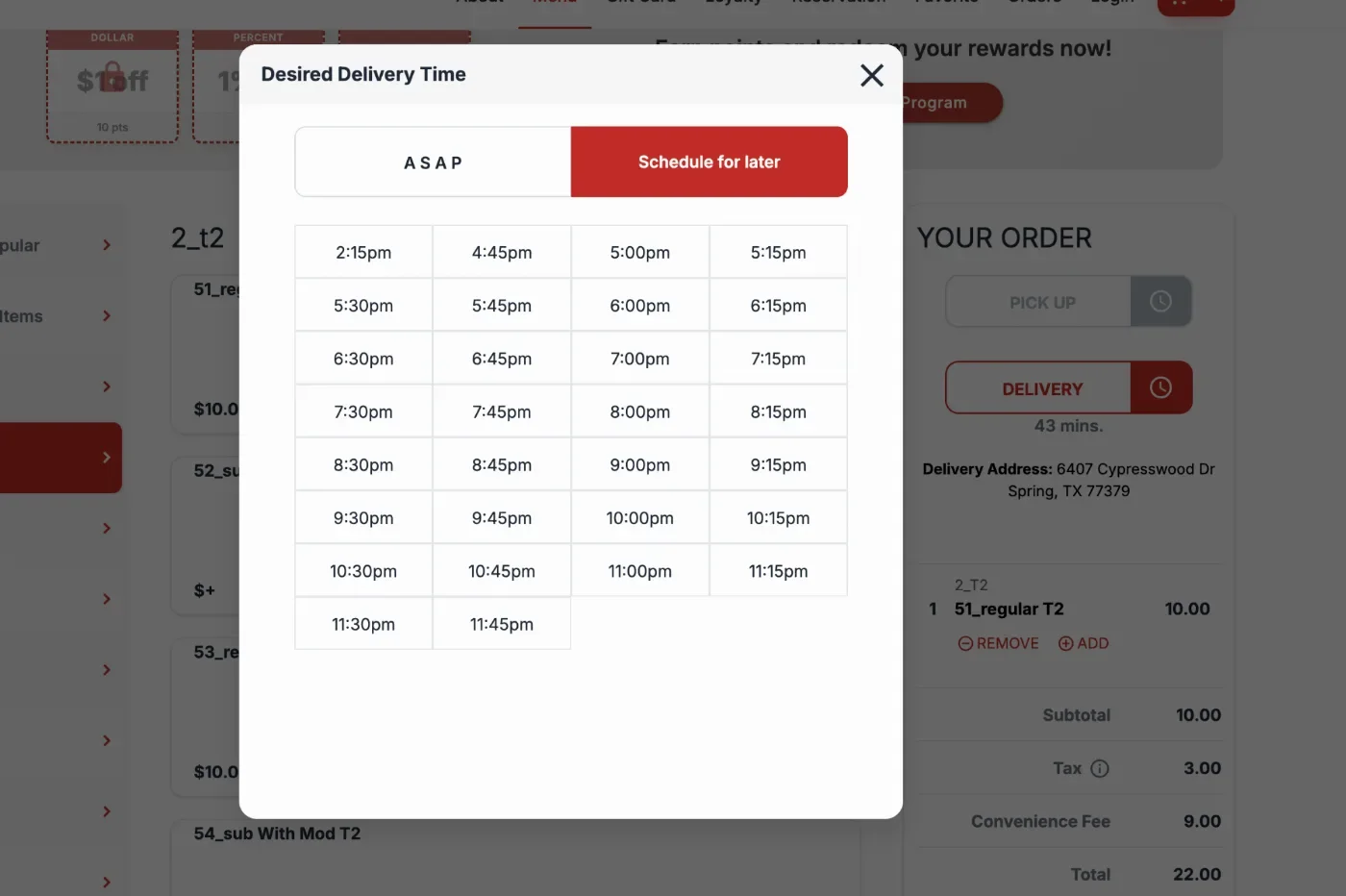
- In the new version, KwickDriver supports scheduled orders for the current day and future orders. The system also takes the default pickup times into consideration to ensure accurate order scheduling on the quickmenu page.
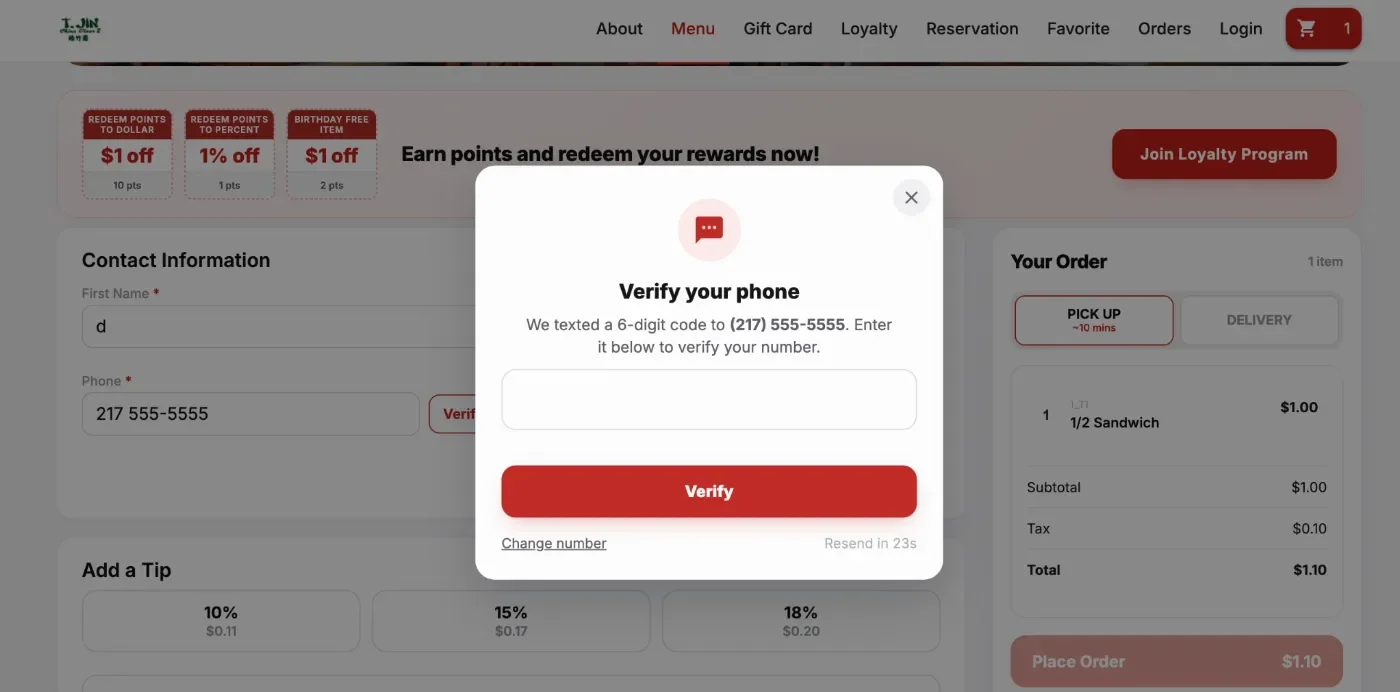
- In the new version, a new setting has been added to require customers to verify their phone number via SMS before placing an online order. When enabled, customers must enter a 6-digit verification code sent to their phone number before they can complete their order. Configure at: Apps > Online > Require SMS Phone Verification
Still need a hand?
Our 24/7 support team can walk you through it.
Call (888) 355-6996