
Release Notes 09/16/2026
Release NotesPOS:
Orders:
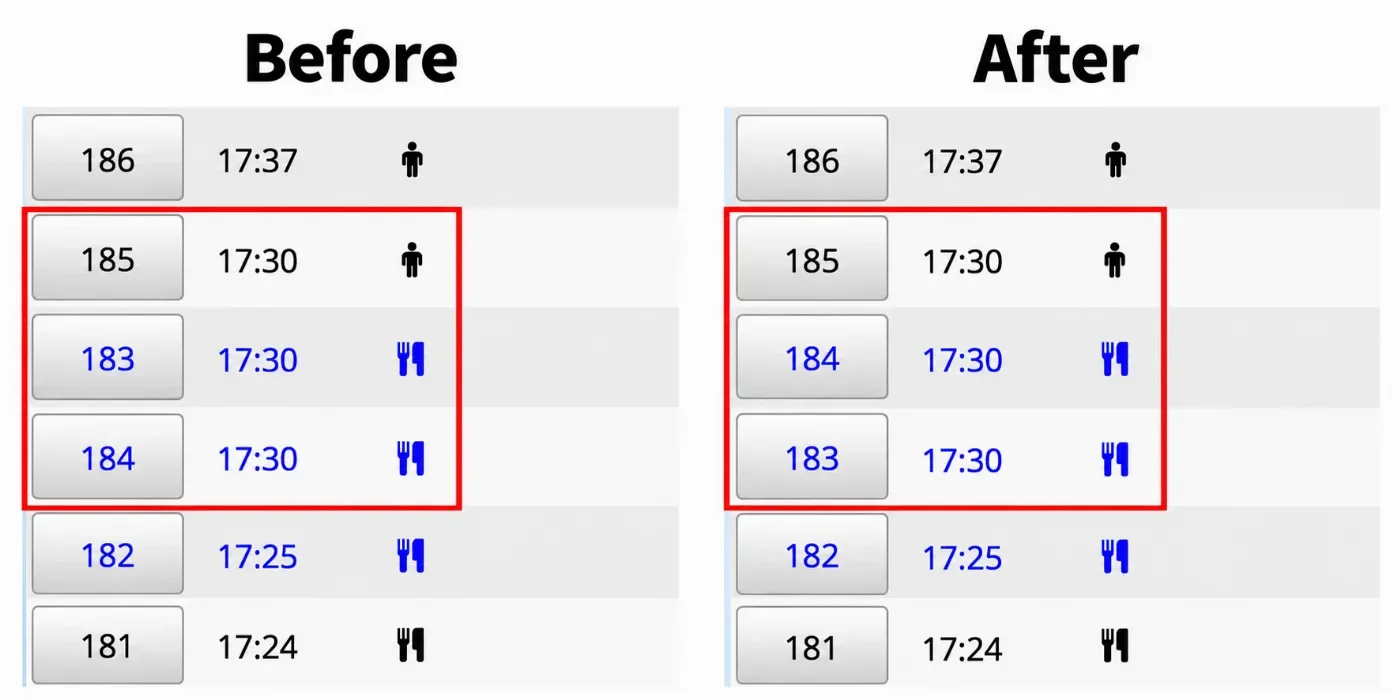
- In the previous version, orders placed within the same minute could appear out of sequence when sorted by Time in the Orders Detail view. In the new version, this has been fixed. [Ticket #346548]
Payment:
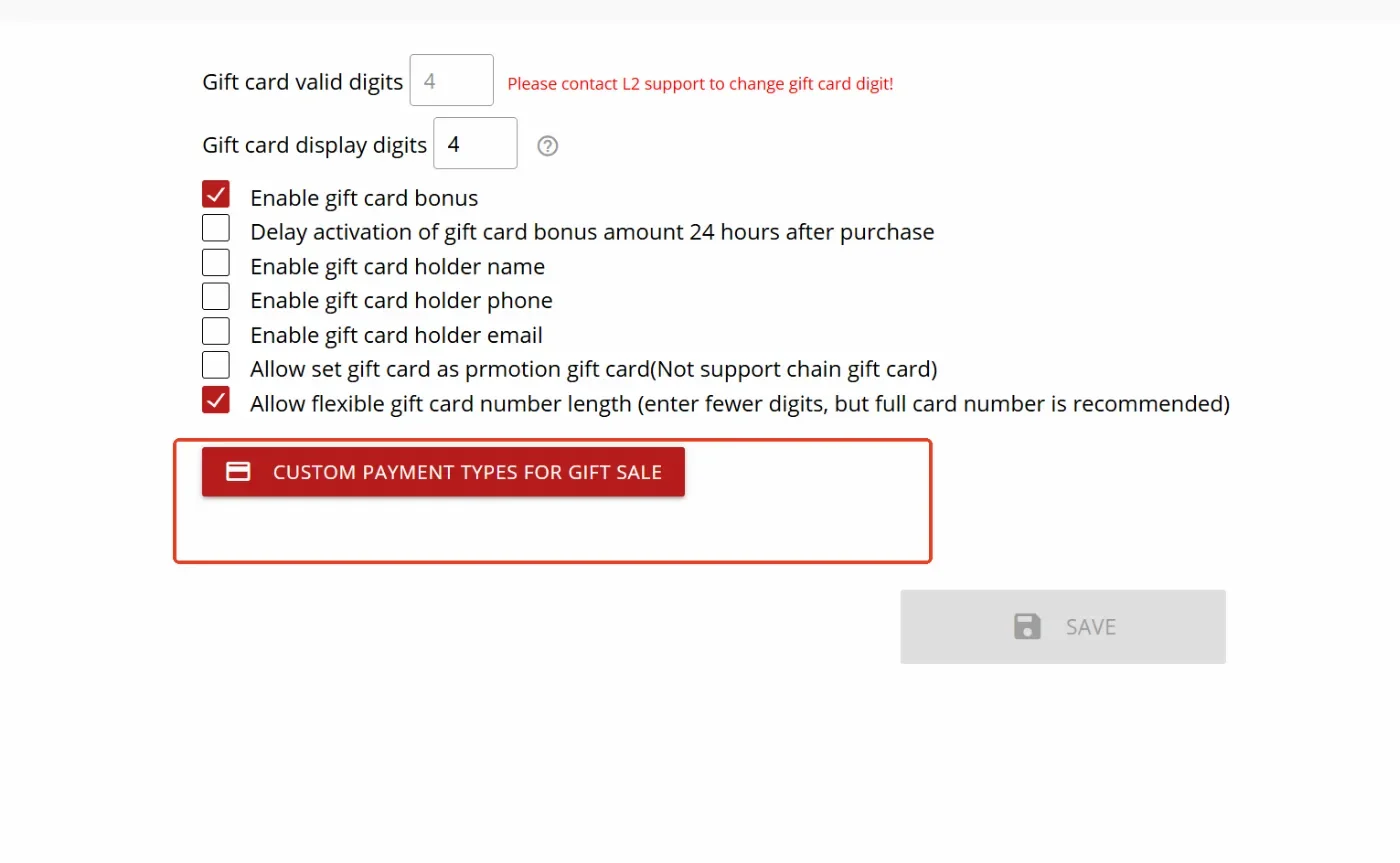
- In the new version, we added support for custom payment types for Gift Card Sales, allowing merchants to configure which payment methods can be used when selling gift cards.
AYCE:
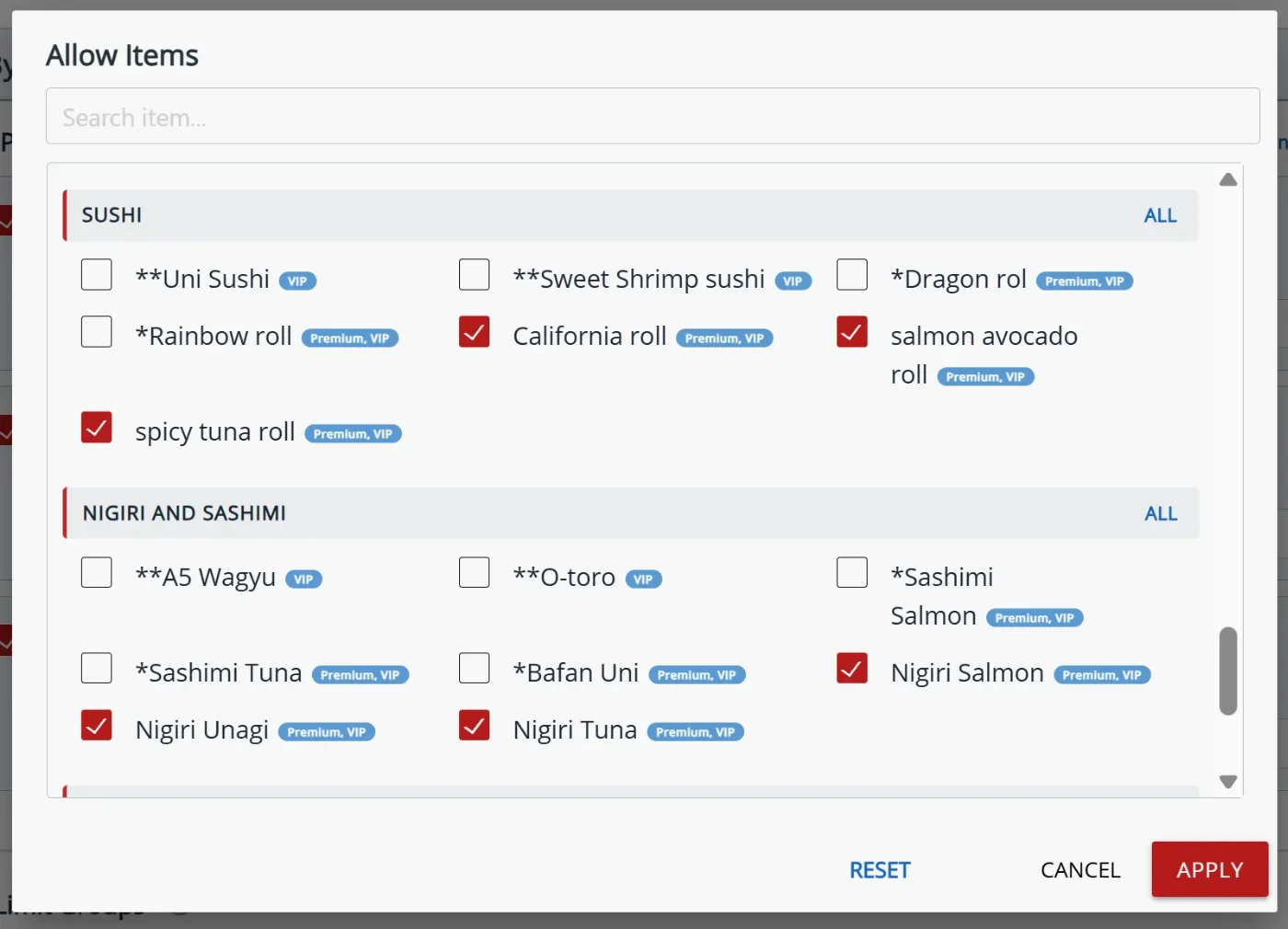
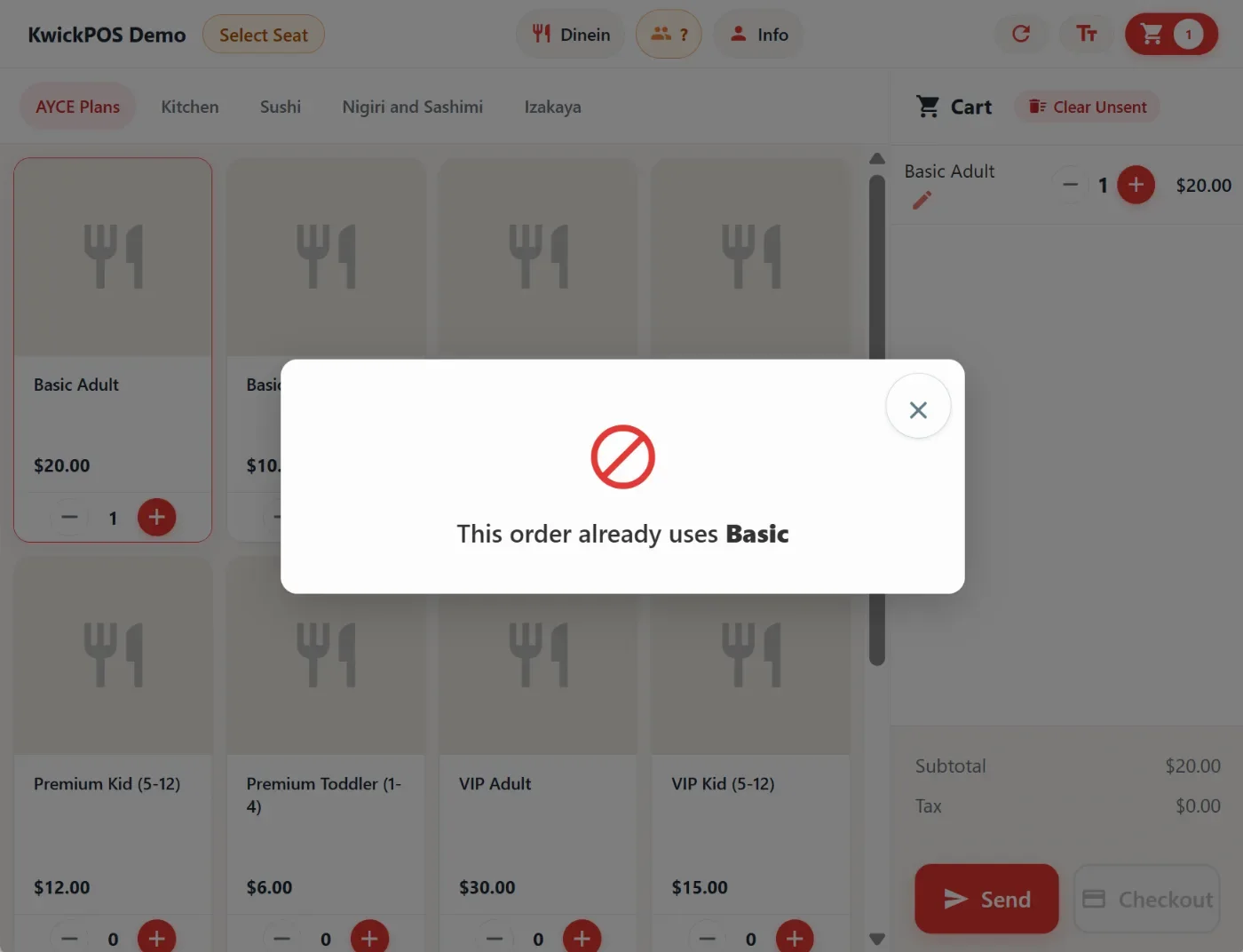
- In the new version, you can now define different AYCE plan tiers and their respective item selection, such as restricting high-end items to Premium plan tier. Each tier can have multiple variations, such as Adult, Kid,Toddler. When users select an item not included in the active plan, the system prompts which AYCE plan tier is required to unlock that item. The alert will show on both the POS and the new tablet mode. This can be configured in Apps > AYCE > By Item > AYCE Plan. [Ticket #346582]
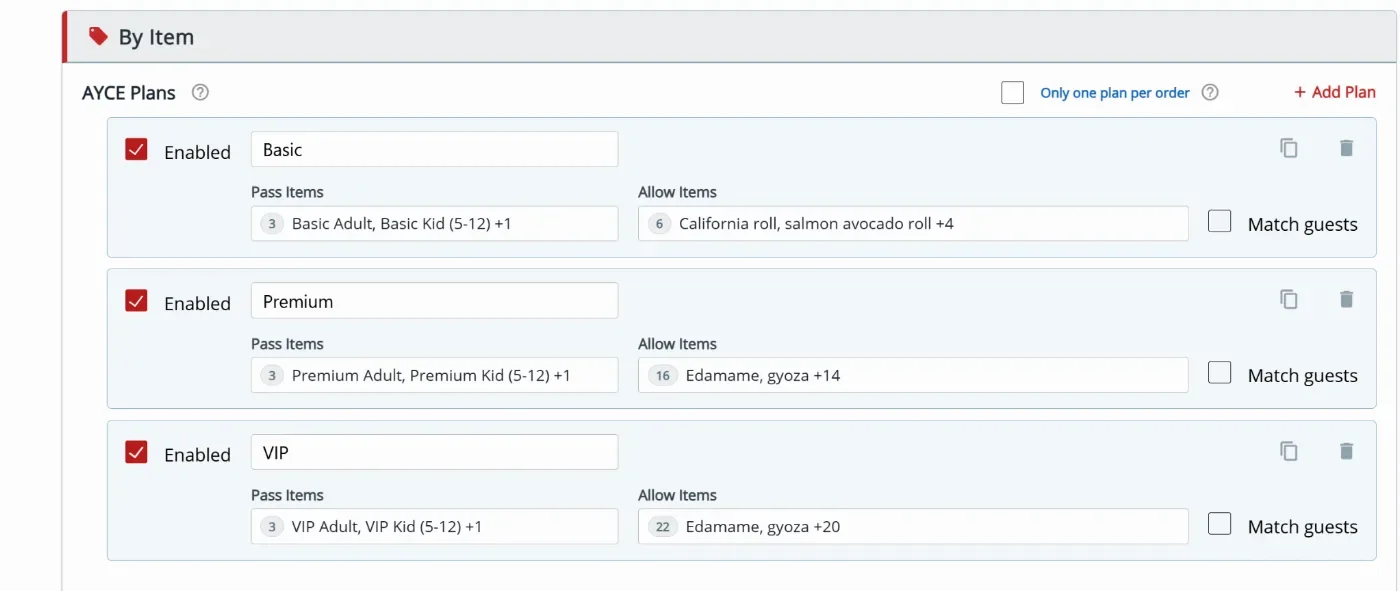
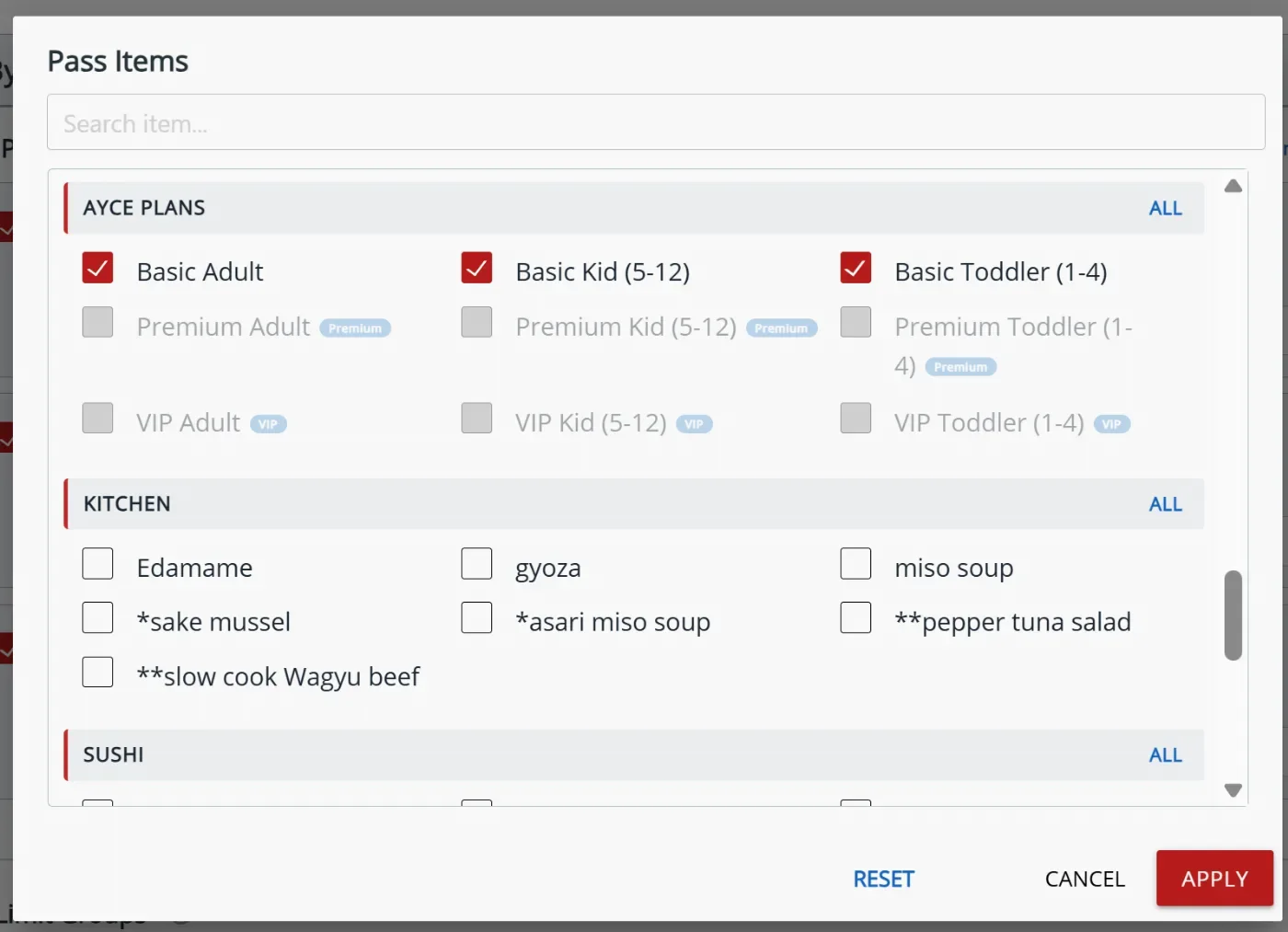
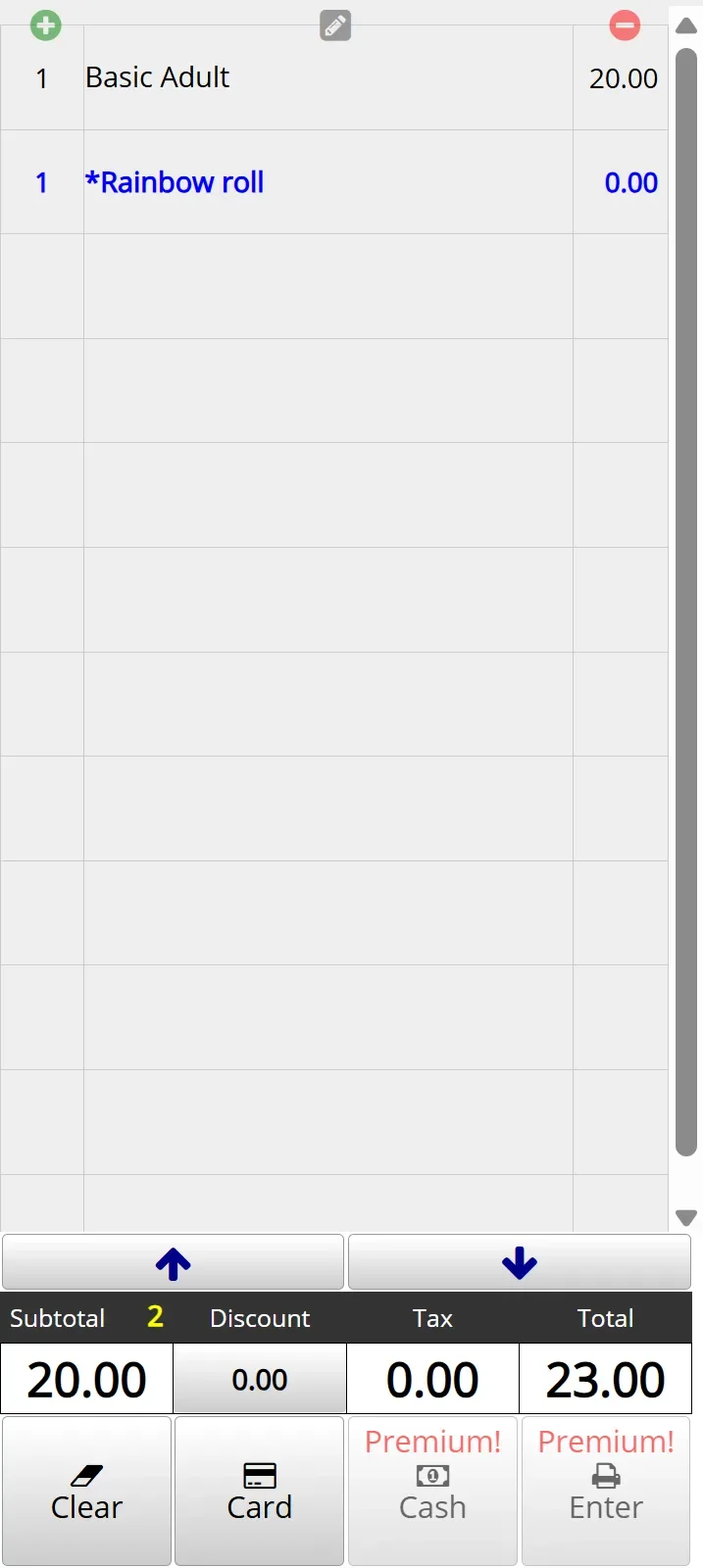
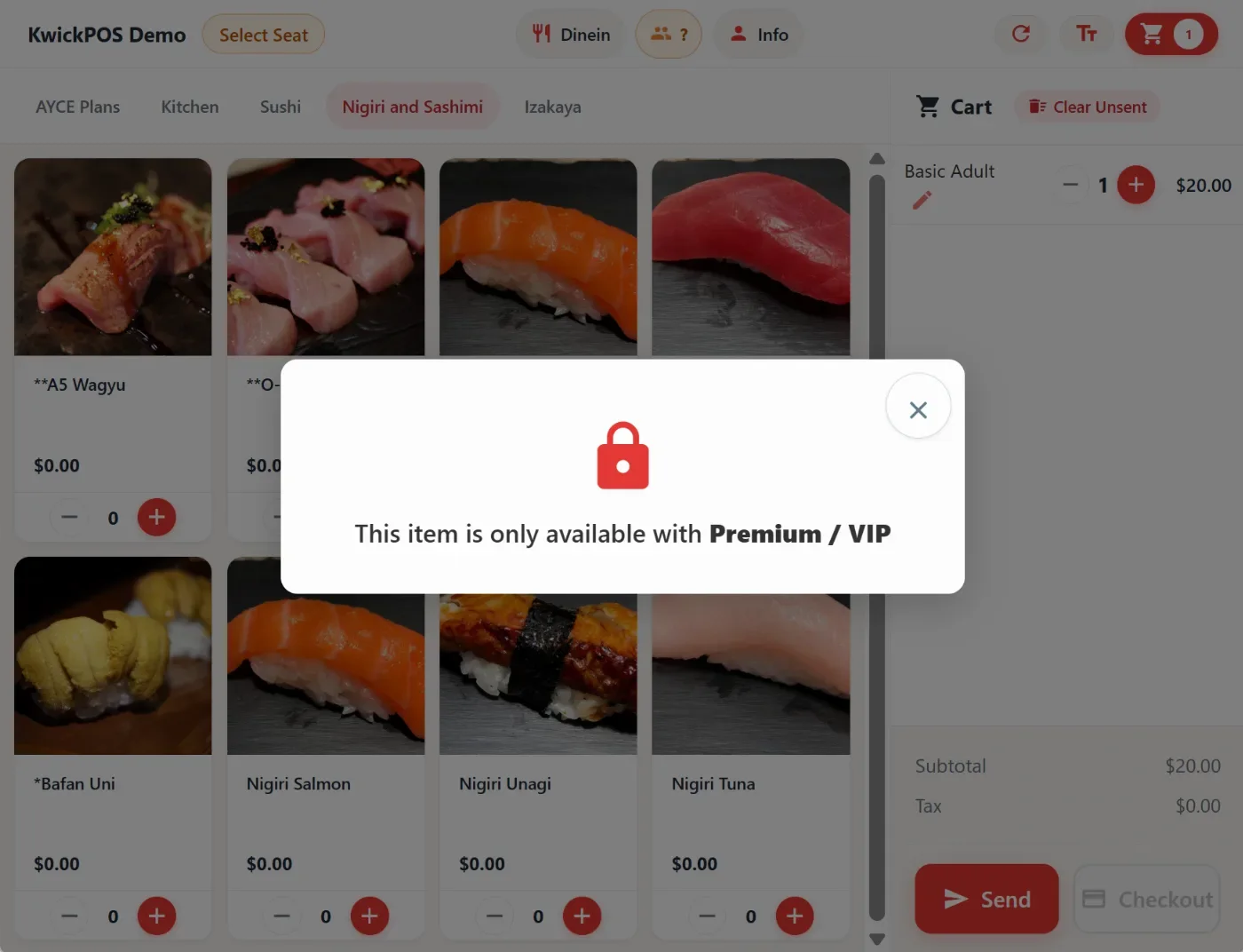
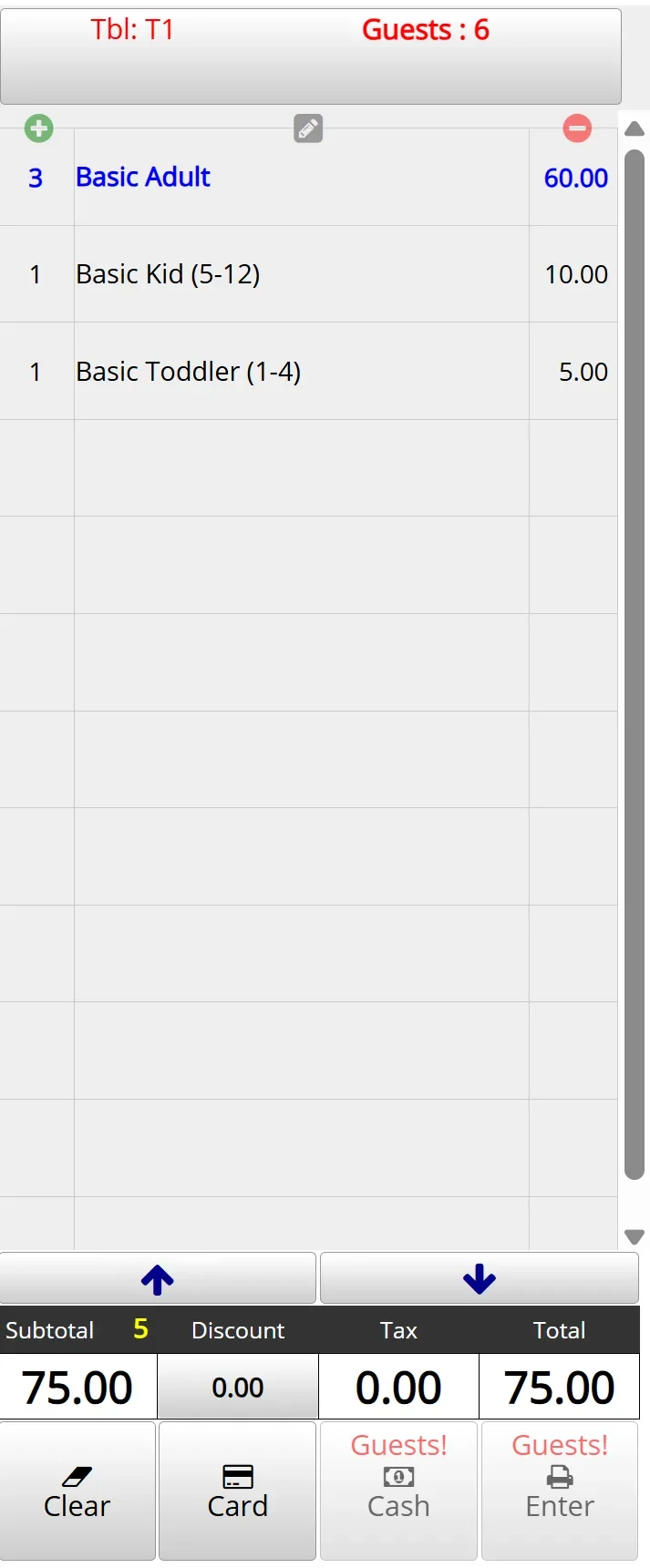
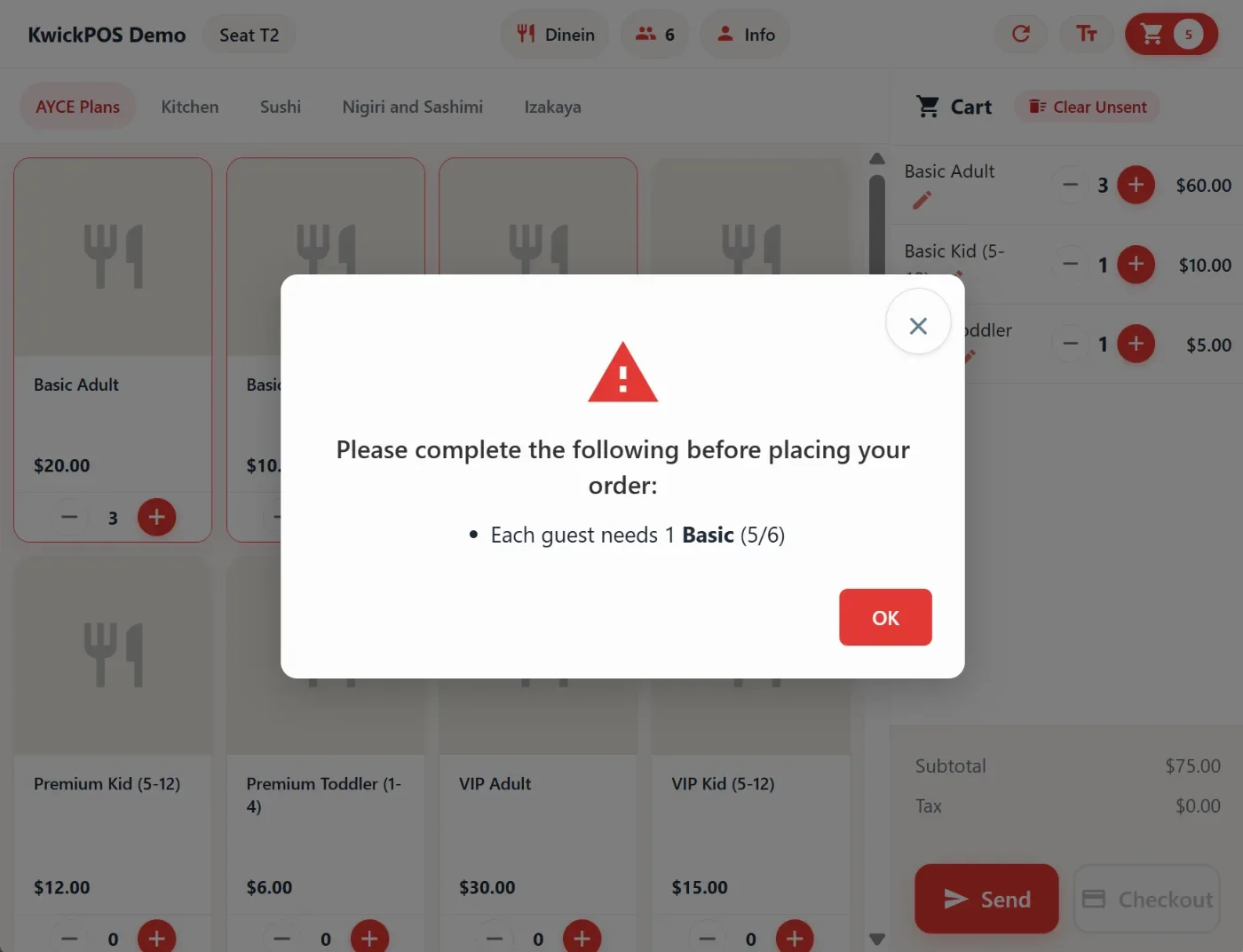
- When setting up AYCE Plan, we can enforce that the quantity of AYCE Plan items exceeds the guest count. The alert will show on both the POS and the new tablet mode. This can be configured in Apps > AYCE > By Item > AYCE Plan > Match guests. When using match guests with the new tablet mode, the number of guests should be set up as required on the tablet. This can be configured in Apps > Tablet Ipad > Customer Information > Number of Guests > Required. [Ticket #346617]
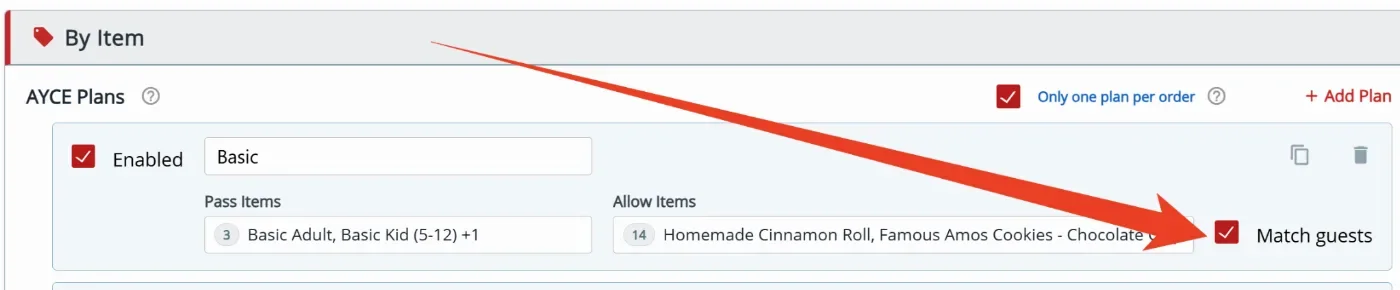
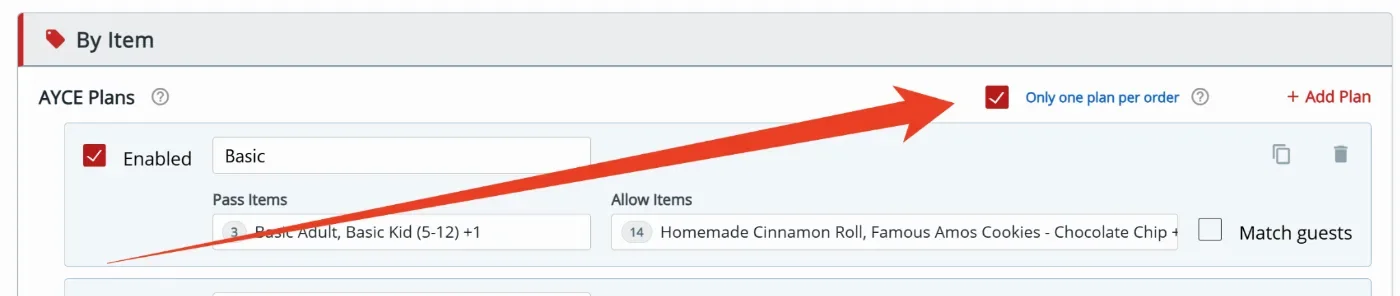
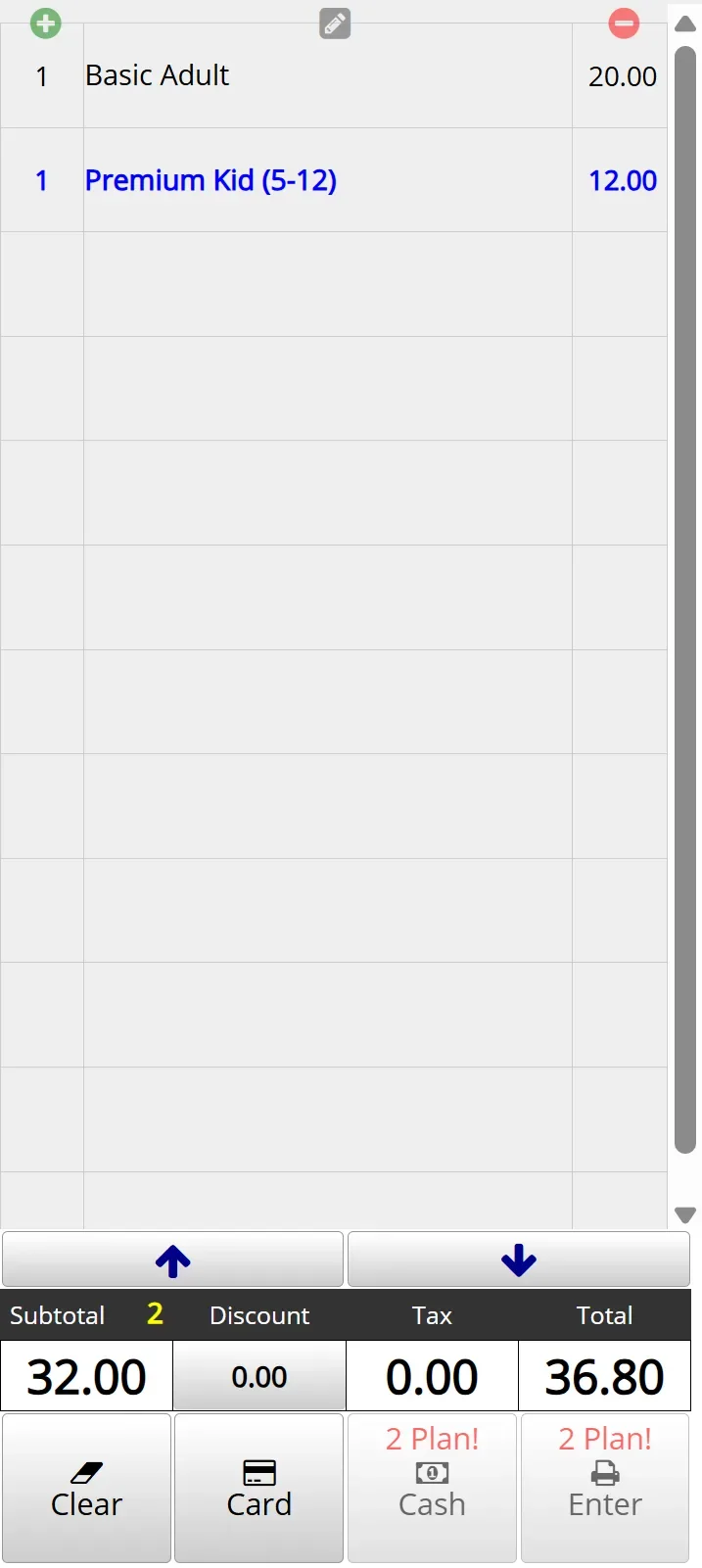
- When multiple AYCE plans tiers are set up, we can enforce that guests at the same table use the same plan. The alert will show on both the POS and the new tablet mode. This can be configured in Apps > AYCE > By Item > AYCE Plan > Only one plan per order. [Ticket #346617]
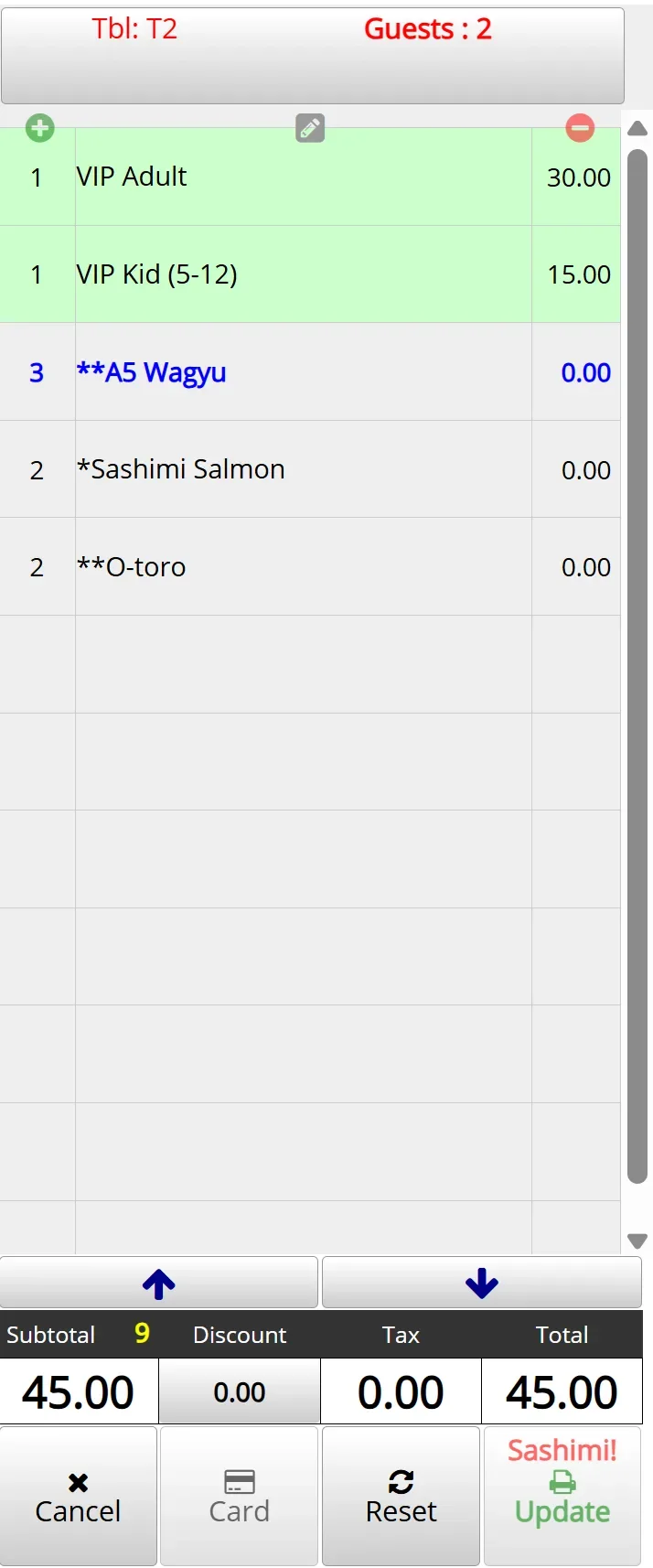
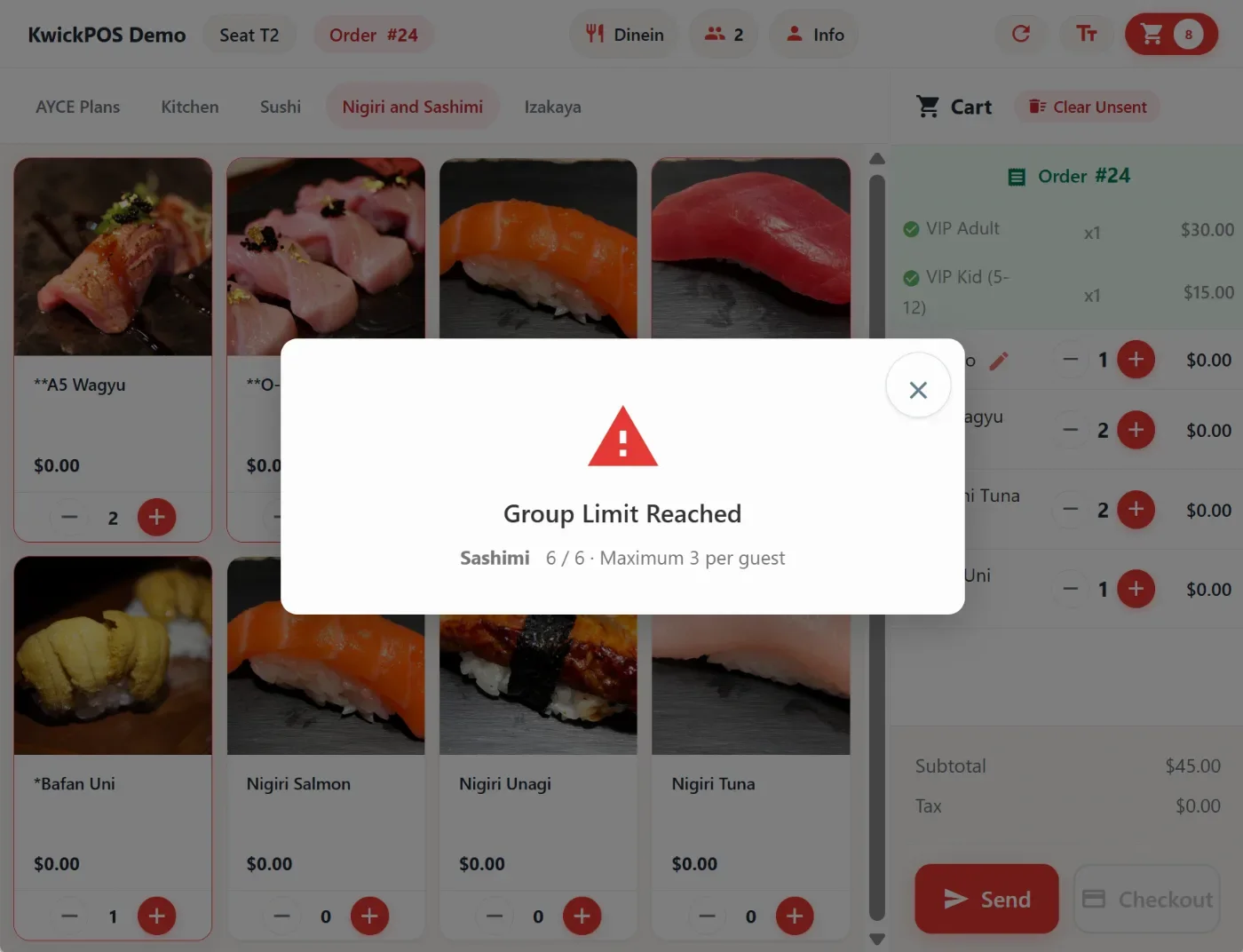
- In the new version, we can set up item limit groups for AYCE, which can limit each guest to a maximum of X items in the group. When the user exceeds the limit, the system will prompt the limit. The alert will show on both the POS and the new tablet mode. This can be configured in Apps > AYCE > By Item > AYCE Plan > Only one plan per order. [Ticket #346617]

Other:
- In the new version, you can now enable Settings -> Payments -> Credit Setting -> Tip and Display Settings -> CC Terminal filter at Credit page to allow you to filter transactions by credit card machine in the credit tool.
- In the new version, you can add a confirmation modal when moving an item back to the working page on the Kitchen and Packer Display. This can be configured at Setup -> Orders -> KDS Setting -> Confirm before moving item/ticket back to working page
- Salon Enhancement:
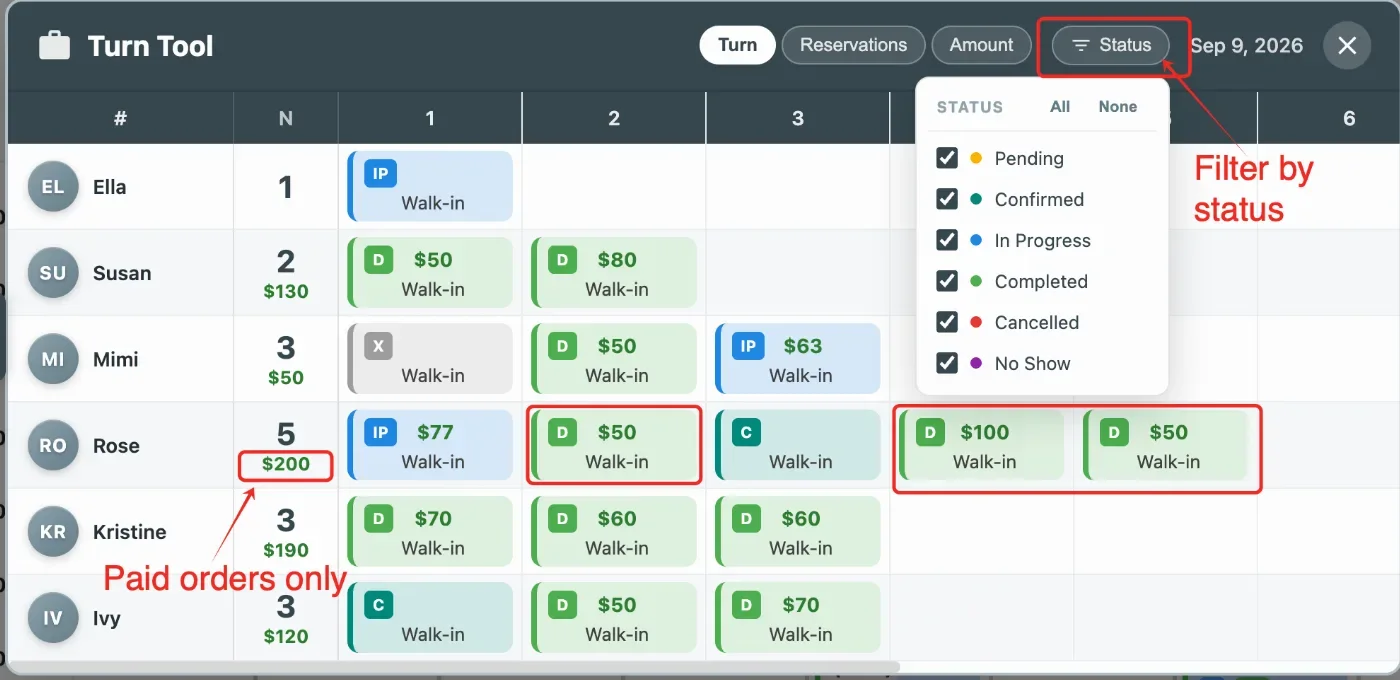
- In the Turns Report, technicians who are off or on vacation today will be hidden [Ticket # 349806]
- In the Turns Report, total sales for each technician will exclude unpaid orders; [Ticket #349718]
- In the Turns Report, added a filter tool to filter reservations by reservation status
- Reservations now allow overlapping times when using drag-and-drop. [Ticket # 349717]
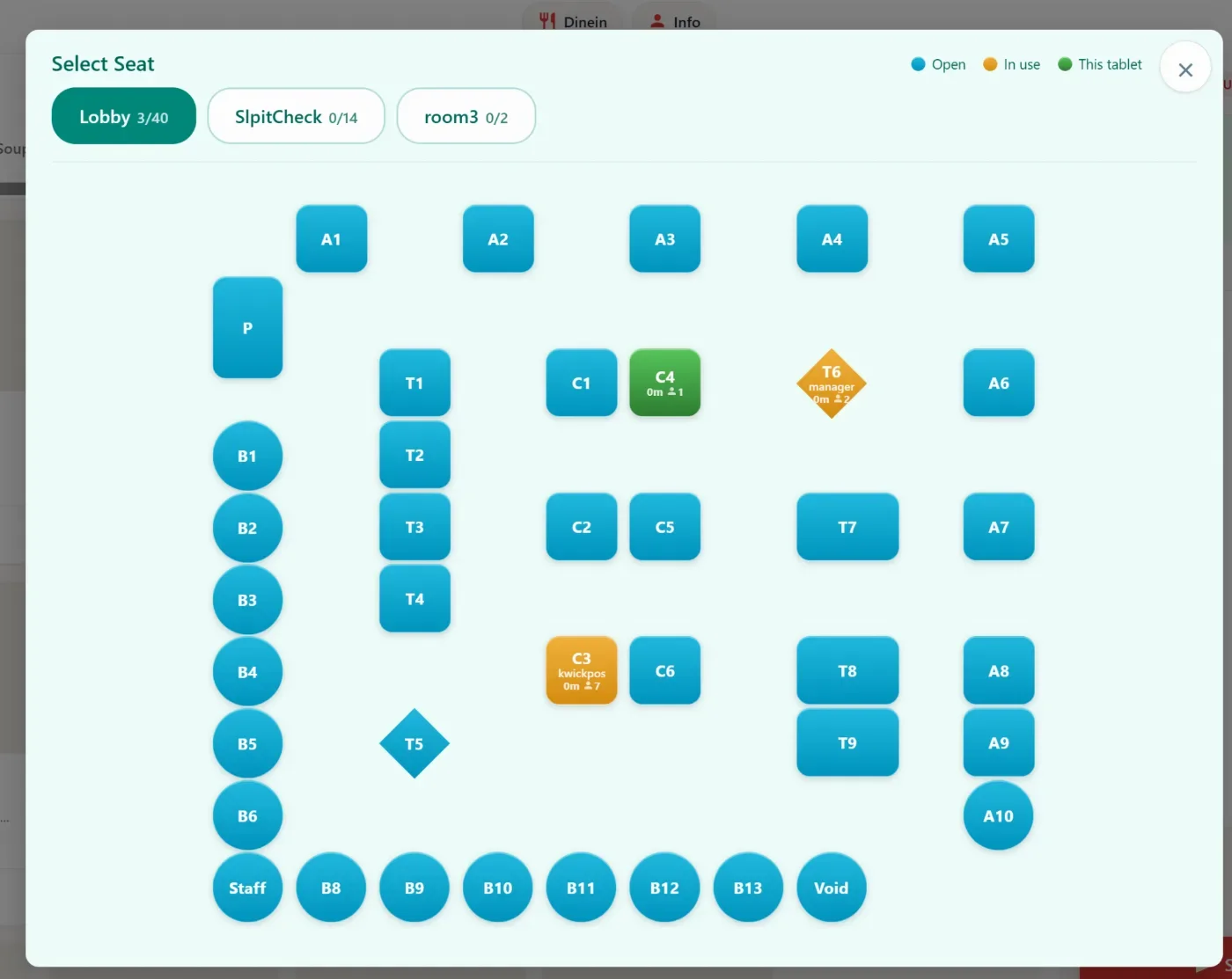
- In the new version, for new tablet mode, the seat selection layout has been updated to be the same as table layout in POS Dine-In mode. [Ticket # 341524]
- In the new version, for new tablet mode, users can now upload up to 5 images to display screensaver. Configure at: Apps > Tablet Ipad > Screensaver. [Ticket # 348853]
- In the new version, for the Kiosk mode, we added an option to hide the default “Tap to Order” button on the Kiosk start screen, allowing merchants to use a custom background image without duplicate text. Configure at: Apps > Kiosk > Tap to Order Screen. [Ticket #351676]
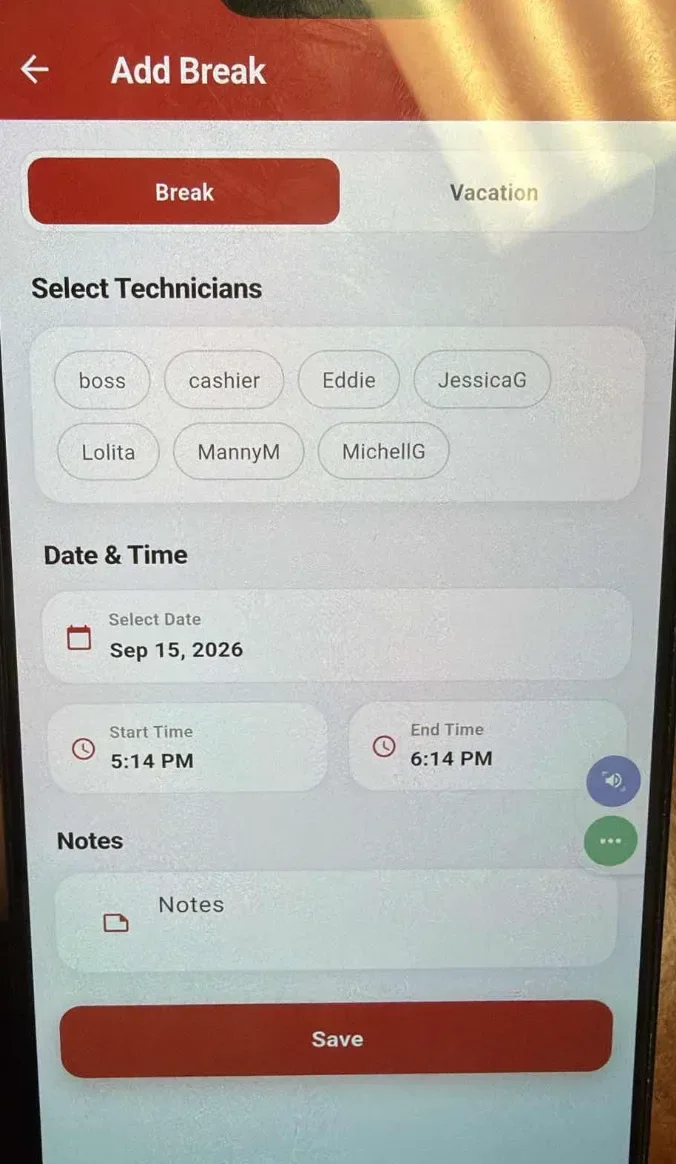
- In the new version, we added the ability to add breaks for employees in the Salon App, allowing staff break times to be managed directly in the app. [Ticket #351676]
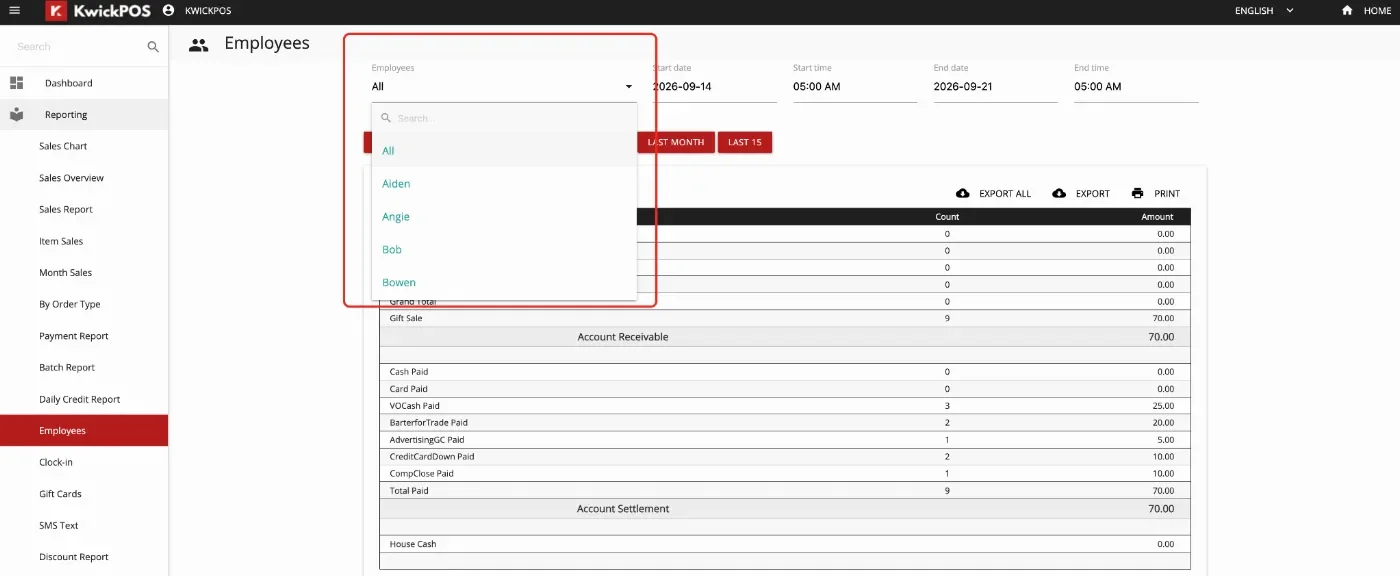
- In the new version, when a drop-down list contains more than 20 options, a search input field is automatically added, which enables users to quickly find options by entering text and searching.
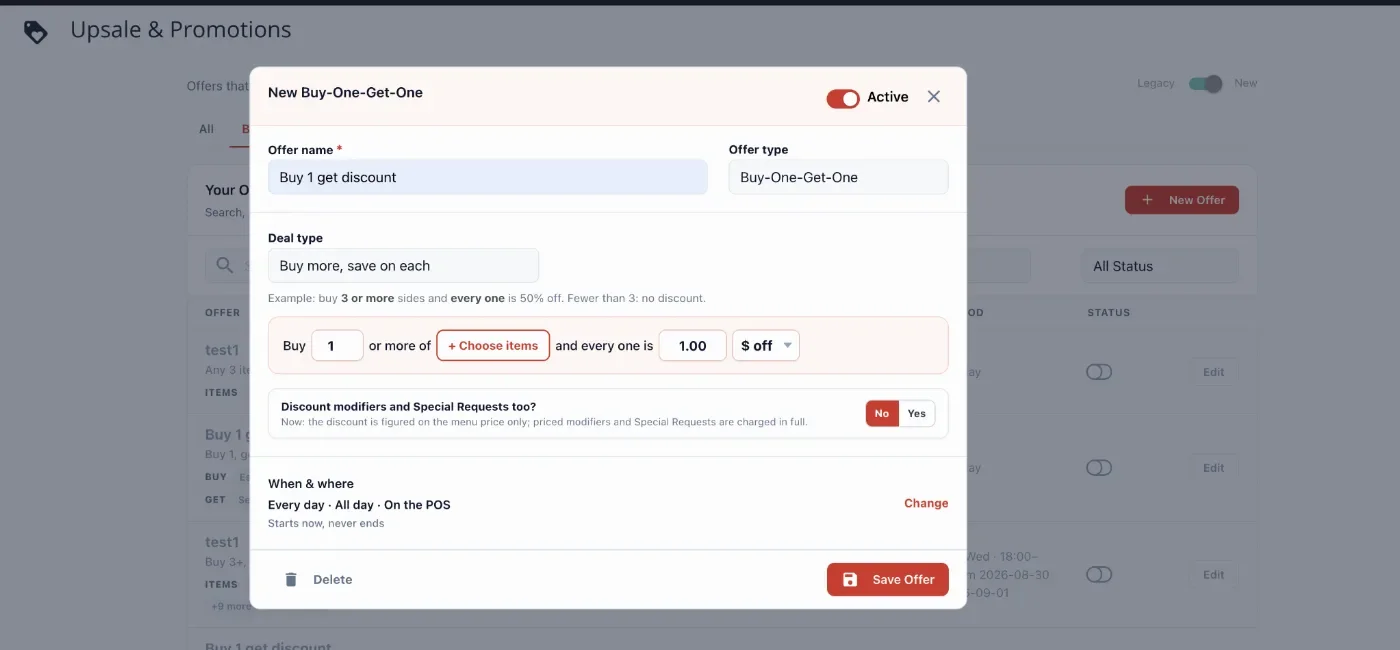
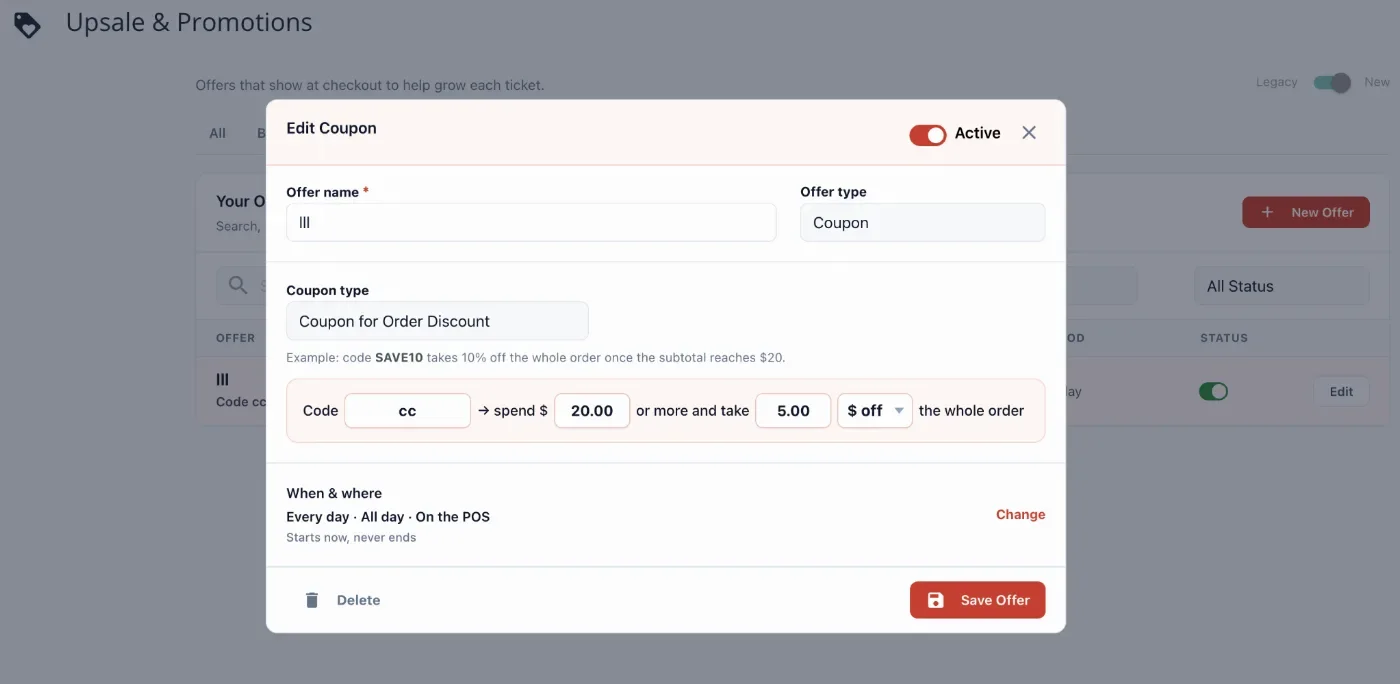
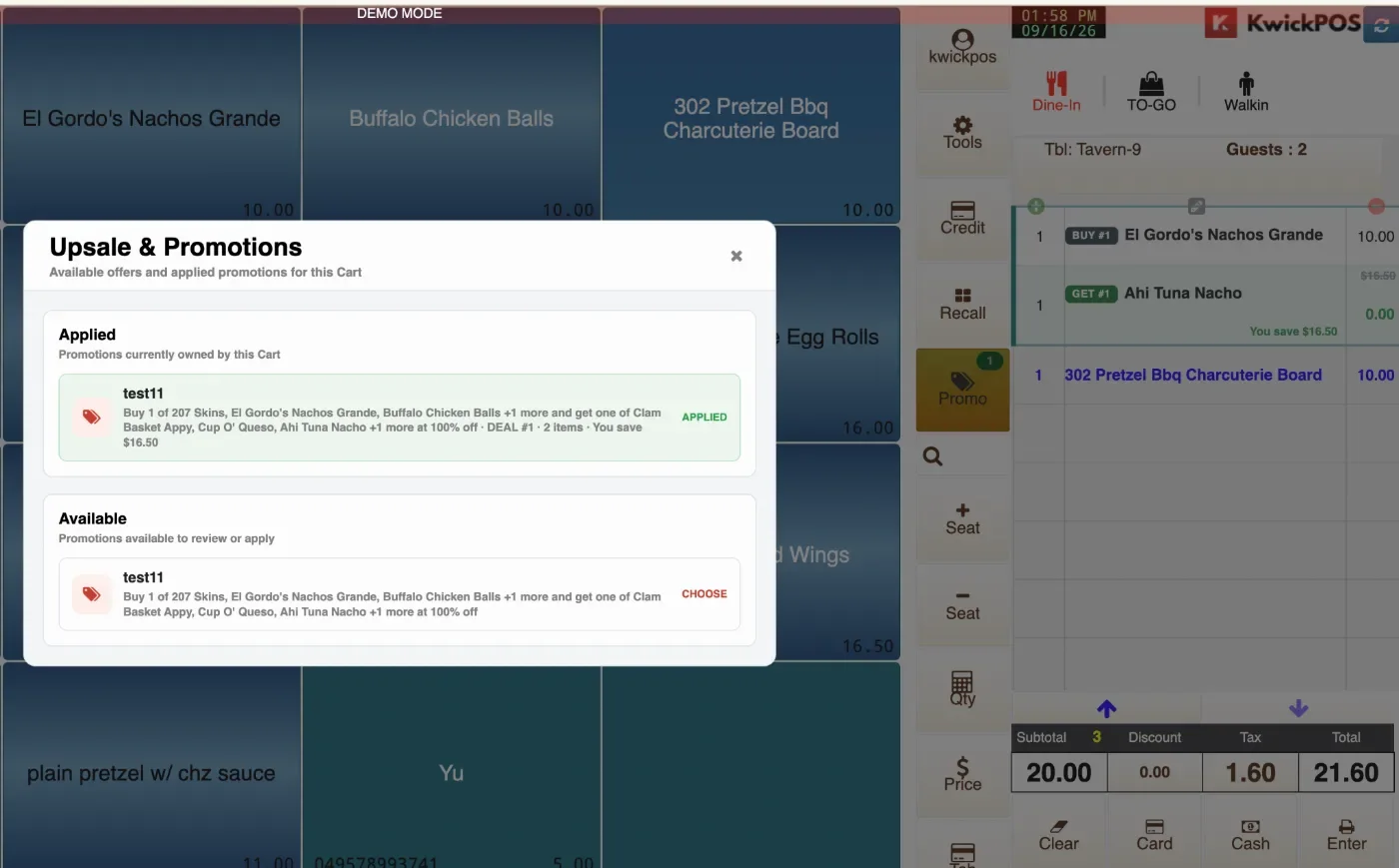
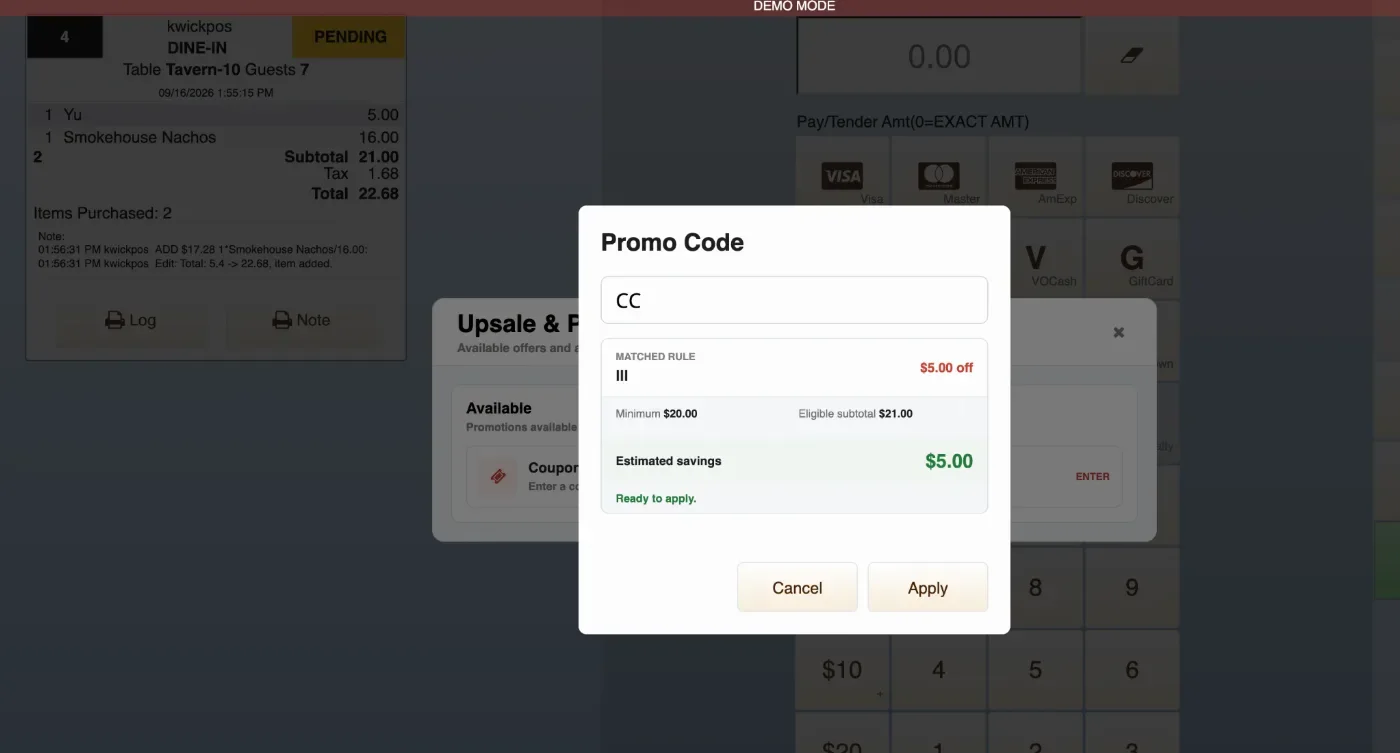
- In the new version, we redesigned Upsale & Promotions with more flexible promotion types, including Buy-One-Get-One, Buy More Save on Each, Bundle Price, Free Item, Order Discount, and Coupon. Merchants can configure eligible items, discount values, promotion schedules, and coupon codes, and employees can view and apply available promotions directly from the Promo tool on the menu and cart page on the POS. Configure at: Apps > Upsale Promo.
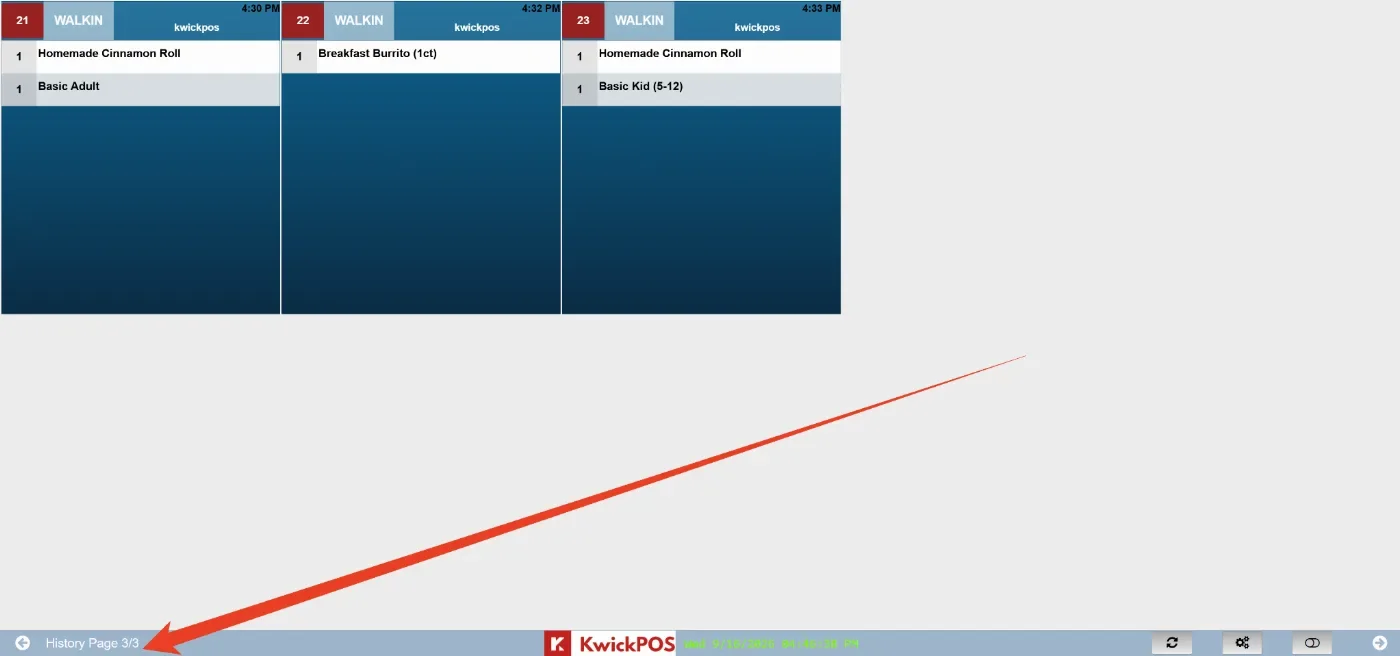
- In the new version, we added a page number to the Kitchen and Packer display’s history pages.
Online:
KwickMenu.com:
- In the previous version, modifiers on the online menu could display with uneven spacing and misalignment. In the new version, this issue has been fixed.
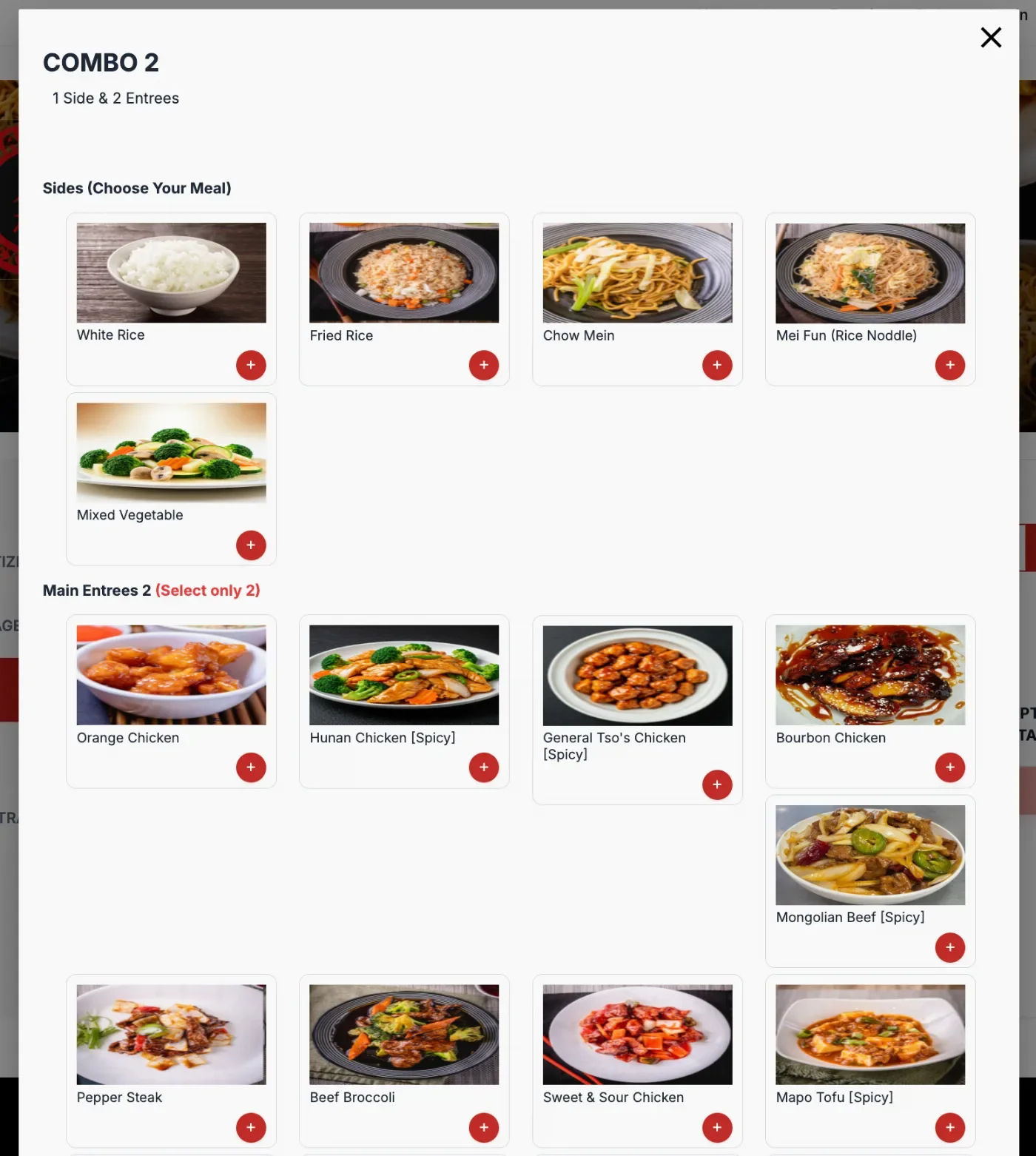
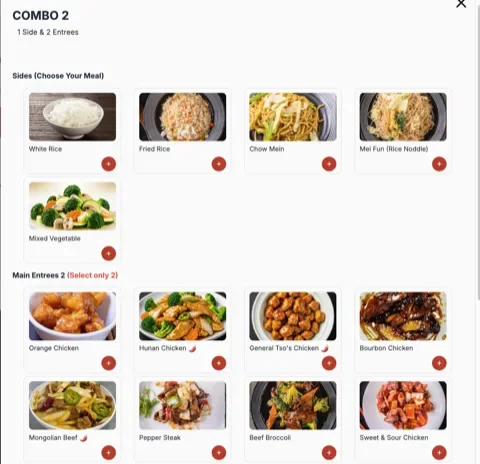
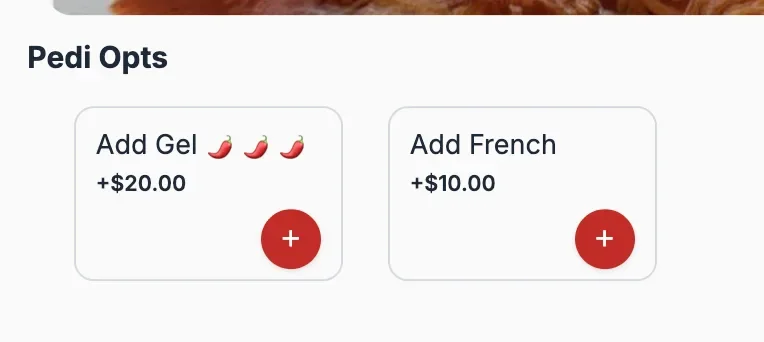
- In the new version, spicy modifiers on the online KwickMenu can display a chili symbol to help customers identify spicy options
Other:
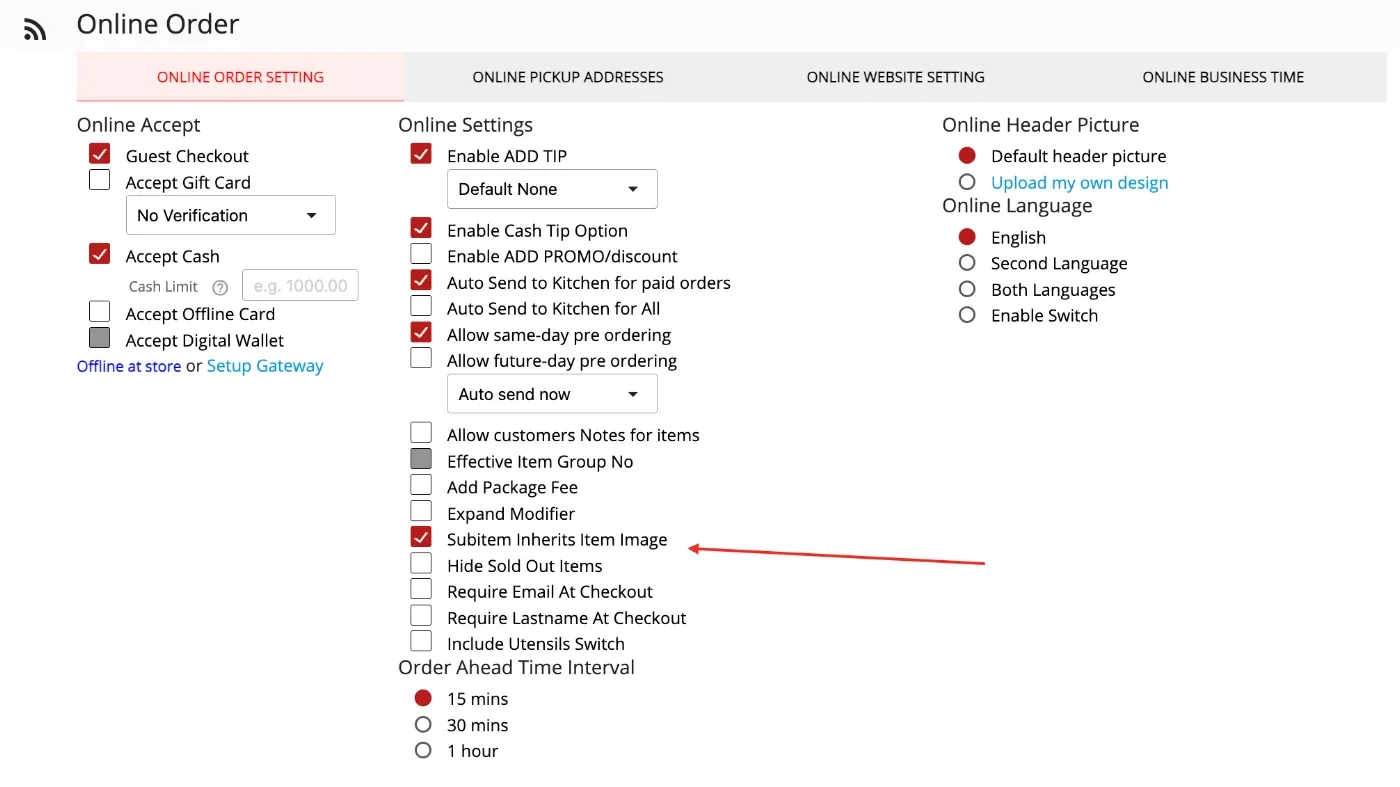
- In the new version, we added an option to control whether subitems inherit the main item image on Online Ordering website. This can be configured under Apps > Online Order > Online Order Setting > Subitem Inherits Item Image.
Still need a hand?
Our 24/7 support team can walk you through it.
Call (888) 355-6996